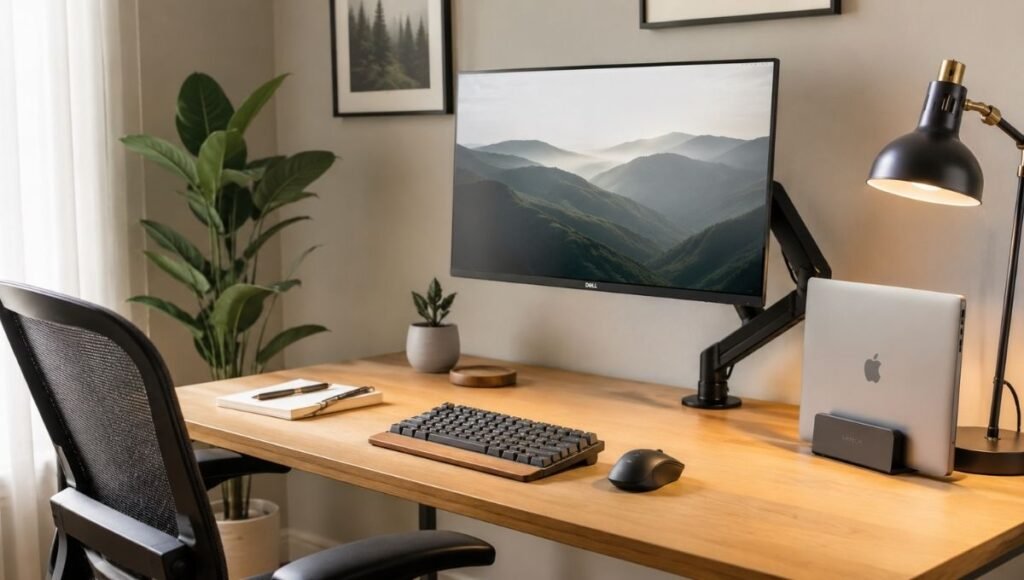
Most home offices weren’t designed. They happened.
A laptop on the kitchen table became a temporary solution that lasted six months. A spare bedroom got a desk from a flat-pack box and whatever chair was available. A corner of the living room became a workspace because there was nowhere else to put it. These setups work — in the sense that work gets done — but they accumulate a physical cost that shows up gradually: a tightness in the neck by mid-afternoon, lower back stiffness that follows you off the desk, eyes that feel tired by 3 p.m. even when you’ve slept well.
The problem is rarely the equipment. It’s the configuration. A good chair adjusted to the wrong height doesn’t protect your spine. A laptop on a desk at the wrong height causes the same neck strain as a laptop on a kitchen table. Spending money on ergonomic accessories doesn’t help if the foundation — desk height, screen position, keyboard placement — is wrong.
This guide covers the complete home office setup from the ground up: the correct measurements and positions first, then the gear decisions, then the organization and environment that make the space actually usable long-term. Every section links to deeper guides on specific topics where we’ve covered them in detail.
Key Takeaways
- Most home office pain comes from three fixable positioning errors: screen too low, keyboard too high, mouse too far right — none of these require new equipment to fix
- The correct sequence for setting up a home office is: chair height → desk height → screen position → keyboard and mouse → lighting → organization — each step depends on the previous one
- A laptop sitting flat on a desk puts the screen 4–6 inches below optimal eye level for most adults; a $25–40 laptop stand eliminates this without buying new hardware
- According to Cornell University ergonomics research, proper workstation setup reduces musculoskeletal discomfort and measurably improves productivity — the adjustments are specific and the measurements matter
- Budget isn’t the primary variable in home office setup quality: correct positioning of existing equipment consistently outperforms expensive equipment used incorrectly
Start Here: The Five-Minute Diagnosis
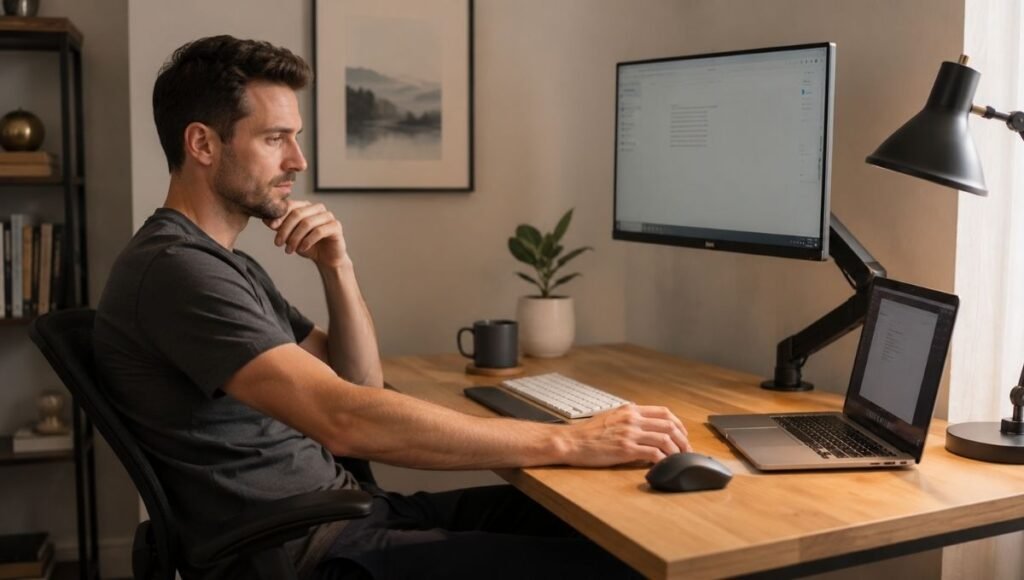
Before buying anything or rearranging your desk, sit in your workspace the way you normally do — not the way you think you should, but the way you actually do at 4 p.m. on a Thursday when you’re tired. Then check these five things:
Where is the top of your screen relative to your eyes? Looking straight ahead, your eyes should land on the top third of your screen. If you’re looking downward at more than a slight angle, your screen is too low. This is the most common single cause of neck tension in home offices.
Where are your elbows when you type? Your forearms should be roughly parallel to the floor with your elbows at approximately 90 degrees. If your shoulders are slightly elevated to reach the keyboard, your desk or keyboard is too high.
How far is your mouse from your keyboard? Reach for your mouse from your typing position. If you’re extending your arm noticeably to the right, the mouse is too far — and you’re loading your shoulder with every reach, thousands of times per day.
Is your screen the brightest thing in your field of vision? If your monitor stands out significantly from the surrounding environment in terms of brightness, your eyes are working constantly to adjust between the screen and the room. This causes the afternoon fatigue that feels like tiredness but is actually eye strain.
Are you sitting with your feet flat on the floor? Feet dangling or tucked under the chair shifts your whole postural chain. Everything else adjusts incorrectly downstream.
Identify which of these applies to your current setup. Fix those first. The remaining sections tell you how.
Step 1: Get the Chair and Desk Height Right
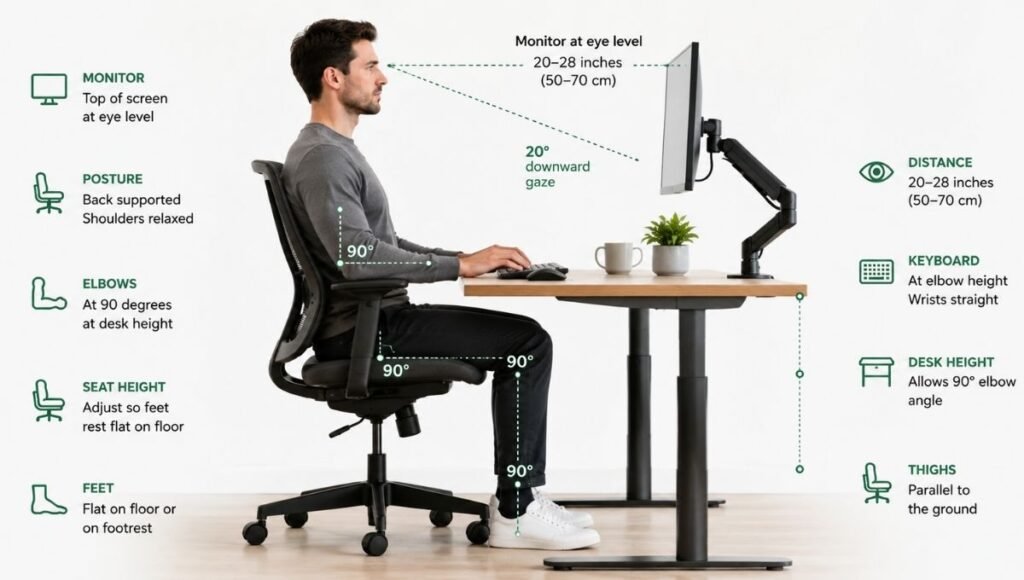
Everything calibrates from chair height. This is the foundation.
Correct chair height: Sit back in your chair. Adjust the seat height until your feet rest flat on the floor and your thighs are roughly parallel to the ground with knees at approximately 90 degrees. Leave 1–2 inches between the back of your knee and the seat edge — this prevents circulation restriction during long sessions. If your feet don’t reach the floor at the right seat height, use a footrest rather than lowering the chair.
Correct desk height: With your chair correctly adjusted, your keyboard should sit at a height where your forearms are roughly parallel to the floor when you’re typing — elbows at about 90 degrees, upper arms hanging naturally from your shoulders. For most adults in a properly adjusted chair, this is approximately 28–30 inches from the floor.
Most dining tables and kitchen counters are 30–36 inches — too high for comfortable typing for most people. If your desk is too high, options are: raise your chair and use a footrest, use a keyboard tray that drops below desk surface level, or invest in a height-adjustable desk.
The quick test: Sit correctly, let your arms hang naturally, then bend your elbows to 90 degrees. Your hands should land at or just above your current keyboard height. If you’re raising your shoulders or bending your wrists upward to type, something in this chain is wrong.
Step 2: Fix Your Screen Position
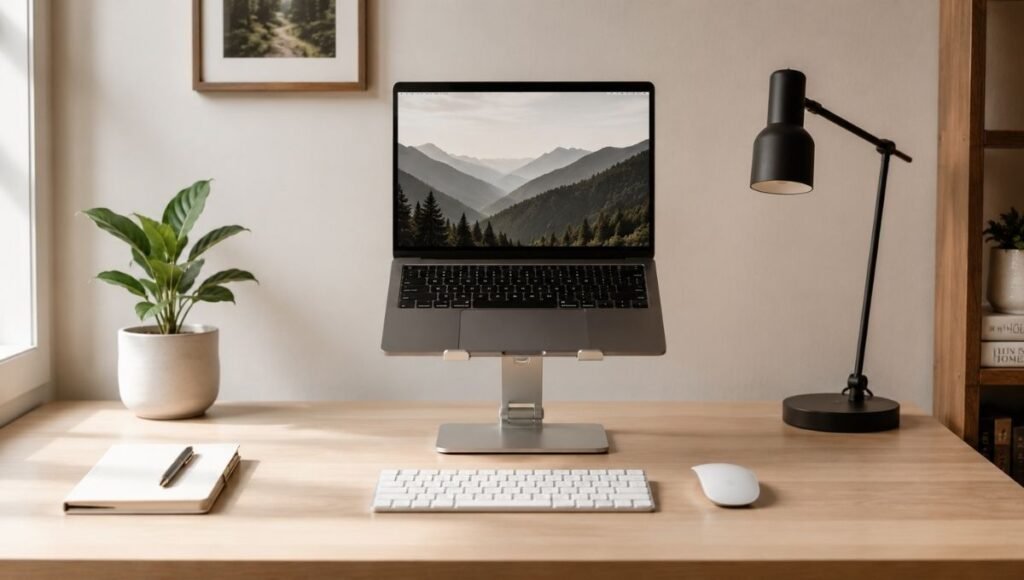
Screen position is the second most correctable problem in home offices and the one that most directly affects neck health.
The correct position: The top of your screen should be at or slightly below eye level when you’re sitting with correct posture. Looking slightly downward at your screen is natural and comfortable — it’s the resting position for both the eyes and the cervical spine. Looking upward at the screen creates sustained neck extension that accumulates into the stiffness most desk workers assume is just part of working.
Distance: About an arm’s length from your face — roughly 20–28 inches. Close enough to read without leaning forward; far enough that you’re not working with your eyes at maximum focus effort.
The laptop problem: A laptop sitting flat on a desk puts the screen 4–6 inches below optimal eye level for most adults. This forces you into a forward head position for every hour you work. A laptop stand ($25–40) raises the screen to the right height. You’ll need an external keyboard and mouse when the laptop is elevated — but that combination solves both the screen height problem and the keyboard height problem simultaneously.
External monitor position: Place the monitor directly in front of you, centered with your body. If you use two monitors, the primary one should be directly in front and the secondary slightly to the side — not both to the side requiring constant neck rotation. Use a monitor arm ($40–80) if your monitor’s built-in stand doesn’t raise the screen to eye level.
Step 3: Configure Keyboard and Mouse
With your chair, desk, and screen correctly positioned, keyboard and mouse placement becomes straightforward — but there are decisions within it that significantly affect wrist and shoulder health over time.
Keyboard position: Center the B key with your belly button. This keeps your hands symmetrically positioned. Your keyboard’s built-in feet (the small legs on the back) are typically worth folding down — they create a positive tilt (back higher than front) that bends your wrists upward during typing. Flat or slightly negative tilt is more wrist-friendly.
Keyboard size: Full-size keyboards with number pads push your mouse 3–5 inches further right than necessary for most right-handed users. A tenkeyless (TKL) keyboard or compact keyboard brings your mouse closer to center, reducing the shoulder load from repeated reaching. This single change is often the fastest way to reduce shoulder tension from mouse use.
Mouse distance: Your mouse should sit directly beside your keyboard, reachable without extending your arm. Measure from the keyboard center to the mouse — more than 8 inches is too far. More than 10 inches is a shoulder strain problem.
Mouse type: Different types address different discomfort patterns. Standard mice are fine for general use. Vertical mice reduce forearm pronation and help people with forearm ache that builds through the day. Trackball mice eliminate arm movement entirely — good for shoulder and upper arm fatigue from repetitive sweeping.
→ Full guide: Ergonomic Desk Setup Guide: Keyboard, Mouse, and Workspace to Prevent Pain →
Step 4: Sort Your Lighting
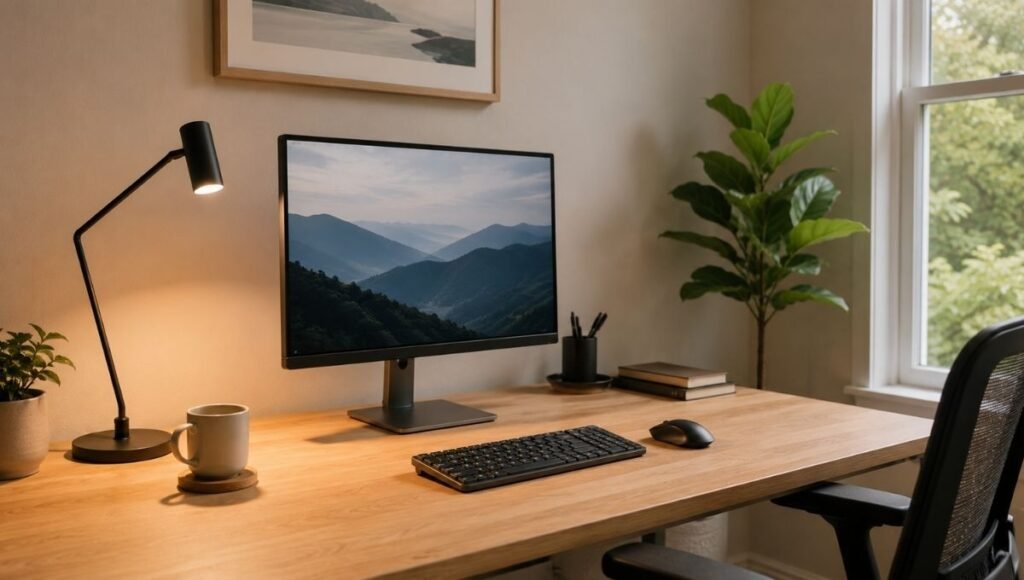
Lighting is consistently the most underfunded and most overlooked element of home office setup. It’s also one of the fastest causes of the afternoon fatigue and headaches that people attribute to other things.
Natural light position: Position your desk so natural light comes from the side — not from behind you (glare on the screen) and not from directly in front (bright background behind your monitor that forces pupil contraction). Side lighting illuminates your workspace without competing with your screen.
Room brightness: Your monitor should not be the brightest thing in your field of vision. When the screen is significantly brighter than the surrounding environment, your pupils adjust constantly as your gaze moves between the screen and the room. This micro-adjustment over hours causes the eye fatigue that feels like tiredness but resolves quickly when you step outside.
Aim for ambient room lighting at roughly the same brightness as your screen. If your room is dark and your screen is bright, either increase room lighting or reduce screen brightness.
Desk lamp: A desk lamp positioned to the side of your monitor — not directly in front — adds focused illumination to your work surface without creating screen glare. Daylight-temperature bulbs (5000–6500K) reduce the contrast between the screen and the surrounding environment.
Video calls: Overhead room lighting creates shadows under your eyes on video calls, making you look tired. A small key light or ring light positioned in front of you at eye level provides flattering front illumination. This is a $20–40 fix that significantly changes how you appear in every meeting.
Evening use: Blue-dominant screen light in the evening suppresses melatonin production, affecting sleep quality. Enable night mode (warm color shift) on your devices after sunset — most operating systems handle this automatically.
→ Full guide: Eye Strain Relief for Remote Workers →
Step 5: Organize the Desk Surface
A cluttered desk creates a subtle but persistent sense of disorder that affects focus. In a home office where work and personal life share the same space, visible chaos compounds the difficulty of transitioning into focused work mode.
The primary reach zone: Keep only frequently used items within the zone you can reach without leaning or twisting — typically a semicircle of about 12–18 inches from your seated position. This includes your keyboard, mouse, phone, and anything you touch multiple times per hour. Items used occasionally can live further away.
Cable management: Visible cable tangles are one of the fastest visual improvements to make. Velcro cable ties ($8 for a pack), adhesive cable clips along the desk edge ($10), and a power strip mounted under the desk surface rather than on the floor takes twenty minutes and $20. Under-desk cable trays hold power strips and excess cable runs out of sight.
Surface clearing: The desk surface should have as few permanent items as possible beyond your core setup. Notebooks, reference materials, and peripherals that aren’t used daily should have a defined storage location off the desk. A clear desk at the start of the day reduces the visual friction that makes starting work harder than it should be.
→ Full guide: Desk Organization Ideas That Actually Stick →
Step 6: Choose the Right Gear (By Priority)
Once the configuration is correct, gear decisions become more straightforward. Here’s the priority order for investment — which purchases have the highest impact for most remote workers.
Priority 1: Laptop Stand + External Keyboard and Mouse (~$60–100 total)
For anyone using a laptop as their primary computer, this combination delivers the largest ergonomic improvement at the lowest cost. The stand raises your screen to eye level ($25–40). The external keyboard and mouse return your hands to the correct lower position ($35–60 for a wireless combo).
This is the highest ROI home office purchase most people can make.
→ Full guide: Adjustable Laptop Stand for Desk → → Full guide: Wireless Keyboard and Mouse Combo for Home Office →
Priority 2: Surge Protector (~$25–35)
A basic power strip provides zero protection when voltage spikes. A surge protector with 1,000+ joules and UL 1449 certification protects equipment worth many times the cost of the protector. This is non-optional for a desk with $1,500+ of electronics.
→ Full guide: Surge Protector vs Power Strip →
Priority 3: External Monitor (~$200–280)
A 27-inch 1440p external monitor at eye level on a monitor arm is the highest-value display upgrade for laptop users. It eliminates looking down at the laptop screen, adds screen real estate for working across multiple windows, and improves posture for the hours you spend at your desk.
→ Full guide: Dual Monitor Setup Guide →
Priority 4: Ergonomic Input Devices (~$30–100)
If you’re experiencing wrist, forearm, or hand discomfort despite correct positioning, ergonomic keyboards and mice address the remaining biomechanical issues. Vertical mice reduce forearm pronation. Split keyboards reduce wrist deviation. Both have adaptation periods — expect 1–3 weeks before they feel natural.
→ Full guide: Best Ergonomic Keyboard for Home Office → → Full guide: Vertical Mouse: Does It Actually Work? →
Priority 5: Noise-Cancelling Headphones (~$50–350)
For anyone in a shared living space or on frequent video calls, noise-cancelling headphones are consistently described as the accessory that most changes the experience of working from home. They block distracting ambient sound and serve as a universal signal to others that you’re in work mode.
→ Full guide: Best Headphones for Working from Home →
The Home Office on a Budget: What to Prioritize
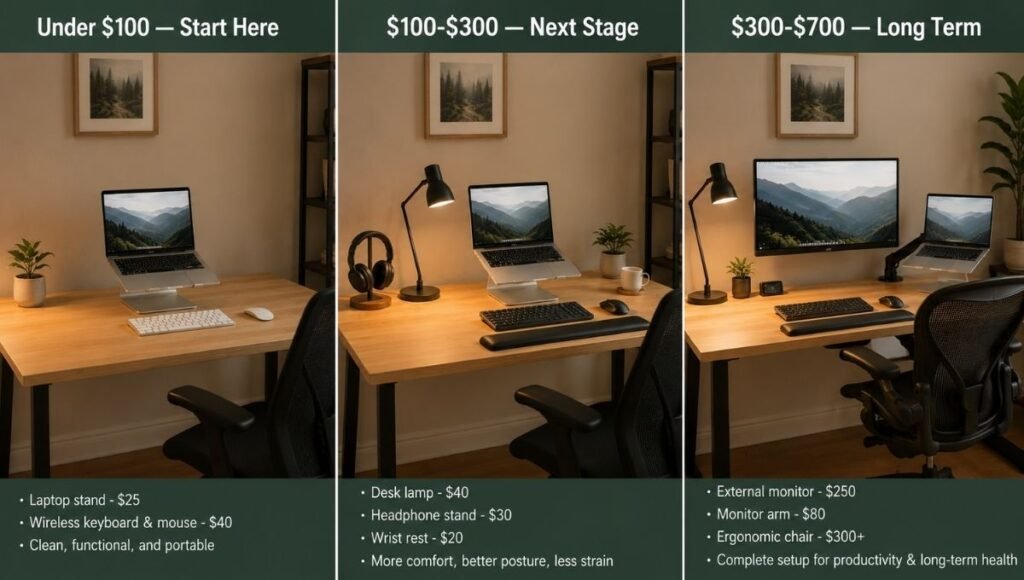
A complete home office doesn’t require a large upfront investment. Here’s how to stage it:
Under $100 (start here):
- Laptop stand: $25–40
- Wireless keyboard and mouse: $35–60
- Surge protector: $25–35
- Cable management supplies: $15–20
This package solves the most common ergonomic problems for most remote workers and costs less than one month’s gym membership.
$100–300 (next stage):
- Noise-cancelling headphones: $50–150
- Desk lamp with adjustable temperature: $30–60
- Wrist rest for keyboard and mouse: $20–30
- Wireless charger for desk: $25–45
$300–700 (longer-term investment):
- External monitor (27-inch 1440p): $200–280
- Ergonomic chair: $150–400
- Monitor arm: $40–80
- USB-C hub or Thunderbolt dock: $60–200
Home Office Setup for Small Spaces
Not every home office has a dedicated room. Many of the most effective home offices occupy a corner of a bedroom, a section of a living room, or an alcove in a hallway. The constraints are real but workable.
Choose the right desk size. A 40–48 inch desk handles most setups with a monitor, keyboard, and basic peripherals without feeling cramped. L-shaped desks work well in corners and provide more surface area without requiring more floor space.
Use vertical space. Wall-mounted shelves above the desk handle reference materials, books, and items that would otherwise compete for surface space. A monitor arm frees the desk surface by lifting the monitor off a stand.
Create visual separation. In shared spaces, a visual boundary between the desk and the surrounding room helps with the psychological transition between work and rest. A rug under the desk, a bookshelf as a divider, or simply a consistent desk setup that’s distinct from the rest of the room all contribute to this.
→ Full guide: Small Home Office Ideas That Work in Any Space →
The Complete Home Office Setup Checklist
Foundation
- Chair height: feet flat, knees at ~90°, 1–2 inch gap behind knees
- Desk height: elbows at ~90° when typing, forearms parallel to floor
- Laptop on stand if using laptop as primary display
Screen
- Top of screen at or slightly below eye level
- Screen at arm’s length (20–28 inches)
- Monitor centered with body
Input Devices
- Keyboard flat or slight negative tilt (feet folded down)
- Mouse within 8 inches of keyboard center
- External keyboard and mouse if laptop is elevated on stand
Lighting
- Natural light from the side, not behind or in front
- Room brightness roughly matched to screen brightness
- Desk lamp to the side of monitor
- Key light or ring light for video calls
Protection and Organization
- Surge protector for all electronics
- Cable management: desk edge routing, under-desk power strip
- Frequently used items within primary reach zone
- Clear desk surface for daily reset
Movement
- 20-minute movement reminder set
- 20-20-20 eye rule practiced
FAQs
What do I need for a home office setup? The essentials: a desk at the right height, a chair you can adjust, a screen at eye level, keyboard and mouse at elbow height, good lighting, and surge protection for your electronics. For laptop users, a laptop stand and external keyboard and mouse is the single highest-impact starting purchase.
How much does a home office setup cost? A functional ergonomic setup starts around $60–100 (laptop stand, wireless keyboard and mouse, surge protector). A comfortable long-term setup with external monitor, ergonomic chair, and quality headphones runs $500–800. Most remote workers are well-served by the middle tier, built up over time rather than all at once.
How do I set up a home office in a small space? Prioritize vertical space: monitor arm, wall shelves, and a compact keyboard all reduce desk surface requirements. A 40-inch desk in a corner handles most setups. Visual separation from the rest of the room helps maintain the psychological boundary between work and rest in shared spaces.
What is the most important part of a home office setup? Screen position and chair/desk height — these are the configuration choices that most directly affect how your body feels after a full day of work. Expensive gear used at the wrong height or angle will consistently underperform inexpensive gear used correctly.
How do I reduce eye strain in my home office? Position your desk so natural light comes from the side. Match room brightness to screen brightness. Enable night mode in the evenings. Apply the 20-20-20 rule: every 20 minutes, look at something 20 feet away for 20 seconds.
Build It Once, Get It Right
A well-configured home office pays for itself quickly — in reduced physical discomfort, more sustainable working hours, and the absence of the low-grade friction that makes a poorly set up workspace feel like an additional thing to manage on top of your actual work.
The sequence matters: configuration first, gear second. Fix the chair height, the screen position, and the keyboard placement before spending money on accessories. Once those are right, the gear decisions become much simpler — you’re solving specific remaining problems rather than hoping that buying something new will fix an undiagnosed issue.
Start with the five-minute diagnosis at the top of this guide. Fix the biggest problem first. Add from there.
Everything Covered on CircuitSeek
Desk Setup
- Small Home Office Ideas That Work in Any Space →
- Desk Organization Ideas That Actually Stick →
- Standing Desk Benefits: What Research Actually Says →
Computers
- Home Office Computer Setup Guide →
- Dual Monitor Setup Guide →
- Why Is My Laptop So Slow? →
- Mac vs PC for Home Office →
- Thunderbolt Dock for Home Office →
- iPad vs MacBook for Work →
Input Devices
- Ergonomic Desk Setup Guide →
- Best Ergonomic Keyboard for Home Office →
- Vertical Mouse: Does It Actually Work? →
- Keyboard Wrist Rest →
- Wireless Keyboard and Mouse Combo →
- Ergonomic Mouse Types Compared →
- Best Bluetooth Keyboard for iPad →
Accessories
- The Essential Home Office Accessories Guide →
- Adjustable Laptop Stand for Desk →
- Best Headphones for Working from Home →
- Do Blue Light Glasses Work? →
- Best Wireless Charger for Desk →
- Best Desk Fan for Home Office →
- Surge Protector vs Power Strip →
Remote Work
References
- Cornell University Ergonomics Research Laboratory. Laptop Computer Ergonomics and Computer Workstation Setup. https://ergo.human.cornell.edu/
- OSHA. Computer Workstations eTool. https://www.osha.gov/etools/computer-workstations
- Mayo Clinic. Office ergonomics: Your how-to guide. https://www.mayoclinic.org/healthy-lifestyle/adult-health/in-depth/office-ergonomics/art-20046169
- National Institute for Occupational Safety and Health (NIOSH/CDC). Ergonomics and Musculoskeletal Disorders. https://www.cdc.gov/niosh/topics/ergonomics/