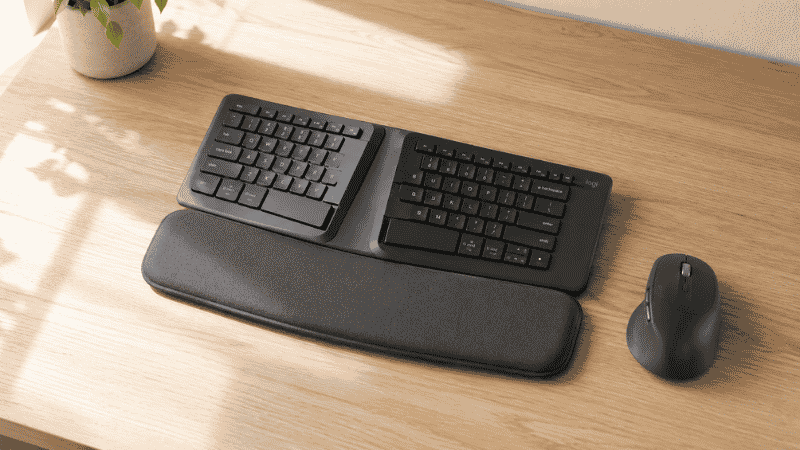
Your wrists probably don’t hurt yet. That’s actually the problem.
Repetitive strain from typing builds up quietly over months and years before it becomes something you’d call pain. By the time most people start searching for the best ergonomic keyboard, they’ve already spent hundreds of hours in positions that were slowly accumulating strain — wrists bent upward, forearms twisted inward, hands angled toward the center of a keyboard that was never designed for how bodies actually sit.
The good news is that switching to an ergonomic keyboard genuinely helps. Studies from the Cornell University Ergonomics Research Laboratory show that proper keyboard positioning reduces wrist extension by an average of 25 degrees — and that reduction in sustained awkward posture is exactly what prevents the cumulative strain that turns into RSI, carpal tunnel symptoms, and the kind of chronic wrist discomfort that eventually affects how much you can work.
The challenge is that “ergonomic keyboard” covers a wide range of designs, and not every type is right for every person or situation. This guide walks through what actually matters, which types suit which users, and which specific keyboards are worth your money in 2026 — without making you wade through a lab report to get there.
Key Takeaways
- Cornell University Ergonomics Research Laboratory found that proper keyboard positioning reduces wrist extension by 25 degrees on average — reducing the primary biomechanical cause of typing-related strain
- The three most common ergonomic keyboard designs — split, wave/curved, and Alice layout — address different aspects of typing posture; choosing the wrong type for your situation is one of the most common reasons people return ergonomic keyboards
- Most people need 2–4 weeks to fully adapt to an ergonomic keyboard, especially a split design; productivity typically dips before it improves
- Budget entry point for genuinely effective ergonomic design: around $80–100; keyboards under $50 rarely offer meaningful ergonomic improvement beyond a basic wrist rest
- Wrist rests are not optional accessories — they’re part of the ergonomic system for most keyboard types and significantly affect the benefit you get
Why Your Current Keyboard Is Probably Hurting You (Without You Knowing)
Standard keyboards are rectangular. Human shoulders are not.
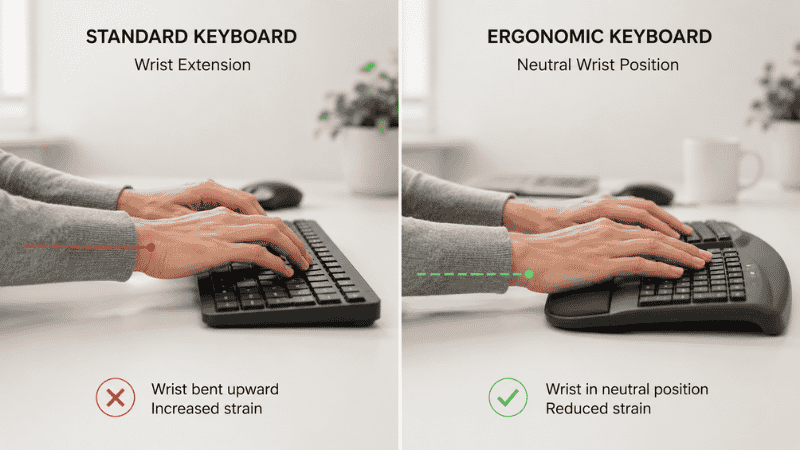
When you use a conventional keyboard, your hands naturally angle inward toward the center of the keyboard — a position called ulnar deviation, where the wrists bend toward the pinky side. Do this for six hours a day and you’re putting sustained lateral stress on the wrist joints and the tendons that run through the carpal tunnel.
Most standard keyboards also sit flat or tilt slightly upward at the back. This creates wrist extension — the position where your wrists bend upward to reach the keys. Wrist extension is the primary culprit in carpal tunnel syndrome development because it compresses the median nerve as it passes through the carpal tunnel. The higher the sustained extension angle, the more compression, the more potential for cumulative damage.
You probably don’t notice either of these things right now. That’s how cumulative strain works — it’s invisible until it isn’t. The research is consistent: these postures are problematic, and ergonomic keyboards exist specifically to correct them.
The Three Main Types of Ergonomic Keyboards (And Which One You Actually Need)
This is where most ergonomic keyboard guides fail you. They list products without explaining the differences between design categories. Here’s what actually matters.
Split Keyboards: For Serious Wrist Pain Prevention or Recovery
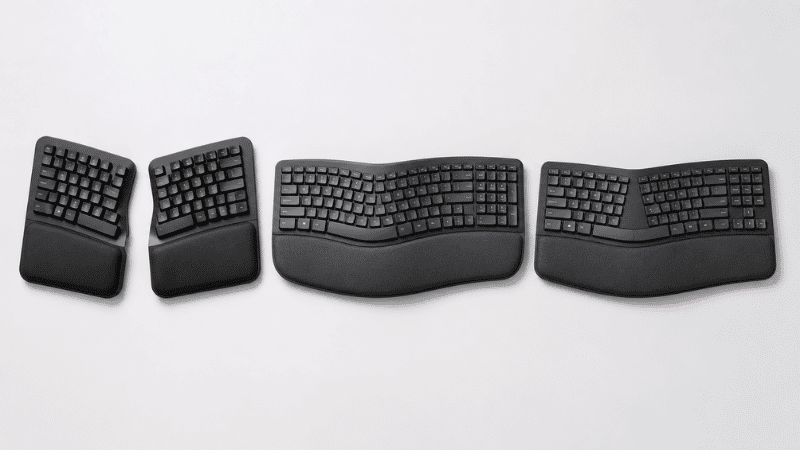
A split keyboard divides into two separate halves — either tethered by a cable or completely independent — so each hand types on its own section. You can position each half at shoulder width, eliminating ulnar deviation entirely. Many split keyboards also allow tenting (raising the inner edge of each half), which reduces forearm rotation into a more neutral handshake position.
Split keyboards are the most ergonomically effective design for preventing and recovering from RSI-type wrist issues. They’re also the most demanding to adapt to. Expect a real adjustment period of 2–4 weeks where your typing speed drops noticeably before returning to normal or above. If you’ve never used a split keyboard, don’t switch on a deadline.
Best for: People with existing wrist discomfort, those who type 6+ hours daily, anyone with a diagnosed RSI or early carpal tunnel symptoms.
Representative picks:
- Kinesis Freestyle2 (~$99): True split with adjustable separation distance, optional tenting kits. The most flexible entry-level split keyboard. Membrane switches — quiet, lower actuation force.
- Logitech ERGO K860 (~$130): Arched split design with integrated cushioned wrist rest. Not a fully separable split — the two halves are fixed — but provides significant ulnar deviation reduction with a gentler learning curve than a true split.
Wave/Curved Keyboards: The Middle Ground
Wave keyboards keep the keys on one connected unit but curve the layout so that keys follow the natural arc of the fingers rather than sitting in straight rows. They typically also include a negative tilt option (angling down away from you rather than up toward you) and an integrated wrist rest.
These offer meaningful ergonomic improvement over flat standard keyboards with a much shorter adaptation period — most people adjust within a few days. They don’t eliminate ulnar deviation as effectively as a true split, but they reduce it substantially.
Best for: People with mild discomfort or those looking to prevent future issues without a steep learning curve. Also good for shared workstations where switching back and forth between keyboard types would be disruptive.
Representative pick:
- Microsoft Sculpt Ergonomic Keyboard (~$80–100): The most widely recommended wave-style ergonomic keyboard. Domed center shape, cushioned palm rest, separate number pad. Has been a consistent top recommendation for nearly a decade because it works well for most people in most situations.
Alice Layout Keyboards: Design with Light Ergonomic Benefits
Alice layout keyboards angle the two halves of the keyboard slightly outward from the center while keeping them on a single connected unit. They address ulnar deviation partially — better than a flat keyboard, not as fully as a true split. They’ve become popular partly for aesthetic reasons and partly because they offer a gentler introduction to angled typing layouts.
Best for: People who want better typing ergonomics without committing to a full split, or those who prioritize aesthetics alongside function.
Representative pick:
- Keychron K11 Pro/Max (~$110–140): Solid build quality, Bluetooth connectivity, mechanical switch options. Good balance of ergonomic benefit and everyday practicality for office use.
What to Look for When Choosing the Best Ergonomic Keyboard

Beyond design type, a few specific features make a real difference in how comfortable and effective an ergonomic keyboard is day-to-day.
Wrist rest integration. A wrist rest isn’t just comfort padding — it’s a functional part of the ergonomic system. Your wrists should rest lightly on the wrist rest during pauses, not during active typing. Look for a wrist rest that’s at or slightly below key height, soft enough to not create pressure points, and wide enough to support both wrists fully. Built-in wrist rests are generally better than aftermarket ones because they’re designed to work at the specific height of that keyboard’s keys.
Negative tilt capability. Most keyboards tilt up at the back (positive tilt). This increases wrist extension. A keyboard that supports negative tilt — sloping down away from you — keeps wrists in a more neutral position. This is especially important if your desk is at or above elbow height. Look for legs that fold in both directions, or a keyboard that ships with a negative tilt option.
Switch type and actuation force. Lighter switches require less force to actuate each keypress, which reduces cumulative finger and tendon fatigue over a long typing day. Membrane switches (found in most wave-style keyboards) are generally quieter and lighter. Mechanical keyboards with light linear switches (45g actuation or below) can also work well. Heavy clicky mechanical switches — popular in gaming keyboards — are generally not recommended for all-day typing in an ergonomic context.
Wireless connectivity. For ergonomic keyboards specifically, wireless matters more than for standard keyboards. A split keyboard with cables routing between the halves and to the computer creates its own cable management problem. Bluetooth or 2.4GHz wireless eliminates that friction and keeps the desk cleaner.
Budget Tiers: What You Get at Each Price Point
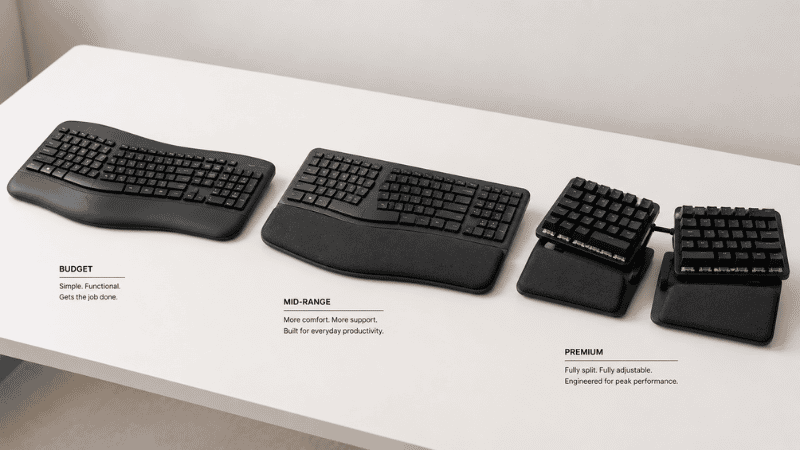
Under $50: At this price, you’re getting a keyboard with a wave or slight curve shape and a basic wrist rest. Ergonomic marketing, minimal ergonomic engineering. Not worth it for anyone with existing wrist issues. Potentially adequate as a minor upgrade for someone who’s been using a flat keyboard with no wrist rest at all.
$80–130: This is where meaningful ergonomic design begins. The Microsoft Sculpt, Logitech ERGO K860, and Kinesis Freestyle2 all sit in this range. For most home office workers, one of these three keyboards is the right answer. The differences between them are about design type preference and adaptation tolerance, not quality.
$150–250: True split mechanical keyboards with tenting options, higher build quality, and longer expected lifespan. Worth it for people who type heavily, have existing wrist or arm issues, or want the most adjustable setup. The Kinesis Freestyle2 with VIP kit falls here once you add the tenting accessories.
$250+: High-end split mechanical keyboards (Moonlander, Ergodox EZ, Dygma Defy). Extremely adjustable, extremely customizable, and require significant investment in learning time. Designed for power users who’ve already established that ergonomic keyboards work for them and want maximum adjustability.
The Adaptation Period: Why People Give Up Too Soon

This is the most important thing most ergonomic keyboard guides don’t tell you.
If you switch from a standard keyboard to a split ergonomic keyboard and expect to type at full speed immediately, you will be disappointed and you will probably return it. The two-week adaptation period is real, well-documented, and not a sign that the keyboard is wrong for you.
Your muscle memory for keyboard layout is stored as spatial relationships between keys relative to each other. A split keyboard changes those spatial relationships significantly. Your brain has to rebuild that map. This takes time and feels frustrating in the middle of it.
A few things that help:
Type slowly and deliberately during the first week. Speed will return faster if you focus on accuracy rather than trying to maintain your previous pace.
Don’t switch back and forth between the ergonomic keyboard and your old keyboard during the adaptation period. Alternating resets the learning curve every time.
Expect week one to be rough, week two to be noticeably better, and week three to feel close to normal. Most people who stick through three weeks report that going back to a standard keyboard afterward feels uncomfortable — which tells you something about how much the body adapts.
If Your Wrist Pain Doesn’t Improve After Switching
An ergonomic keyboard addresses posture at the keyboard. It doesn’t address every cause of wrist and arm discomfort.
If you’ve been using an ergonomic keyboard correctly for 4–6 weeks and haven’t noticed improvement in wrist discomfort, consider these additional factors:
Mouse position. If your mouse is positioned far to the right of your keyboard — requiring arm extension to reach it — that’s a significant source of shoulder and wrist strain that no keyboard will fix. Move your mouse closer, or consider a trackball or vertical mouse that allows a more neutral arm position.
Monitor height. If you’re looking down at a laptop screen while typing on an ergonomic keyboard, the neck and shoulder tension from that posture can refer as arm and wrist discomfort.
Desk height. If your desk is too high relative to your seated elbow height, you’ll be raising your shoulders while typing regardless of keyboard design. Your forearms should rest at or slightly below elbow height.
If discomfort persists despite ergonomic improvements across keyboard, mouse, and posture, see an occupational therapist or physiotherapist. Repetitive strain injuries respond well to early intervention; they become significantly harder to address once they’re established.
FAQs
Do ergonomic keyboards actually help with wrist pain? Yes, for wrist pain caused by poor typing posture — particularly ulnar deviation and wrist extension. Research consistently shows that correcting these postures reduces strain on the wrist joints and carpal tunnel. However, ergonomic keyboards address posture; they don’t treat existing injuries. If you have significant pain, see a healthcare provider alongside making ergonomic changes.
What is the best ergonomic keyboard for home office use? For most people, the Microsoft Sculpt Ergonomic Keyboard (~$80–100) or Logitech ERGO K860 (~$130) are the best starting points. Both offer meaningful ergonomic improvement with a manageable learning curve. The right choice between them depends on whether you want a softer split and integrated wrist rest (K860) or a more dramatically domed split with a separate number pad (Sculpt).
How long does it take to get used to an ergonomic keyboard? Typically 2–4 weeks for a split keyboard, a few days to a week for a wave-style keyboard. Speed drops before it recovers. The adaptation period is normal and expected.
Are ergonomic keyboards worth the money? For anyone typing 4+ hours daily, yes. The cost of a $100–130 ergonomic keyboard is trivial compared to the cost of physical therapy for RSI treatment, which can run $75–150 per session for multiple sessions. Prevention is significantly cheaper than treatment.
Can ergonomic keyboards prevent carpal tunnel syndrome? They can reduce one of the primary risk factors — sustained wrist extension — which is a significant contributor to carpal tunnel development. They’re not a guarantee, and other factors (genetics, medical conditions, overall activity level) also play roles. But reducing wrist extension during the hours you spend typing is a meaningful preventive measure.
What’s the difference between a split keyboard and an ergonomic keyboard? All split keyboards are ergonomic keyboards, but not all ergonomic keyboards are split. “Ergonomic keyboard” is a broad category that includes wave/curved keyboards, Alice layout keyboards, and true split keyboards. Each addresses different aspects of typing posture with different levels of adjustment and learning curve.
Start Where You Are
You don’t have to jump straight to a fully split mechanical keyboard with custom tenting. Most people benefit most from the simplest change that addresses their actual problem.
If your wrists are fine and you want to keep them that way, a wave-style keyboard like the Microsoft Sculpt is a sensible, low-friction upgrade. If you’re already noticing fatigue or mild discomfort, the Logitech K860 or Kinesis Freestyle2 are worth the adaptation investment. If you have serious existing issues, work with a professional and consider a fully adjustable split setup.
The best ergonomic keyboard is the one that matches where you actually are — not the most advanced one on the market.
Related Articles on CircuitSeek
- The Complete Home Office Setup Guide →
- Best Ergonomic Mouse for Home Office →
- How to Reduce Eye Strain When Working from Home →
- Standing Desk Benefits: What Research Actually Says →
- Home Office Desk Organization Ideas →
References
- Cornell University Ergonomics Research Laboratory. Keyboard and Mouse Ergonomics. https://ergo.human.cornell.edu/
- NIOSH. Musculoskeletal Disorders and Workplace Factors. National Institute for Occupational Safety and Health. https://www.cdc.gov/niosh/docs/97-141/
- Rempel, D., Tittiranonda, P., Burastero, S., et al. (1999). Effect of keyboard keyswitch design on hand pain. Journal of Occupational and Environmental Medicine, 41(2), 111–119.
- Hedge, A. (2004). Computer-related upper extremity musculoskeletal disorders. Cornell Human Factors and Ergonomics Research Group.