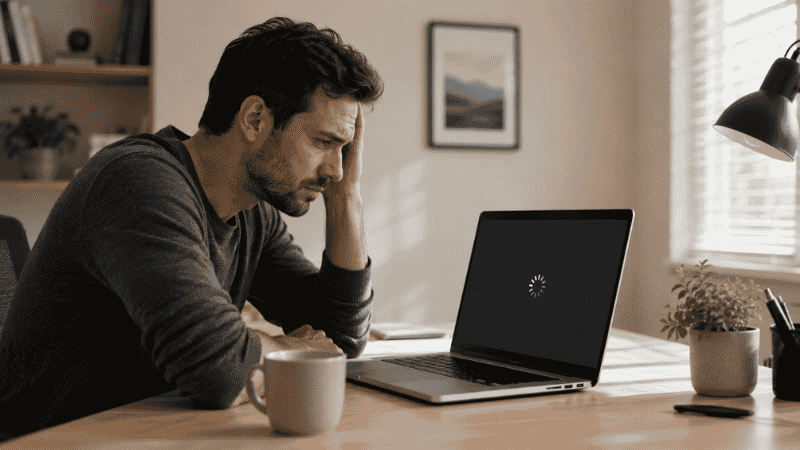
It happens at the worst possible moment.
You’ve got a meeting in ten minutes. You open your laptop, click on the browser, and watch the spinning wheel do absolutely nothing for forty-five seconds. Or you’re mid-sentence in a document and the keyboard input lags half a second behind what you’re typing. Or the whole machine just grinds to a halt for no apparent reason, fan spinning at full speed, cursor frozen.
You’ve probably already tried the obvious things — restarted it, maybe ran a virus scan, maybe googled “why is my laptop so slow” and found a list of twelve tips that told you to clear your browser cache and delete temporary files, and nothing really changed.
Here’s the honest situation: a slow laptop almost always has one of five specific causes, and most of them are fixable without spending any money or having any technical skills. The trick is figuring out which one is actually your problem — because doing the wrong fix wastes time, and some fixes work only for specific causes.
This guide walks through a proper diagnosis first, then the fixes that match each cause.
Key Takeaways
- A slow laptop is almost always caused by one of five things: too many startup programs, a nearly full hard drive, insufficient RAM being overwhelmed, overheating, or an aging HDD that should be replaced with an SSD
- The fastest diagnostic tool is already on your computer — Task Manager (Windows) or Activity Monitor (Mac) shows exactly what’s consuming your CPU, RAM, and disk in real time
- Brand new laptops can run slowly too, usually because of pre-installed bloatware and background update processes running simultaneously after first setup
- Upgrading from an HDD to an SSD is the single most dramatic speed improvement available for older laptops — it can make a 6-year-old machine feel several years newer
- “My laptop suddenly got slow” is usually caused by a background Windows update downloading, an antivirus scan running automatically, or disk space dropping below 10–15% capacity
Step One: Diagnose Before You Fix
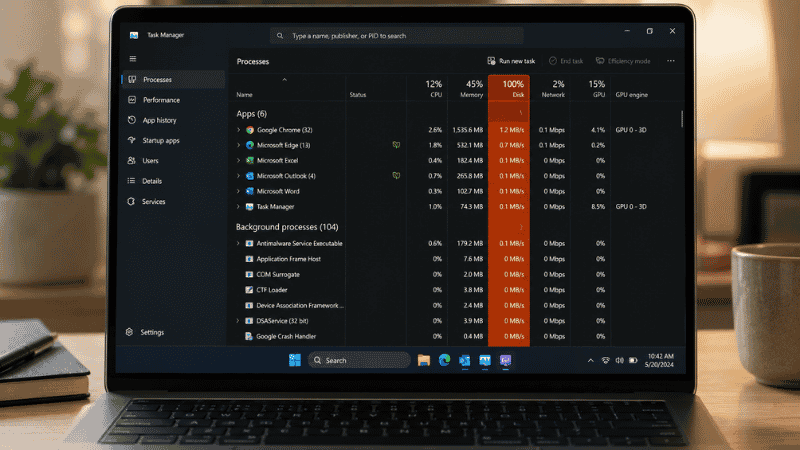
The single biggest mistake people make when dealing with a slow laptop is skipping straight to “fixes” without knowing what’s actually wrong. Clearing your browser cache doesn’t help if the real problem is that your hard drive is 95% full. Disabling startup programs doesn’t help if your CPU is overheating and throttling itself.
Spend two minutes on diagnosis first. It will tell you which section of this guide to actually read.
On Windows: Press Ctrl + Shift + Esc to open Task Manager. Click “More details” if it opens in compact mode. Look at the top four columns: CPU, Memory, Disk, and Network.
If any of these is consistently at 80–100%: that column is your problem. A disk at 100% is the most common cause of Windows laptops feeling painfully slow. A memory reading near 100% means you’re running out of RAM. A CPU at 100% while nothing demanding is open suggests a background process (or malware) is consuming resources.
On Mac: Open Spotlight (Cmd + Space), type “Activity Monitor,” and press Enter. Look at the CPU, Memory, and Disk tabs. The top processes — sorted by highest usage — show you what’s actually consuming your system resources right now.
Once you know which resource is maxed out, the fix becomes obvious. Keep reading for the section that matches your problem.
Fix 1: Too Many Programs Running at Startup
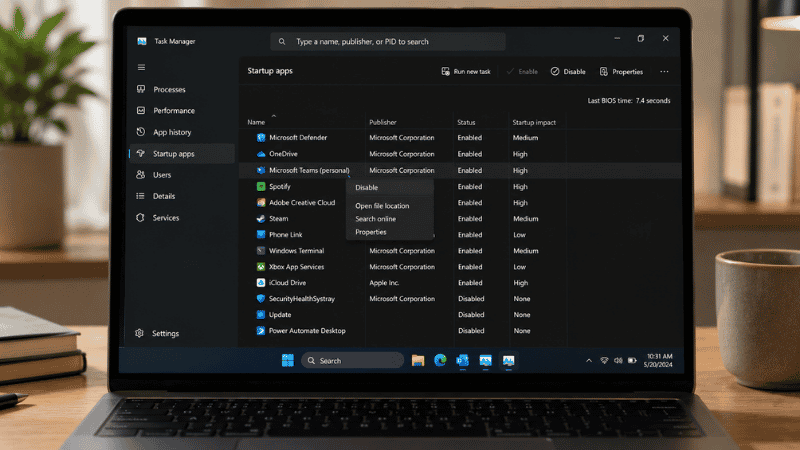
This is the most common reason a laptop that was fast feels sluggish after a few months of use — and it’s completely free to fix.
Every time you install a new program, there’s a reasonable chance it adds itself to your startup list. Over time, you accumulate a collection of apps that all launch invisibly in the background when you start your computer: messaging apps, cloud storage sync tools, update managers, video conferencing apps, printer utilities, browser extensions that became standalone processes. Each one is small. Together they consume significant memory and disk activity, especially in the first 5–10 minutes after login.
Fix on Windows: Open Task Manager (Ctrl + Shift + Esc) → click the Startup tab. You’ll see a list of everything that launches at startup, along with its “startup impact” rating (Low, Medium, High). Right-click anything you don’t need immediately on boot — Spotify, Teams, Zoom, Discord, Slack, Adobe updaters, OneDrive, Dropbox — and select Disable. They’ll still be available when you open them manually; they just won’t launch automatically and consume resources in the background.
Fix on Mac: Go to System Settings → General → Login Items. Review the list and remove anything that doesn’t need to launch at startup. Also check System Settings → General → Login Items → “Allow in Background” — some apps register as background processes separately from startup items.
After making these changes, restart your laptop. The difference in boot time and early-session responsiveness is usually immediate and significant.
Fix 2: Your Hard Drive Is Almost Full
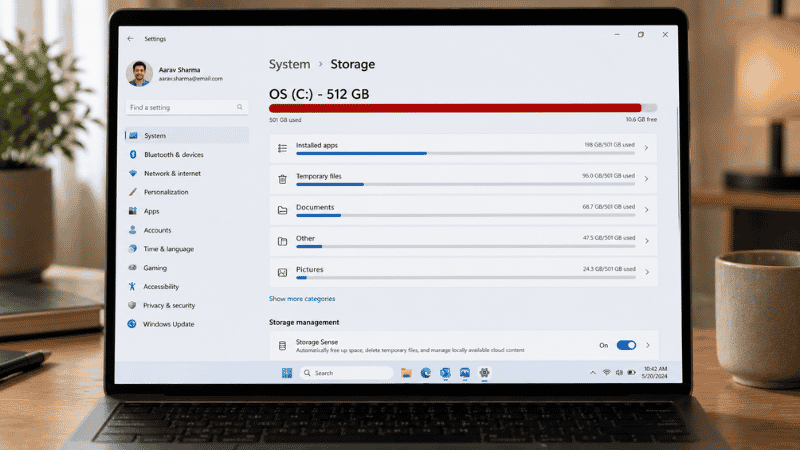
If your Task Manager shows disk at or near 100%, or if your available storage is below 15% of total capacity, this is likely your primary problem.
Windows needs free disk space to create temporary files, manage virtual memory (using disk space as overflow RAM when physical RAM is full), and run smoothly. When free space drops below roughly 10–15%, performance degrades noticeably. Below 5%, things can become seriously unstable.
The fix has two parts: free up space, and keep it that way.
Quick wins for reclaiming space:
Run Disk Cleanup on Windows: search “Disk Cleanup” in the Start menu, select your main drive, check all the boxes including “System files,” and let it run. This typically reclaims 2–15GB depending on how long since it was last done.
Empty the Downloads folder. Most people’s Downloads folder accumulates years of installers, PDFs, ZIP files, and other things downloaded once and never needed again. Sort by size and delete anything you don’t recognize or don’t need.
Check what’s taking up space: on Windows, go to Settings → System → Storage to see a breakdown by category. On Mac, go to Apple menu → About This Mac → Storage → Manage. Large items are usually old application installers, videos, and application data from apps you no longer use.
Uninstall software you don’t use. On Windows, go to Settings → Apps → Installed Apps and sort by size. Anything you haven’t opened in six months is a candidate for removal.
A general rule worth keeping: if your drive is 512GB, try to keep at least 50–75GB free. If it’s 256GB, aim for 30–40GB free. This gives the system enough breathing room to operate smoothly.
Fix 3: Too Many Browser Tabs and Extensions
If your laptop slows down specifically while using a browser — and your Task Manager shows memory near capacity — browser tabs and extensions are usually the culprit.
Each browser tab is essentially a separate process consuming RAM. Twenty open tabs on Chrome or Edge can consume 2–4GB of RAM on their own, before any other applications are open. On a laptop with 8GB of RAM, that leaves very little for everything else.
Immediate fixes:
Close tabs you’re not actively using. Bookmark them if you’re worried about losing them — but be honest: you probably don’t need most of them.
Audit your browser extensions: go to your browser’s extension or add-on manager and disable or remove anything you don’t actively use. Password managers, ad blockers, and productivity tools are usually worth keeping; everything else is a candidate for removal. Extensions run persistently in the background and some are surprisingly resource-intensive.
Enable Memory Saver (Chrome) or similar features in your browser: Chrome’s Memory Saver mode puts inactive tabs to sleep, recovering the RAM they were consuming. This alone can significantly improve performance on RAM-limited laptops.
If your browser has been running for days without a restart, closing it entirely and reopening it often helps — browsers accumulate memory leaks over extended sessions.
Fix 4: Your Laptop Is Overheating

When a laptop gets too hot, its processor deliberately slows itself down to reduce heat — a process called thermal throttling. The laptop becomes sluggish not because anything is wrong with the software, but because the hardware is protecting itself.
Signs of overheating: laptop feels very warm to the touch, fan runs at high speed constantly, performance is fine after a cold start but degrades over 30–60 minutes of use.
Immediate fixes:
Make sure the laptop’s vents aren’t blocked. Vents are usually on the bottom and sides. Using a laptop on a soft surface (bed, couch cushion) blocks these vents and can cause overheating within minutes. Use on a hard flat surface, or get a laptop stand that elevates it slightly for airflow.
Dust buildup inside the vents is extremely common in laptops over 2–3 years old. You can use a can of compressed air to blow dust out of the vents from the outside — insert the nozzle briefly and blow in short bursts. This is safe and often makes a noticeable difference.
For older laptops that consistently overheat: the thermal paste between the CPU and its heat sink degrades over time and loses its effectiveness. Replacing thermal paste is a moderate DIY task (requires opening the laptop) but can dramatically improve sustained performance. If you’re not comfortable doing it yourself, most computer repair shops can do it for $30–50.
Fix 5: You Have an HDD and Should Upgrade to an SSD
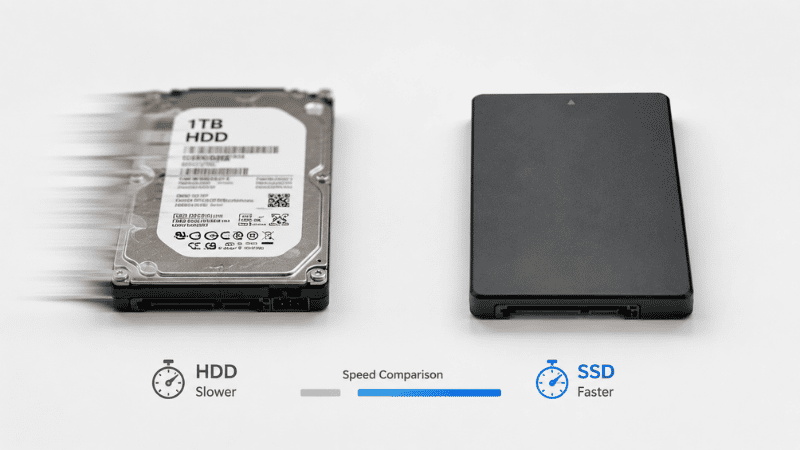
If your laptop has a traditional spinning hard drive (HDD) rather than a solid-state drive (SSD), this is likely the biggest single factor in its slowness — and replacing it is the most transformative upgrade you can make.
HDDs have physical moving parts that read data by spinning a magnetic platter at 5,400 or 7,200 RPM. SSDs have no moving parts and access data electronically — they’re typically 5–10 times faster for the types of random read/write operations that operating systems constantly perform.
The 100% disk usage problem that plagues many Windows laptops — particularly ones under $500 from 3–5 years ago — is almost always because they shipped with a slow 5,400 RPM HDD. Even with minimal programs running, Windows constantly reads and writes small amounts of data to the disk, and a slow HDD can’t keep up.
How to check if you have an HDD or SSD: On Windows: open Task Manager → Performance tab → click Disk. Under the disk name, it will say either “SSD” or list a model number you can search. Alternatively, search for “Disk Defragmenter” — it lists drive types in its interface.
The upgrade: An SSD upgrade costs $50–100 for most laptops (2.5-inch SATA SSDs for older laptops, M.2 NVMe for newer ones). Installation requires opening the laptop and swapping the drive — a 20–30 minute process that many people do themselves with a YouTube tutorial and a small screwdriver. You’ll need to reinstall Windows or clone the existing drive to the new SSD.
If that sounds like too much, most computer repair shops will install an SSD for $50–80 in labor, often while you wait.
The result: a laptop that currently takes 4 minutes to boot will typically boot in under 30 seconds after an SSD upgrade. Application launch times improve dramatically. The 100% disk usage problem disappears.
Why Is My Brand New Laptop Slow?
This question comes up constantly in tech communities, and it’s completely understandable — you just spent money on a new computer and it’s already struggling.
New laptops are often slow for a specific reason: they shipped with a slow HDD (see Fix 5 above), and during the first few days of use, Windows is simultaneously installing updates, indexing files for search, installing pre-loaded software (“bloatware”), and running first-time setup processes — all at the same time.
If your brand new laptop is slow, check Task Manager. If disk is at 100% and “Windows Update” or “Windows Search” or “Antimalware Service Executable” are near the top of the list — wait. These processes will settle down after 24–48 hours of uptime once initial setup completes.
If it’s still slow after a week of normal use, the most likely cause is the HDD — many budget laptops under $500 still ship with mechanical hard drives because they’re cheaper. An SSD upgrade is the fix.
Also: uninstall the bloatware. New laptops often come pre-loaded with trials for antivirus software, games, and manufacturer utilities you’ll never use. Uninstalling these reclaims resources immediately.
If You Only Have 10 Minutes Right Now
Open Task Manager (Ctrl + Shift + Esc on Windows). Look at which column is at or near 100%. If it’s disk — check your free space and disable startup programs. If it’s memory — close browser tabs and background apps. If it’s CPU — look at which process is consuming it and consider whether it needs to be running.
That’s the whole diagnostic in under two minutes. The fix flows directly from what you find.
When to Stop Fixing and Start Thinking About Replacing
Not every slow laptop is worth fixing. Here’s an honest framework:
If your laptop is under 4 years old and slow primarily due to software issues (startup programs, full disk, browser tabs) — fix it. These are free or low-cost fixes that will meaningfully improve performance.
If your laptop has an HDD and is otherwise in good shape — an SSD upgrade for $50–100 is almost always worth it. It extends the useful life of the machine by 2–4 years.
If your laptop has less than 4GB of RAM and runs Windows 10 or 11 — it will be slow regardless of what software fixes you apply. Windows 11 requires at minimum 4GB, and realistically needs 8GB for comfortable multitasking. At this point, upgrading RAM (if possible) or replacing the machine is more practical than continuing to manage symptoms.
If your laptop is over 6–7 years old and the hardware is genuinely at its limits — the cost of upgrades may not be justified compared to the cost of a new budget laptop. A new laptop with an SSD and 8GB RAM starts around $350–450 and will outperform any upgrades you can do to a 7-year-old machine.
FAQs
Why is my laptop so slow all of a sudden? Sudden slowness is usually caused by one of three things: a background Windows Update downloading and installing, an automatic antivirus scan running, or disk space dropping below a critical threshold. Open Task Manager, look at what’s consuming disk and CPU, and check your available storage. In most cases the cause is identifiable within two minutes.
How do I fix a slow laptop for free? The most effective free fixes are: disabling unnecessary startup programs (Task Manager → Startup tab), freeing up disk space (Disk Cleanup + emptying Downloads), closing unused browser tabs and disabling extensions, and making sure the laptop’s vents aren’t blocked. These four steps address the most common causes without any cost.
Can too many browser tabs make a laptop slow? Yes, significantly. Each tab is a separate process consuming RAM. Twenty tabs on Chrome can use 2–4GB of RAM. On an 8GB laptop with other applications open, this leaves very little memory available and forces the system to use the disk as overflow — which dramatically slows everything down.
Is it worth upgrading an old laptop’s hard drive to an SSD? Usually yes, if the laptop is otherwise functional. An SSD upgrade ($50–100 for the drive, plus optional installation labor) typically transforms the experience of an older laptop. Boot times drop from minutes to seconds. Application launches become immediate. The 100% disk usage problem disappears. For a laptop in otherwise good condition, it’s the highest-impact upgrade available.
Why is my laptop slow even though I have a lot of RAM? RAM amount isn’t the only factor. If your laptop has an HDD, the storage speed is likely the bottleneck — not RAM. If RAM is high but disk is at 100% in Task Manager, the drive can’t keep up with read/write requests regardless of how much memory is installed. Other causes: CPU throttling from heat, malware consuming processor resources, or a fragmented and nearly full hard drive.
Start With the Diagnosis, Not the Fix
The most common reason people don’t fix their slow laptop is that they try generic tips, see no improvement, and give up. The problem isn’t that the fixes don’t work — it’s that they tried the wrong fixes for their actual problem.
Open Task Manager. Look at what’s maxed out. Then go to the section in this guide that matches. Nine times out of ten, you’ll find the cause in under five minutes, and the fix takes less than thirty.
Related Articles on CircuitSeek
- The Complete Home Office Setup Guide →
- Best Laptops for Home Office 2026 →
- Dual Monitor Setup Guide →
- How to Set Up a Home Office in a Small Space →
- Eye Strain Relief for Remote Workers →
References
- Microsoft Support. Optimize Windows for better performance. https://support.microsoft.com/en-us/windows/tips-to-improve-pc-performance-in-windows-b3b3ef5b-5953-fb6a-2528-4bbed82fba96
- Crucial/Micron Technology. Understanding SSD vs HDD performance. Referenced in storage performance benchmarking guides, 2024.
- National Institute of Standards and Technology (NIST). Computer Security Resource Center — Malware and Performance Impact. https://csrc.nist.gov/