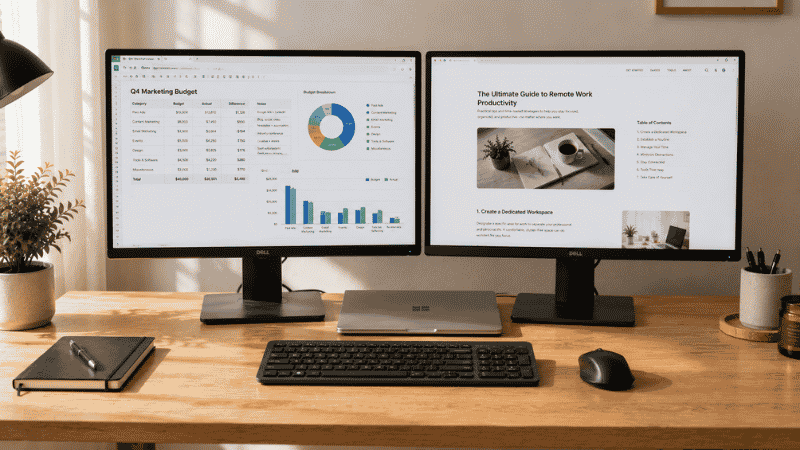
You’ve got a second monitor. You plug it in. Nothing happens — or worse, both screens show the exact same thing and there’s no obvious way to change it.
This moment happens to almost everyone setting up a dual monitor workspace for the first time. It’s not that the process is complicated. It’s that nobody explains the three things you need to check before you plug anything in, and the troubleshooting steps when the automatic detection doesn’t work (which happens more often than the official guides acknowledge).
This guide covers the complete dual monitor setup process from start to finish: what to check before you connect, how to connect correctly, how to configure Windows and Mac, what to do when something goes wrong, and — the part most tutorials skip — how to actually use two monitors in a way that makes you more productive rather than just more distracted.
Key Takeaways
- Research consistently shows that dual monitor setups increase productivity by 20–30% for knowledge workers — but only when the display arrangement and workflow habits are configured correctly
- The most common dual monitor problem (second monitor not detected) is almost always caused by one of three things: wrong cable type, driver issue, or the computer’s hardware limit on simultaneous display outputs
- “Extend” mode is almost always what you want — it creates one large continuous workspace across both screens; “Duplicate” just mirrors the same image and is rarely useful for work
- Laptop users face specific limitations: most laptops can only output to one external monitor via HDMI, but can support two via a USB-C dock or docking station
- Monitor arm or riser height, physical positioning, and primary screen placement have a bigger impact on daily comfort than most people expect — ergonomics matter as much as the technical setup
Before You Connect: Three Things to Check First
Most dual monitor problems happen before a single cable is plugged in. Spend five minutes on these checks and you’ll avoid the frustrations that fill tech forums.
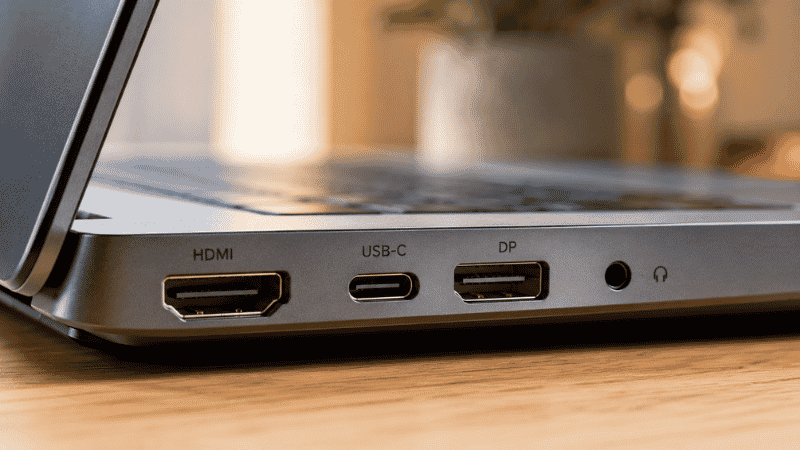
Check Your Computer’s Output Ports
Look at the back of your desktop or the sides of your laptop. Count the display output ports — these are HDMI, DisplayPort, USB-C (with display support), DVI, or VGA. The number and type of ports determines what you can connect and how.
Desktop PCs: Most modern desktop graphics cards have two or more display outputs — typically a mix of HDMI and DisplayPort. Two monitors is usually straightforward. If your PC uses integrated graphics (no dedicated GPU), you may find only one or two ports, and some combinations don’t work simultaneously.
Laptops: This is where most people get surprised. Most laptops with a single HDMI port can only output to one external monitor through that port. If you want two external monitors, you typically need either a USB-C port with full DisplayPort Alt Mode support, or a docking station/USB-C hub with multiple video outputs. This is not a setting you can change — it’s a hardware limitation.
A common issue on Microsoft forums: users connecting two monitors via two HDMI ports (one on the laptop, one on a hub) and finding that only one works. The fix is usually a dock with dedicated display outputs, not a second HDMI cable.
Check Your Cable Types and Compatibility
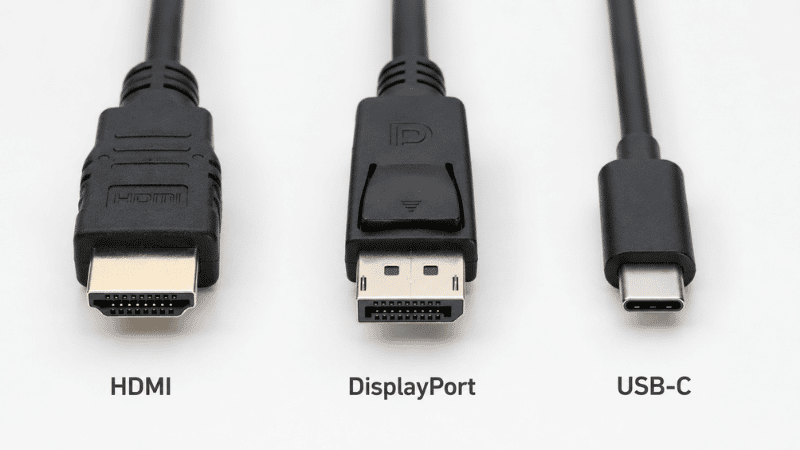
Not all cables are equal, and not all connections are interchangeable.
HDMI: The most common. Works for most setups. One important caveat: HDMI cables vary by version (1.4, 2.0, 2.1), and older cables may not support higher resolutions or refresh rates. If you’re connecting a 4K monitor and the image looks odd or won’t go above 1080p, try a newer HDMI cable.
DisplayPort: Generally better for high-resolution or high-refresh-rate monitors. Supports daisy-chaining (connecting multiple monitors through a single cable chain on compatible monitors). Slightly less common than HDMI but increasingly standard.
USB-C / Thunderbolt: Many modern laptops use USB-C exclusively for video output. A USB-C to HDMI or USB-C to DisplayPort cable works directly if the port supports DisplayPort Alt Mode — check your laptop’s specs to confirm. Thunderbolt ports (marked with a lightning bolt icon) are even more capable and support multiple monitors via a single cable to a Thunderbolt dock.
Adapters: VGA and DVI are older standards. If either your computer or monitor only has VGA, you can use an adapter — but image quality will be lower and you’ll be limited to lower resolutions. These standards are largely obsolete for new setups.
Check That Your Monitors Are Powered On Before Configuring
This sounds obvious, but many detection issues are simply because the monitor was off when connected. Power on both monitors before opening display settings. The OS detects displays at connection time and may miss a monitor that powers on after the fact.
How to Set Up Dual Monitors on Windows
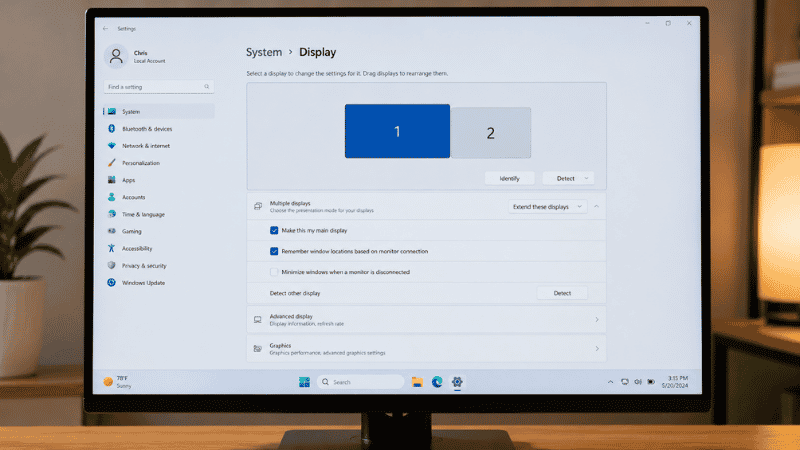
Once your cables are connected and both monitors are powered on:
Step 1 — Open Display Settings Right-click anywhere on your desktop and select Display Settings. You can also go to Settings → System → Display.
Step 2 — Identify Your Monitors Windows should show numbered display boxes (1 and 2). If you see two boxes, it’s detected both monitors. Click Identify to see which number appears on which physical screen.
Step 3 — Choose Your Display Mode Under “Multiple displays,” you’ll see options:
- Extend these displays — creates one large continuous workspace across both monitors. This is almost always what you want for productivity.
- Duplicate these displays — shows the same image on both screens. Useful for presentations, rarely useful for daily work.
- Show only on 1 or 2 — disables one screen entirely.
Select “Extend these displays” and click Apply.
Step 4 — Arrange Your Monitors Drag the numbered display boxes to match your physical monitor layout. If your second monitor is to the right of your primary, drag box 2 to the right of box 1. This controls where your cursor exits one screen and enters the other — getting this wrong means your cursor “jumps” in the wrong direction at the screen edge.
Step 5 — Set Resolution and Scale Click on each monitor box and scroll down to Resolution. Set each to its recommended resolution. If the monitors are different sizes or resolutions, you may need to adjust the scale (DPI) of each one so text and interface elements appear similar in size across both screens.
Step 6 — Set Your Primary Display Scroll down to find “Make this my main display.” Click on the monitor box you want as your primary (usually the one directly in front of you) and check this box. Your taskbar, notifications, and new windows will default to this screen.
How to Set Up Dual Monitors on Mac
Step 1 — Connect your monitor and open System Settings Go to Apple menu → System Settings → Displays.
Step 2 — Arrange displays You’ll see a visual representation of your displays. Drag them to match their physical position. The white bar across the top of one display indicates your primary display — drag it to whichever monitor you want as primary.
Step 3 — Set resolution for each display Click on each display representation and choose your preferred resolution. “Default for display” is usually the best starting point.
Step 4 — Mirror or Extended By default, Mac extends the display (which is what you want). If you see the same image on both screens, go to Displays → Arrange and uncheck “Mirror Displays.”
For MacBook users connecting one external monitor: Connect via USB-C or Thunderbolt cable. The MacBook screen and the external monitor will automatically become an extended dual display. If you want to use just the external monitor with the lid closed (clamshell mode), connect a power cable, an external keyboard, and mouse first, then close the lid.
For MacBook users who want two external monitors: You’ll need a Thunderbolt dock or a USB-C hub with dedicated video outputs. Not all USB-C hubs support dual video output — check specifications before purchasing. Apple Silicon Macs (M1, M2, and M3 base models) have hardware limitations on external display count; M1 Pro, M1 Max, M2 Pro, M2 Max, and M3 Pro support multiple external displays natively.
How to Connect a Laptop to Two External Monitors
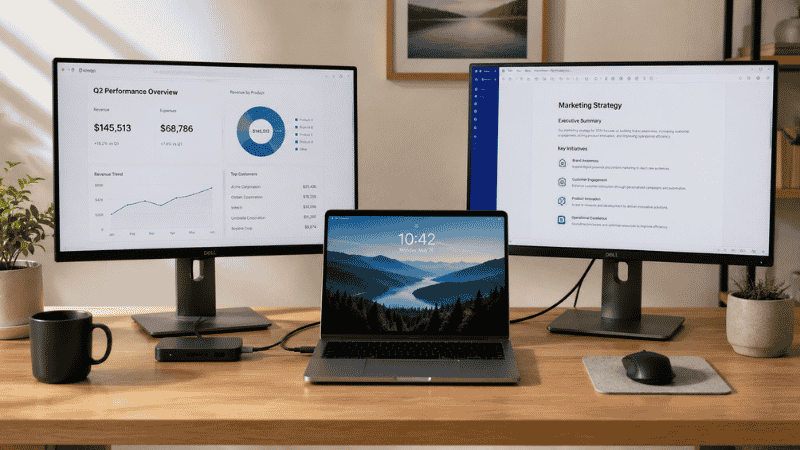
This is one of the most common questions in home office communities — and one of the most frequently misunderstood.
Option 1: USB-C Dock or Docking Station The cleanest solution for most laptops. A dock connects to your laptop via a single USB-C or Thunderbolt cable and provides multiple display outputs (HDMI, DisplayPort), USB ports, ethernet, and often charging — all through one connection. Both monitors connect to the dock, which handles the video output.
Good docks for home office use start around $60–80 for basic USB-C hubs with dual video output, and $150–250 for Thunderbolt docks with better display support and faster data transfer.
Option 2: DisplayPort Daisy-Chaining If your monitors support DisplayPort 1.2 or higher and have both DisplayPort In and Out ports, you can chain them together — one cable from the computer to the first monitor, then another from the first monitor to the second. Check your monitor specs for “MST” (Multi-Stream Transport) support. This isn’t common on budget monitors.
Option 3: Laptop Screen + One External Monitor If you only have one external display port on your laptop and can’t use a dock, you still have a dual monitor setup — your laptop screen is the second display. Many remote workers use this effectively: external monitor as primary display at eye level, laptop screen below for secondary reference material. You don’t need to buy a second external monitor to have a dual screen setup.
When Your Second Monitor Isn’t Detected
This is the most common problem and the source of enormous frustration. Here’s a systematic fix:
Try these in order:
Unplug the cable and plug it back in firmly. Many detection failures are loose connections that look connected but aren’t fully seated.
Press Windows key + P (on Windows) to open the display projection menu. Sometimes this forces detection when the automatic method hasn’t worked. Select “Extend.”
In Display Settings, scroll down and click “Detect” under the monitor arrangement area. This manually triggers Windows to look for connected displays.
Update your graphics driver. Go to Device Manager → Display Adapters → right-click your GPU → Update Driver. Outdated drivers are a common cause of monitor detection failures, especially on systems that haven’t been updated recently.
Try a different cable or port. If you’re using HDMI, try DisplayPort if available, or vice versa. If you’re using a USB-C adapter, try a different one or connect directly without an adapter.
If both monitors are HDMI and one isn’t being detected: this is often a hardware limitation. Many laptops and some desktops can’t drive two HDMI outputs simultaneously. Try using DisplayPort for one monitor.
Restart the computer with both monitors already connected and powered on. Some systems detect displays only at boot.
How to Actually Use Two Monitors Productively
Getting two monitors connected is only half the story. Most people who set up a dual monitor workspace don’t immediately see the productivity benefit — because they haven’t changed how they work, they’ve just spread the same habits across a larger space.
Set Up Your Primary and Secondary Screen Intentionally
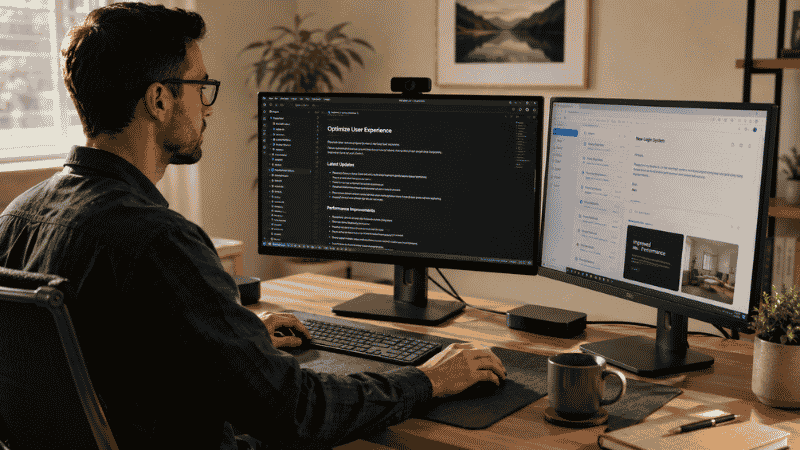
Your primary screen (centered, directly in front of you) should hold whatever you’re actively working on — the document, code, spreadsheet, or design file. Your secondary screen should hold reference material, communication apps, or monitoring dashboards.
The mistake most people make: treating both screens as equal and randomly placing windows wherever there’s space. This creates constant scanning and searching. Consistent placement — primary work always on the left (or right, or center — pick one and stick with it), reference always on the secondary — trains your brain to look in the right place automatically.
Configure Your Taskbar for Dual Monitors
On Windows: right-click the taskbar → Taskbar Settings → scroll to find multi-monitor taskbar options. You can set the taskbar to show on both monitors, or only on the primary monitor. Setting it to show on both, with each taskbar showing only apps open on that screen, reduces visual noise significantly.
On Mac: System Settings → Desktop & Dock → enable “Displays have separate Spaces.” This gives each monitor its own menu bar and allows full-screen apps to run independently on each screen.
The Physical Setup Matters More Than People Expect
Two monitors positioned incorrectly cause neck strain that accumulates over weeks. If you use both monitors equally, position them side by side at equal height, slightly angled inward so the center point is approximately at arm’s length. Your neck should be centered between them for most tasks.
If one is clearly primary and one secondary, center the primary screen directly in front of you and angle the secondary slightly to the side. You should be able to glance at the secondary screen with minimal head turn — not a full 90-degree rotation.
Both monitors should be at eye level. If your secondary monitor is on the desk surface while the primary is elevated, you’ll constantly look down at an uncomfortable angle. A monitor arm or riser for the secondary screen solves this.
If You Only Have 10 Minutes Right Now
Connect the monitor, power it on, right-click your desktop, and go to Display Settings. If you see two numbered boxes — select “Extend these displays” and click Apply. Drag the boxes to match your physical layout. Done. That’s the core setup in under two minutes.
Then spend the remaining eight minutes deciding: which screen is primary, where you’ll put your main work window, and where reference material lives. Write it on a sticky note if you have to. Intentional placement is the difference between two monitors doubling your productive space and two monitors doubling the number of open browser tabs you ignore.
FAQs
How do I set up dual monitors on Windows? Right-click your desktop → Display Settings. Under “Multiple displays,” select “Extend these displays.” Drag the monitor boxes to match your physical layout and set your primary display. The whole process takes about two minutes once both monitors are connected and powered on.
Why is my second monitor not being detected? Most commonly: loose cable connection, outdated graphics driver, or a hardware limitation (especially on laptops with only HDMI output). Try pressing Win + P to force detection, check that your cable is fully seated, and update your GPU driver. If using two HDMI connections from a laptop, you may need a dock with DisplayPort output instead.
Can I connect two monitors to a laptop? Yes, but most laptops can’t drive two external monitors through a single HDMI port. You typically need a USB-C or Thunderbolt dock with multiple video outputs. Some laptops support dual external displays natively via USB-C; check your laptop’s specifications. Apple M1 (base) is limited to one external display; M1 Pro and above support multiple.
What’s the difference between Extend and Duplicate display modes? Extend creates one continuous workspace across both screens — your mouse and windows can move freely between them. Duplicate shows the same image on both screens simultaneously, useful for presentations but not for daily work. For home office productivity, always use Extend.
How should I physically position dual monitors? If both are used equally: side by side, angled slightly inward, both at eye level. If one is primary: center the primary directly in front of you, angle the secondary to the side. Avoid turning your head more than about 30 degrees to view the secondary screen — if it’s further than that, you’ll develop neck strain over time.
Your Dual Monitor Setup Is Ready — Now Use It Well
The hardware is connected, the displays are configured, the screens are extended. That’s the easy part done.
The part that actually determines whether your dual monitor setup improves your workday is habit: where you put your work, where you put your distractions, and whether you use the second screen as a tool or as a place to pile extra clutter.
Start with one rule: your active work task lives on one screen. Everything else — email, Slack, browser tabs, reference documents — lives on the other. Run that for a week. See if the tab-switching and constant window searching that made you want a second monitor in the first place has actually improved.
Most people who give their dual monitor setup genuine intentional structure find it transforms how they work. Those who just plug in a second screen and continue working the same way they always have report that it mostly just made their desk wider.
Related Articles on CircuitSeek
- The Complete Home Office Setup Guide →
- Best Monitors for Home Office 2026 →
- Home Office Desk Setup Ideas for Small Spaces →
- Eye Strain Relief for Remote Workers →
- Desk Organization Ideas That Actually Stick →
References
- Czerwinski, M., Smith, G., Regan, T., Meyers, B., Robertson, G., & Starkweather, G. (2003). Toward Characterizing the Productivity Benefits of Very Large Displays. Microsoft Research. Proceedings of INTERACT 2003.
- NIOSH/CDC. Computer Workstations eTool — Monitors. National Institute for Occupational Safety and Health. https://www.cdc.gov/niosh/topics/ergonomics/
- American Optometric Association. Computer Vision Syndrome and Ergonomics. https://www.aoa.org/healthy-eyes/eye-and-vision-conditions/computer-vision-syndrome