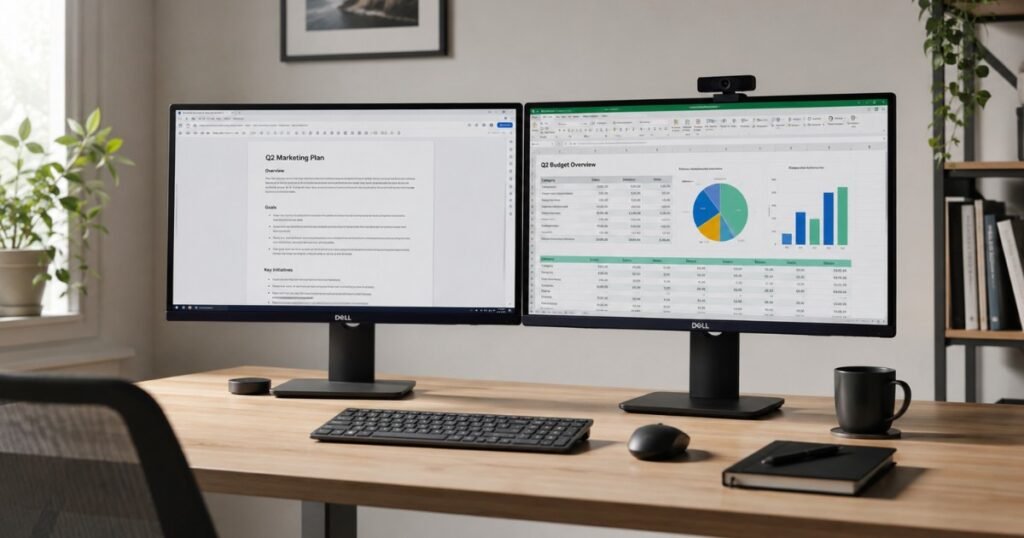
Workdays don’t start with big challenges—they start with small interruptions. You’re checking numbers in a spreadsheet, replying to messages in Slack, keeping an eye on a Zoom meeting, and trying to finish a document that’s buried behind several other windows. Before long, you’re pressing Alt + Tab so often that switching between apps becomes part of your workflow.
That’s usually when people start thinking about a second monitor. Not because they want a more impressive desk setup, but because constantly hunting for the right window wastes time and quietly drains your focus. A dual monitor setup doesn’t magically make you more productive—it simply removes many of the small frustrations that slow you down throughout the day.
A dual monitor setup doesn’t hand you a magic productivity boost. What it actually changes is simpler than that: it changes how you work. Less clicking around, less losing your place, less craning your neck to reread something you just had open. The first time most people set one up, they hit a snag or two — maybe an HDMI cable plugged into the wrong port, maybe a mouse that vanishes between screens — and give up on getting it “just right.” This guide is meant to get you past that part, so the setup actually works the way you pictured it.
Quick Decision
Choose a dual monitor setup if you multitask throughout the day, compare information across different windows, or spend hours working from home.
Choose an ultrawide monitor if you mainly use one application at a time and prefer a cleaner, cable-free desk.
Either way, checking your desk space, video ports, and monitor support before buying can save you time and money.
Why a Dual Monitor Setup Is Still the Best Productivity Upgrade
Before spending money on hardware, it’s worth understanding what a second screen genuinely changes about your workday — and where it doesn’t help at all.
Real productivity gains
The benefit isn’t abstract. It’s the difference between having a reference document open on one screen while you write on the other, or keeping a video call visible while you take notes without minimizing anything. Tasks that involve comparing, copying, or monitoring multiple things at once get noticeably easier. Data entry, research writing, customer support, and financial work all benefit from this in a very concrete way.
Who actually benefits
People who juggle multiple applications throughout the day see the biggest difference — think analysts, developers, customer service reps, writers doing research-heavy work, and anyone in finance or operations roles. If your job involves referencing one thing while producing another, a second screen removes a lot of small friction you’ve probably stopped noticing because you’re used to it.
When dual monitors are NOT worth it
If most of your day happens in a single full-screen app — video editing in one timeline, deep-focus writing, or a job that’s mostly phone calls — a second monitor can end up as a distraction magnet instead of a tool. Some people are also better served by one larger, high-resolution monitor than two smaller ones. It depends entirely on how you actually work, not on what looks impressive on a desk.
Before You Buy Anything: Decide If Dual Monitors Fit Your Workspace
This is the step most guides skip, and it’s the one that saves you from returning a monitor two weeks later.
Desk size checklist
Measure your desk before you measure anything else. Two 24-inch monitors side by side typically need at least 40–44 inches of desk width to sit comfortably without crowding your keyboard and mouse space. If your desk is smaller than that, a monitor arm or a stacked layout may serve you better than trying to squeeze two stands side by side.
Viewing distance
A general rule of thumb is to sit far enough back that you can view the whole screen without turning your head sharply — usually 20 to 30 inches from your eyes to the display. If your desk is shallow, larger monitors can actually feel worse, not better, because you end up sitting too close to see the whole panel comfortably.
Available wall space
If you’re mounting monitors on arms, check what’s behind your desk. Grommet-mount arms need a stable surface with a hole or edge clamp point, and wall-mounted arms need a stud, not just drywall. This is easy to overlook until you’re halfway through installing one.
Sit-stand desk considerations
Standing desks add a wrinkle: monitor arms need to move with the desk, or your screens end up at the wrong height every time you switch positions. VESA-compatible monitor arms rated for your desk’s weight range are worth the extra cost here, since fixed stands often can’t keep up with height changes.
The Hardware Check: Ports, Cables, and Why Your Second Monitor Is Blank
This is the section most people skip and then regret. A blank second monitor is almost always a port problem, not a broken monitor.
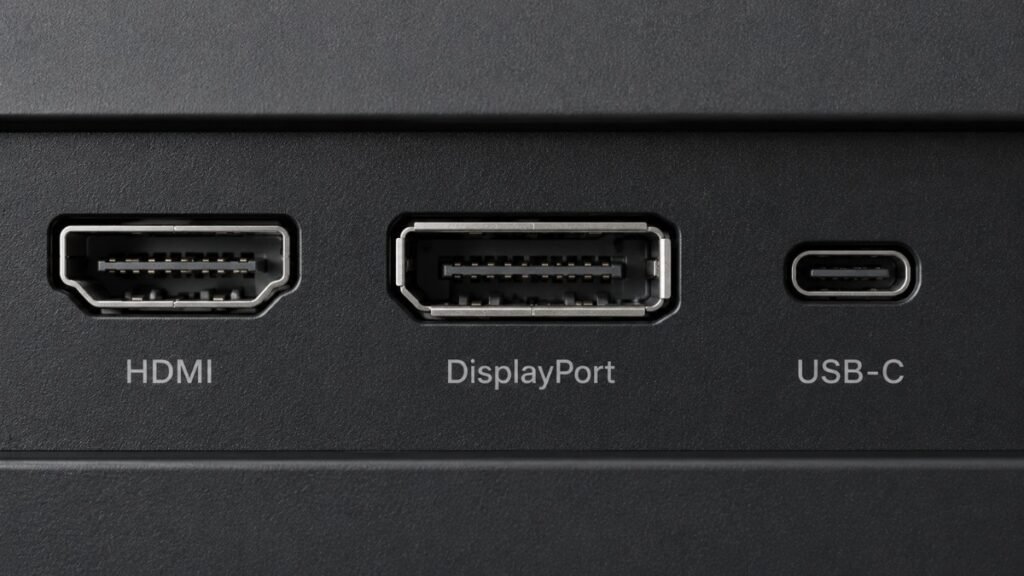
How to identify: HDMI, DisplayPort, USB-C, Thunderbolt
HDMI ports are wide and trapezoid-shaped. DisplayPort connectors look similar but have a slightly notched corner. USB-C is small, oval, and reversible — it can carry video signal, but only if the port supports “DisplayPort Alt Mode.” Thunderbolt uses the same USB-C shape but usually has a small lightning-bolt icon next to the port, and supports higher bandwidth, including daisy-chaining multiple monitors from one cable.
GPU vs Motherboard
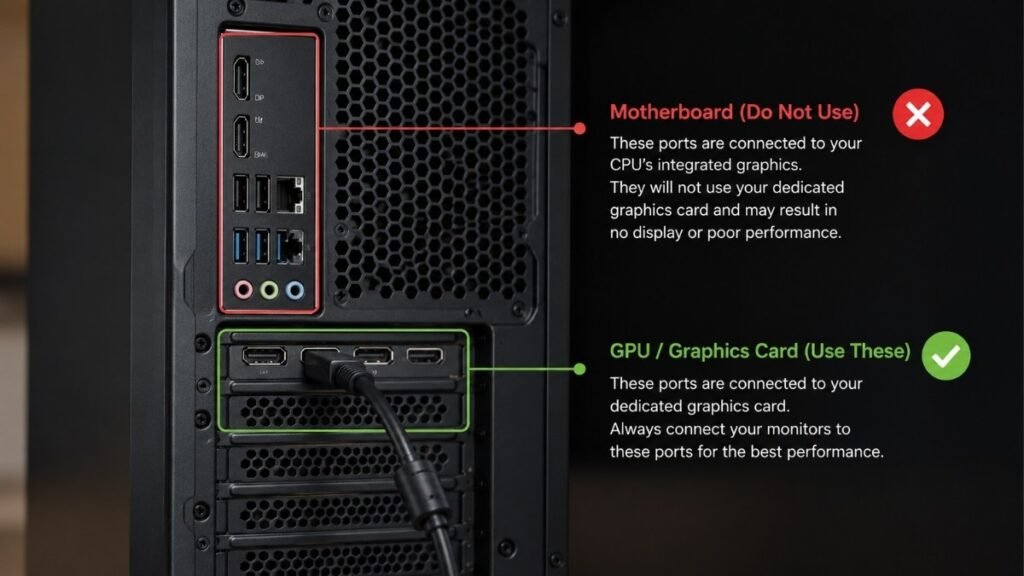
This is one of the most common mix-ups, and it’s the reason a lot of second monitors show up blank. If your computer has a dedicated graphics card, all monitor cables need to plug into the graphics card’s ports — not the ports on the motherboard, even though both are physically present on the back of the case. Plugging into the motherboard bypasses the GPU entirely, which is why the screen either won’t turn on or runs at a strangely limited resolution.
DP vs HDMI — Which should you actually use?
DisplayPort generally supports higher refresh rates and resolutions than standard HDMI, which matters more for gaming or high-res multitasking than for everyday office work. For most home office setups — email, spreadsheets, video calls — either connection works fine. If your monitor and graphics card both support DisplayPort, it’s the slightly safer choice for future-proofing, but HDMI is not a downgrade for typical productivity use.
Don’t buy the wrong HDMI splitter
An HDMI splitter sends the exact same image to two monitors — it mirrors, it doesn’t extend. If you want two different displays showing two different things, you need a graphics card with two outputs, or a Multi-Stream Transport (MST) hub, which does support extended desktops from a single DisplayPort output. This mix-up is one of the most common return reasons for cheap splitter cables, so check which one you’re actually buying.
Connect Everything Correctly on Windows and macOS
Once the cables are in the right ports, the software side is usually quick — as long as you know where to look.
Windows display settings
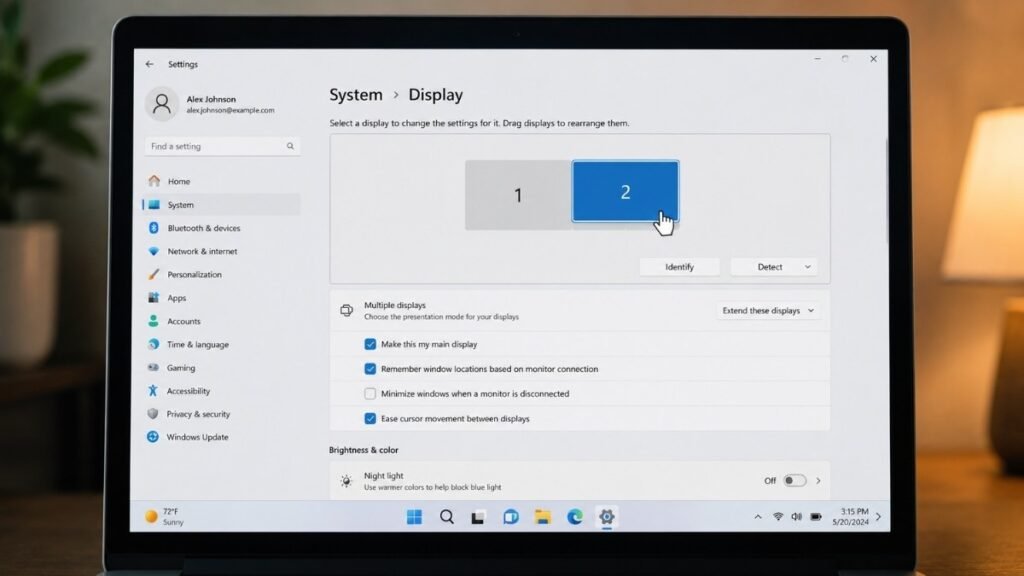
Right-click the desktop, choose Display Settings, and Windows should detect both monitors automatically. If it doesn’t, click “Detect” under the Multiple Displays section. From here you can drag the monitor icons to match their physical layout, which affects how your mouse moves between them.
macOS display settings
Go to System Settings > Displays, and you’ll see an “Arrangement” tab where you can drag each display to reflect where it physically sits on your desk. macOS is generally quicker to detect external monitors, though older MacBooks with only one video-out port may need an adapter or dock to run two externals at once.
Extend vs Duplicate
“Extend” turns your two monitors into one larger workspace — this is what most people actually want. “Duplicate” mirrors the same image on both screens, which is mainly useful for presentations, not daily work. If your second monitor is just showing a copy of your laptop screen, you’re in duplicate mode by default.
Choosing the primary monitor
Your primary monitor is where your taskbar, dock, and new windows open by default. Set this to whichever screen you look at most, not necessarily the bigger or newer one. A lot of people default to their nicer monitor as primary and end up with a workflow that fights their actual habits.
The Mixed Resolution Nightmare: Fix Scaling, Mouse Movement, and Display Alignment
This is where most dual monitor guides quietly stop, and it’s exactly where readers get stuck.
Different resolutions
If your monitors have different resolutions — say, a 1080p laptop screen paired with a 4K external — text and icons will appear different sizes across the two displays. This is normal, not a defect, and it’s the reason scaling settings exist in the first place.
Different scaling
Windows lets you set a different scaling percentage for each monitor under Display Settings, but this is also the root of the most annoying dual monitor bug: windows and cursors can appear to “jump” in size when dragged between screens. There’s no perfect fix on Windows without third-party tools, but keeping scaling differences smaller (say 100% and 125%, rather than 100% and 200%) reduces the jarring effect.
Mouse gets stuck
If your cursor stops at the edge of one screen instead of moving smoothly to the next, the monitor arrangement in your display settings doesn’t match their physical position. Go back into Display Settings and drag the monitor icons until they mirror your actual desk layout — top edges should roughly line up if your monitors are the same height.
LittleBigMouse — why it’s worth installing
For anyone running mismatched resolutions or monitor heights, LittleBigMouse is a free Windows tool that recalculates mouse movement based on your monitors’ actual physical size and pixel density, so the cursor travels in a straight line instead of jumping or lagging at screen edges. It’s a small download that fixes an outsized annoyance, and it’s one of the more underrated tools in this whole setup process.
Ergonomics First: Side-by-Side or Stacked?
How you physically arrange your monitors affects your neck, shoulders, and eyes more than most people expect until it’s already a problem.
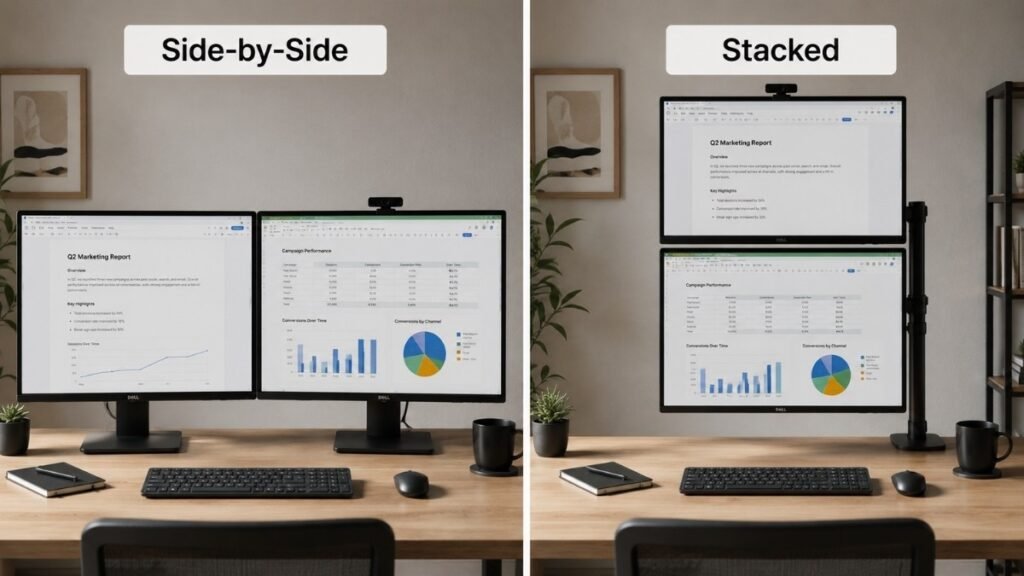
Side-by-side
Pros: Natural for comparing two documents, easier to glance between screens without much head movement, works well for most desk depths.
Cons: Needs more desk width, can strain your neck if the angle between monitors is too wide.
Best for: Multitasking between apps, writing, spreadsheets, general office work.
Stacked
Pros: Saves desk width, keeps your primary line of sight fixed on one screen.
Cons: Requires a sturdy arm or mount, the top monitor can strain your neck if it’s not properly angled downward.
Best for: Narrow desks, coding with a reference monitor on top, monitoring dashboards or chat apps.
Correct monitor height
The top third of your main monitor should sit roughly at eye level, so your neck stays neutral instead of tilting up or down. A monitor that’s too low is one of the most common causes of hunched shoulders by the end of the day.
Eye distance
Keep both monitors at a similar distance from your eyes if possible. A secondary monitor pushed much farther back than your primary forces your eyes to keep refocusing, which adds up to real fatigue over a full workday.
Reduce neck strain
One mistake beginners often make is spacing their monitors too far apart, angling both flat toward the wall behind the desk. That forces a wide neck turn every time you glance at the second screen. Many people find real relief simply by placing the main monitor directly ahead and angling the second one in slightly — somewhere around 15 degrees — so it faces the eyes rather than the wall. That small adjustment alone resolves a surprising amount of shoulder and neck tension for people who spend all day at a desk.
Laptop + External Monitor: The Best Hybrid Work Setup
For hybrid and remote workers, the laptop-plus-monitor combo is often the most practical version of a dual screen setup — and the one with the most easily fixed mistakes.
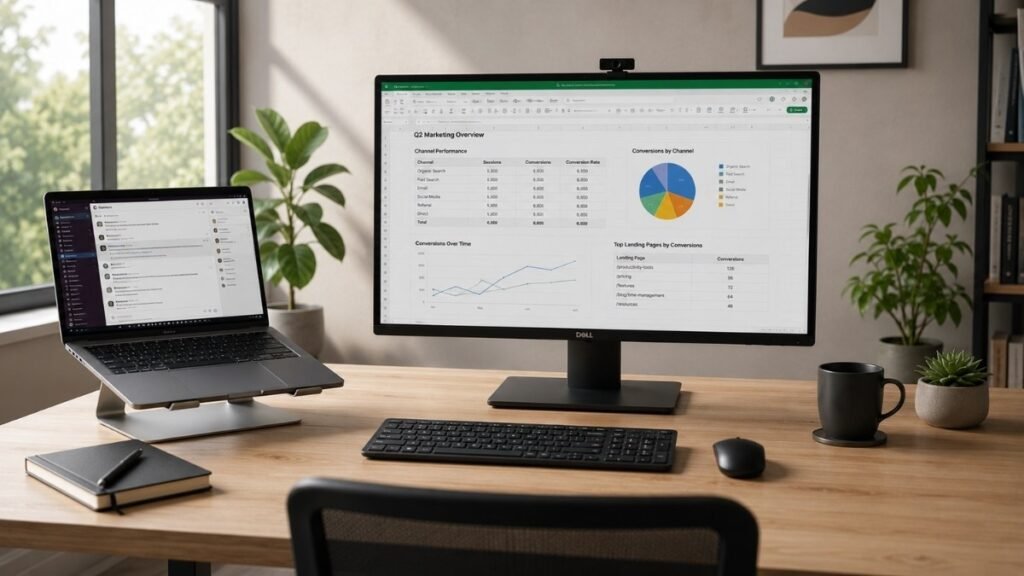
Laptop as second screen
Rather than closing your laptop when you connect an external monitor, many people keep it open and use it as the secondary display — perfect for keeping chat apps, email, or a video call visible while the main monitor handles focused work.
Laptop stand recommendations
A laptop sitting flat on the desk usually puts its screen well below eye level, especially when it’s serving as a secondary display. It’s common to worry that a stand is an unnecessary extra purchase, but for anyone using their laptop screen for multiple hours a day, raising it to a reasonable height makes a real difference — particularly during video calls, where a low camera angle isn’t flattering or comfortable to maintain.
Keeping screen heights aligned
Try to keep the top edges of your laptop screen and external monitor reasonably close in height. A laptop sitting several inches lower than the main monitor forces your eyes — and your neck — to make a bigger jump every time you glance over, which adds up over a full workday.
Matching brightness and color
Laptop screens and external monitors rarely match in brightness or color temperature out of the box. Taking a minute to adjust brightness levels so neither screen looks noticeably dimmer or warmer than the other makes the transition between them far less jarring on your eyes.
Cable Management: Make Two Monitors Look Like One Clean Workspace
Two monitors usually means twice the cables, and without a plan, that adds up fast.
Monitor arms
Beyond saving desk space, arms typically route cables through their internal arm channel, which keeps cords off the desktop entirely instead of trailing across your keyboard area.
Cable sleeves
A simple fabric or Velcro sleeve can bundle four or five loose cables into one neat column running down to your power strip, instead of a tangle behind the desk.
Power strip boxes
A vented box or basket mounted under the desk keeps your power strip and its connected bricks out of sight and off the floor, which also helps if you vacuum or sweep near the desk regularly.
Under-desk trays
A basic cable tray mounted to the underside of the desk gives cords a place to rest instead of dangling — useful for anyone who’s tripped over a charging cable more than once.
Hidden cable routing
Running cables along the back legs of the desk or through a grommet hole, rather than letting them hang loose behind the monitors, is a small step that makes a two-monitor desk look intentional instead of accidental.
The first time most people set up two monitors, the back of the desk ends up with seven or eight cables in a knot nobody wants to deal with. A basic combination of Velcro ties and a cable tray is usually enough to turn that mess into something that looks put-together in about twenty minutes.
Monitor Arms: Are They Actually Worth Buying?
Monitor arms aren’t essential for everyone, but for certain desk setups, they solve real problems that stands can’t.
Single arm
Good for anyone running one monitor alongside a laptop, or upgrading one screen at a time rather than buying a full dual setup at once.
Dual arm
Best suited to side-by-side setups on narrower desks, since a shared base takes up less desk footprint than two separate stands.
Clamp vs grommet
Clamp mounts attach to the desk edge and are easier to remove or adjust later. Grommet mounts go through a drilled hole in the desk and sit slightly more stable, but they’re a more permanent commitment.
How to Choose the Right Monitor Arm for Your Desk
If your desk is under 48 inches wide, an arm’s slim vertical post typically frees up several inches of usable surface compared to two boxy monitor stands — often enough room for a notebook, a lamp, or just breathing room for your keyboard.
| If Your Desk Is… | Best Option | Why |
|---|---|---|
| Under 40 in (102 cm) | Single monitor + laptop stand | Saves the most space while keeping your workspace comfortable. |
| 40–48 in (102–122 cm) | Dual monitor arm | Frees up desk space and makes positioning easier. |
| 48–60 in (122–152 cm) | Dual arm or two monitor stands | Plenty of room for either option, depending on your budget. |
| Over 60 in (152 cm) | Choose based on workflow | Large desks provide enough space for almost any setup. |
Dual Monitors vs Ultrawide: Which One Fits Your Workflow Better?
This comes down to how you actually work, not which option looks more impressive.
| Use Case | Better Fit |
|---|---|
| Programming | Dual monitors (code + docs/terminal) |
| Excel-heavy work | Dual monitors (compare sheets side by side) |
| Video/photo editing | Ultrawide (uninterrupted timeline/canvas) |
| Gaming | Ultrawide (immersive field of view) |
| Content creation | Depends — dual for multitasking, ultrawide for editing |
| Remote/WFH multitasking | Dual monitors (video calls + notes + email) |
Decision Tree
- Choose Dual if you regularly run separate full apps side by side — spreadsheets, chat, video calls, reference docs — and want the flexibility to angle screens independently or use one as a laptop.
- Choose Ultrawide if your work centers on one continuous canvas or timeline, like editing, design, or immersive gaming, where a single seamless screen beats a divided one.
If your day involves Excel, Chrome, and Teams all running at once, dual monitors tend to stay more flexible than an ultrawide, mainly because you can angle each screen independently and treat them as genuinely separate spaces rather than one wide canvas split into sections.
Mac Users: How to Connect Two External Monitors on M1, M2, and M3 MacBooks
Apple Silicon MacBooks have specific limitations here that catch a lot of people off guard.
Which Macs support dual monitors
Base M1 MacBook Pro and MacBook Air models officially support only one external display. M1 Pro, M1 Max, M2 Pro, M2 Max, M3 Pro, and M3 Max chips support two or more external displays natively, depending on the exact configuration.
DisplayLink solution
For base M1/M2/M3 chips limited to one external display, a DisplayLink-certified adapter or dock can add a second external monitor by routing video through USB rather than native display outputs. It’s a practical workaround, though it depends on software drivers rather than a direct video signal.
Dock recommendations
Look specifically for docks labeled “DisplayLink certified” rather than generic USB-C hubs, since standard hubs won’t add extra display outputs beyond what the chip natively supports — they’ll just extend the ports available for the one display your Mac already allows.
Share Two Monitors Between Your Work Laptop and Personal PC
This is one of the most common real-world requests, especially for people working from home with both a work laptop and a personal computer on the same desk.
USB switch
A basic USB switch lets you share peripherals like a keyboard and mouse between two computers with the press of a button, though it doesn’t handle video signal — you’d still need to manually swap monitor cables.
KVM switch
A KVM (keyboard, video, mouse) switch handles all three at once, letting you flip between your work laptop and personal PC using the same monitors, keyboard, and mouse without touching a single cable.
Using monitor input switching — low-cost setup
Many monitors have multiple video inputs built in (HDMI, DisplayPort, USB-C) and a physical or remote button to switch between them. For a simpler, cheaper setup, plug your work laptop into one input and your personal PC into another, then switch inputs on the monitor itself instead of buying a separate switch device.
10 Quick Fixes for Common Dual Monitor Problems
Black screen
→ Cause: Cable plugged into motherboard instead of GPU, or monitor on wrong input
→ Fix: Check GPU ports first, then cycle through monitor input sources
Wrong monitor order
→ Cause: Display arrangement in settings doesn’t match physical desk layout
→ Fix: Drag monitor icons in Display Settings to match how they sit on your desk
Mouse disappears
→ Cause: Monitors arranged incorrectly, or resolution/scaling mismatch
→ Fix: Realign monitor order in settings, or install LittleBigMouse on Windows
Wrong refresh rate
→ Cause: Monitor defaulting to 60Hz instead of its native rate
→ Fix: Manually set refresh rate under advanced display settings
Resolution mismatch
→ Cause: Monitors of different native resolutions running default settings
→ Fix: Set each monitor to its own native resolution individually, not a shared one
Flickering
→ Cause: Loose cable connection or incompatible refresh rate
→ Fix: Reseat the cable fully, try a different port or cable
No signal
→ Cause: Wrong input selected on monitor, or cable/port failure
→ Fix: Cycle input sources, test with a different cable
Audio coming from wrong monitor
→ Cause: Windows/macOS defaulting audio output to a monitor’s built-in speakers
→ Fix: Change default audio output device in sound settings
Laptop only detects one display
→ Cause: Base chip limitation, or hub/dock not supporting multiple outputs
→ Fix: Confirm your laptop’s display limit, use a DisplayLink dock if needed
Windows forgets monitor layout
→ Cause: Common after sleep mode or driver updates reset the arrangement
→ Fix: Reopen Display Settings and reset the monitor order after major updates
The Ideal Dual Monitor Setup Checklist
- Desk width supports both monitors comfortably (40+ inches for side-by-side)
- Monitor cables connected to GPU ports, not motherboard
- Correct primary monitor selected in display settings
- Monitor arrangement in software matches physical desk layout
- Scaling differences between monitors kept minimal
- Top of primary monitor at or near eye level
- Secondary monitor angled slightly inward, not flat against the wall
- Laptop (if used as second screen) raised on a stand to align heights
- Cables bundled and routed out of sight
- Input switching or KVM set up if sharing monitors between two computers
FAQ
Can my computer support a dual monitor setup?
Most computers made in the last several years can run two monitors, since integrated graphics on modern processors typically support at least two display outputs. The main exceptions are certain budget laptops and base-model Apple Silicon MacBooks, which limit you to one external display unless you use a DisplayLink adapter.
Can I use two monitors with only one HDMI port on my laptop?
Yes, using a USB-C to HDMI adapter, a docking station, or a DisplayLink adapter that adds an additional video output through USB. The right option depends on how many ports your laptop already has and whether they support video output.
Why does my mouse get stuck between two monitors?
This almost always means your monitor arrangement in display settings doesn’t match their physical position on your desk. Re-dragging the monitor icons to reflect the real layout usually resolves it immediately.
Do both monitors need to match in size, resolution, or brand?
No, but matching them makes scaling and visual consistency easier. Mismatched monitors work fine functionally — you’ll just need to adjust scaling settings so text and icons don’t look dramatically different in size between the two.
Will dual monitors slow down my computer?
For everyday tasks like browsing, email, and office software, no — a second monitor uses negligible extra system resources. It can slightly affect performance in graphics-intensive work like gaming or video editing, since the GPU is rendering more total pixels across two screens.
Is a dual monitor arm worth buying for a small desk?
For most small desks, yes. Arms free up the desk surface that monitor stands would otherwise occupy and typically make cable routing cleaner, though they’re a bigger upfront cost than basic stands.
Should I buy two monitors or one ultrawide monitor?
It depends on your workflow. Dual monitors tend to suit multitasking between separate full apps, while an ultrawide suits continuous work like video editing or immersive gaming where one uninterrupted canvas matters more than flexibility.
What’s the easiest way to switch two monitors between a work laptop and a personal PC?
The simplest low-cost option is using a monitor’s built-in input switching, plugging each computer into a different port and toggling between them with the monitor’s own button. A KVM switch is a better option if you also want to share the same keyboard and mouse between both machines.
Final Thoughts
A great dual monitor setup isn’t about having more screens — it’s about removing the small frustrations that interrupt your work every day. When your displays are positioned comfortably, your cables stay out of sight, and everything behaves the way you expect it to, it gets a lot easier to focus on the work that actually matters.
The goal isn’t chasing more hardware. It’s reducing friction, protecting your focus, and building a setup that still feels comfortable eight hours into the day — not just on the first afternoon you plug it all in.
🖥️ CircuitSeek Workspace Notes: The Thinking Behind This Guide
A great dual monitor setup isn’t just about adding another screen—it’s about creating a workspace that feels easier to use every day.
That’s why this guide focuses on three essentials:
- 🖥️ A Smarter Setup — Choosing the right layout, displays, and connections.
- 💺 Everyday Comfort — Improving ergonomics to reduce eye and neck strain.
- ✨ A Cleaner Workspace — Managing cables and desk space for a setup that’s easier to work in.
Because a productive workspace isn’t defined by how much equipment you own.
It’s built around a setup that helps you work comfortably, stay focused, and enjoy sitting down at your desk every day.
Continue Building Your Workspace
Creating a better desk doesn’t stop with adding a second monitor. These guides can help you build a workspace that’s even more comfortable and efficient.
- → 【Adjustable Laptop Stand for Desk】→ Internal Link
- → 【Thunderbolt Dock for Home Office】→ Internal Link
- → 【Desk Cable Management Guide 】→ Internal Link
- → 【Home Office Computer Setup Guide 】 → Internal Link
❤️From the CircuitSeek Team
The best workspace isn’t the one with the most expensive equipment—it’s the one that helps you do your best work without getting in your way. We hope every guide you read here helps you build a desk that’s more comfortable today and even better tomorrow.