
Every cable on your desk tells a small story about a compromise you made.
The monitor cable that barely reaches the port. The USB hub with four devices plugged in and a fifth waiting its turn. The Ethernet adapter that took up the one USB-C port you needed for something else. The daily ritual of plugging and unplugging four cables every time you move your laptop from the desk to the couch and back again.
A docking station — specifically a Thunderbolt dock — solves all of this with a single cable. You sit down, connect one cable to your laptop, and everything comes to life: both monitors, keyboard, mouse, external drive, ethernet, and charging. When you leave, you disconnect one cable. That’s it.
The problem is that “Thunderbolt dock” as a category spans $80 USB-C hubs to $400 Thunderbolt 5 stations, and the difference between them matters enormously depending on your setup. This guide walks through whether you actually need a dock, which type fits your situation, and what to look for — without assuming you already know what Thunderbolt means.
Key Takeaways
- A docking station solves three specific problems: not enough laptop ports, too many cables to manage daily, and the time cost of connecting and disconnecting multiple peripherals repeatedly
- USB-C docks ($100–$200) support one 4K monitor or two 1080p monitors and cover 95% of users; Thunderbolt docks ($250–$400) support dual 4K displays, external GPUs, and higher-wattage charging — buy Thunderbolt only if you specifically need those premium capabilities
- Not all USB-C ports support Thunderbolt — look for the lightning bolt symbol next to the port, or check your laptop’s specifications before purchasing a Thunderbolt dock
- Thunderbolt 5 docking stations are now available with faster charging, higher data rates, and better support for external monitors, but Thunderbolt 4 docks remain the better value for most home office users in 2026
- A dock that costs $150–200 will meaningfully improve the daily experience for most remote workers; spending more than $300 is only justified by specific high-bandwidth needs
Do You Actually Need a Docking Station?

Before spending $100–400, the honest question is whether a dock will actually improve your situation or just add complexity.
A docking station makes sense when at least one of these describes you:
You connect and disconnect multiple cables every day. If you move your laptop between your desk and another location regularly — and reconnecting your monitor, keyboard, mouse, ethernet, and charging cable each time feels like a small daily tax on your attention — a dock pays for itself in convenience within weeks. One cable in, one cable out.
You’ve run out of ports. Modern thin laptops often have two or three USB-C ports and nothing else. If you need a monitor, keyboard, mouse, external drive, ethernet, and charging simultaneously, the math doesn’t work. A dock expands your laptop into a proper workstation.
You want to run two external monitors from a laptop. Most laptop HDMI ports can drive one external display. Running two typically requires either a Thunderbolt dock or a USB-C dock that specifically supports dual display output. If dual monitors are your goal, check compatibility carefully — not all docks handle this equally.
You don’t need a dock when: You only use one external monitor, you have enough ports on your laptop for your devices, and you don’t frequently move your laptop. In that case, individual cables work fine and a dock adds cost without adding meaningful benefit.
Thunderbolt vs USB-C: What’s Actually Different
This is the question most guides either skip or explain poorly. Here’s the clearest version.
Every Thunderbolt port is a USB-C port. Not every USB-C port is a Thunderbolt port. This is the source of most confusion.
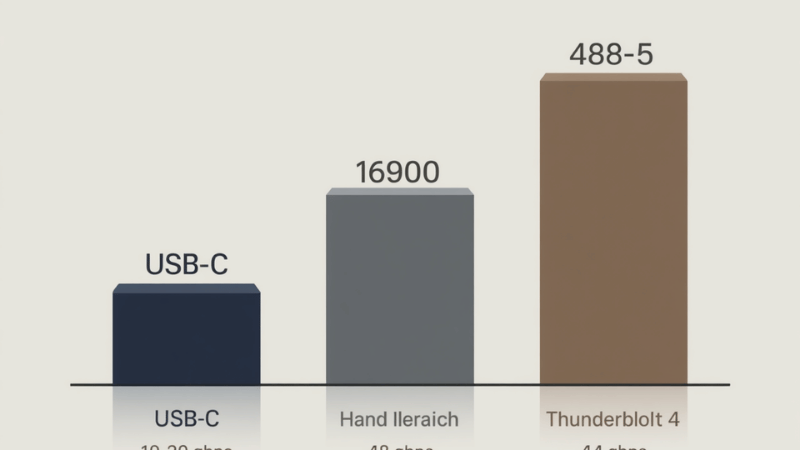
A standard USB-C port transfers data at 5–20 Gbps depending on its specification. A Thunderbolt 3 or 4 port transfers data at 40 Gbps. Thunderbolt 5 doubles that to 80 Gbps. The bandwidth difference determines what you can connect and at what quality.
In practical terms for home office use:
USB-C dock ($80–200): Works with any laptop that has a USB-C port. Supports one 4K display or two 1080p displays. Handles USB-A and USB-C peripherals, ethernet, and charging. This covers the needs of most remote workers — people with one or two monitors, standard peripherals, and no demanding data transfer requirements.
Thunderbolt 4 dock ($200–350): Requires a Thunderbolt-compatible port on your laptop (look for the lightning bolt symbol). Supports dual 4K displays, faster data transfer for external SSDs, and higher-wattage charging. The right choice for creative professionals, developers working with large files, or anyone running two high-resolution monitors.
Thunderbolt 5 dock ($300–500): The newest standard with 80 Gbps bandwidth. Supports external 8K displays, extremely fast external storage, and high-refresh-rate gaming monitors. For most remote workers in 2026, this is overkill — it’s primarily useful for videographers working with 8K footage or users with Thunderbolt 5-capable laptops who want to futureproof.
Thunderbolt docks offer significantly higher bandwidth (40 Gbps for TB4) compared to USB-C docks (10–20 Gbps), enabling support for multiple 4K displays, faster data transfers, and higher power delivery — but you can only benefit from this if your laptop has a Thunderbolt port.
How to Check If Your Laptop Has a Thunderbolt Port
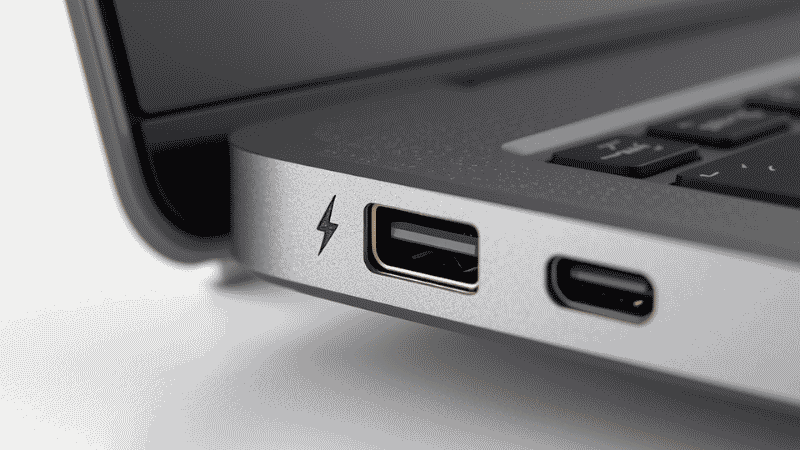
This step matters before you spend $200–400 on a Thunderbolt dock — connecting a Thunderbolt dock to a regular USB-C port won’t damage anything, but you’ll only get USB-C speeds, not Thunderbolt speeds.
Visual check: Look for a small lightning bolt symbol (⚡) next to the USB-C port on your laptop. Some manufacturers add a “TB3” or “TB4” label. Intel’s Thunderbolt logo is a lightning bolt with an arrowhead.
On Windows: Open Device Manager (search for it in the Start menu) → expand “System Devices” → look for “Thunderbolt Controller” in the list. If you see it, your laptop has Thunderbolt.
On Mac: Apple menu → About This Mac → System Report → Hardware → Thunderbolt/USB4. Any Mac with Apple Silicon (M1 or later) supports Thunderbolt 3/4 on its USB-C ports.
Check your laptop’s spec sheet: Search your laptop model followed by “specifications” and look for the port description. It will either say “USB-C” or “Thunderbolt” specifically.
If your laptop only has USB-C ports without Thunderbolt, a USB-C dock is your option — and for most users, it’s sufficient.
The Home Office Use Case: What Most Remote Workers Actually Need
Here’s a practical breakdown by setup type.
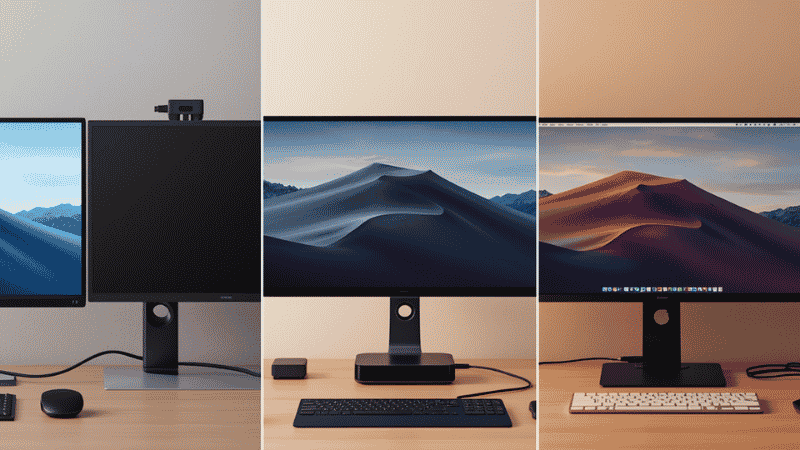
One monitor, standard peripherals (keyboard, mouse, ethernet)
What you need: A USB-C dock in the $100–150 range.
The Anker 555 USB-C Hub (~$60–80) or Anker PowerExpand 13-in-1 (~$100) handles this comfortably. If your laptop has Thunderbolt and you want better build quality and reliability, the Plugable Thunderbolt 4 Hub (~$150) is a significant step up without going to full dock pricing.
Dual monitors plus full peripheral setup
What you need: A Thunderbolt 4 dock or a USB-C dock specifically rated for dual display output.
This is where the Thunderbolt ecosystem earns its price. The CalDigit TS4 (~$350) is consistently rated as one of the best Thunderbolt 4 docks for Mac users. The Plugable TBT4-UDZ (~$250) offers strong value for Windows and Mac users who need dual 4K output without the CalDigit price tag. The OWC Thunderbolt Hub (~$150) is a lighter option if you primarily need Thunderbolt daisy-chaining rather than a full dock.
MacBook as primary computer
MacBook users have specific compatibility advantages: every M-series MacBook has Thunderbolt ports, so any Thunderbolt dock works natively without driver issues. The CalDigit TS4 was essentially designed around Mac workflows and is the most commonly recommended option in professional Mac communities. The OWC Thunderbolt Dock (~$280) is another strong Mac-first option.
For MacBook users who want a clean desk and laptop charging through a single cable: look specifically for docks with 96W or higher power delivery — lower-wattage docks will charge your MacBook, but slowly, and under heavy use may not keep pace with consumption.
Windows laptop with specific enterprise software
Windows laptop docking has one important consideration: some Dell, HP, and Lenovo laptops support proprietary docking connections alongside USB-C/Thunderbolt. If you’re using a business-class laptop from one of these manufacturers, check whether a manufacturer-specific dock (Dell WD19, HP Thunderbolt Dock G2, Lenovo ThinkPad Thunderbolt Dock) offers better power delivery and compatibility than third-party options. These are sometimes the more reliable choice for company-issued hardware.
Thunderbolt 4 vs Thunderbolt 5: Should You Wait or Upgrade?
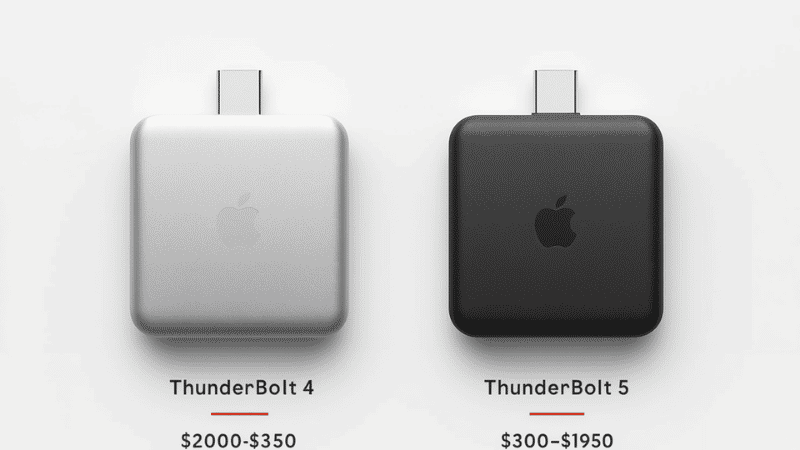
This question comes up constantly in 2026 as Thunderbolt 5 docks have started reaching the market.
In 2026, premium Thunderbolt 5 docks might be overkill — buy only what you need. Thunderbolt 4 docks remain the better value for most home office users.
The practical situation: Thunderbolt 5 laptops are still relatively uncommon outside of the highest-end MacBook Pros and a handful of premium Windows ultrabooks. If your laptop has Thunderbolt 4, you gain nothing from a Thunderbolt 5 dock — it will run at Thunderbolt 4 speeds regardless. If your laptop has Thunderbolt 5, a TB5 dock unlocks the additional bandwidth, but the real-world benefit is primarily for 8K video output and extremely high-speed external storage — use cases that don’t apply to most remote workers.
The practical recommendation: buy a Thunderbolt 4 dock now if you need one. If you get a Thunderbolt 5 laptop in the future and actually need the extra bandwidth, upgrade then. The Thunderbolt 4 dock will still work on your TB5 laptop at Thunderbolt 4 speeds.
What to Look For When Buying a Thunderbolt Dock
Once you’ve decided a dock is right for your situation, these are the specs that matter.
Power delivery wattage. The dock powers your laptop through the same cable that handles data and display. For MacBook Air: look for at least 60W. For MacBook Pro 14″: 96W minimum. For MacBook Pro 16″: 140W ideal (some docks deliver less and will charge slowly under load). Windows laptops vary — check your charger’s wattage and look for a dock that matches or exceeds it.
Number and type of display outputs. For one 4K monitor: almost any dock handles this. For dual 4K monitors: verify the spec sheet explicitly states “dual 4K at 60Hz” — some docks claim dual monitor support but only at 1080p or 4K at 30Hz. The difference matters.
USB-A ports. Many home office users still have USB-A devices — older keyboards, mice, flash drives, webcams. Make sure the dock has enough USB-A ports for your existing devices. A dock with only USB-C ports is cleaner but may require adapters.
Ethernet speed. Most docks include ethernet — look for 2.5Gbps ethernet rather than 1Gbps if your home network supports it. Future-proofing for faster ISP speeds.
Cable length. The Thunderbolt cable connecting your laptop to the dock matters. Most docks include an 0.8m cable, which can feel short depending on your desk arrangement. OWC’s two-meter Thunderbolt 5 cable is notable specifically because longer Thunderbolt cables are rare. Plan your cable routing before assuming the included cable reaches.
If You Only Have 10 Minutes to Decide Right Now
Answer these three questions:
Does your laptop have a Thunderbolt port? (Lightning bolt symbol next to a USB-C port.) If no, you’re buying a USB-C dock — skip Thunderbolt entirely and look at options under $150.
Do you need to run two monitors simultaneously? If yes, verify that any dock you consider explicitly supports dual display output at your monitor’s resolution and refresh rate.
What’s your laptop? MacBook users should prioritize CalDigit or OWC. Windows users should check whether their manufacturer makes a proprietary dock that offers better power delivery than third-party options.
That’s the whole framework. Everything else — brand preference, extra ports, aesthetics — is secondary to those three answers.
FAQs
What is a Thunderbolt dock and do I need one? A Thunderbolt dock connects all your desk peripherals — monitors, keyboard, mouse, ethernet, storage — to your laptop through a single Thunderbolt cable. You need one if you regularly connect multiple devices to your laptop, run out of ports, or want to plug in and unplug everything with one cable. If you have enough ports and only one monitor, individual cables work fine.
Can I use a Thunderbolt dock with a regular USB-C port? Yes, it will physically connect and function as a USB-C dock. However, you won’t get Thunderbolt speeds — data transfer and display output will be limited to USB-C bandwidth. For most basic use, this still works; you just won’t get dual 4K display support or the fastest data transfer rates.
What’s the difference between a USB-C hub and a Thunderbolt dock? A USB-C hub is a compact, often more budget-friendly device that expands the capabilities of a standard USB-C port. A Thunderbolt dock is a high-performance docking station using Thunderbolt protocol — offering up to 40 Gbps bandwidth, support for multiple high-resolution displays, and higher power delivery. USB-C hubs are perfect for general productivity; Thunderbolt docks are for power users needing fast data transfer and multi-display setups.
Is Thunderbolt 5 worth buying in 2026? For most remote workers, no. Thunderbolt 5 benefits are primarily felt with 8K displays and extremely fast external storage — use cases that don’t apply to typical home office setups. A Thunderbolt 4 dock delivers everything needed for dual 4K monitors, fast external SSDs, and full peripheral connectivity at lower cost.
How do I know which dock is compatible with my laptop? Check your laptop’s USB-C ports for the lightning bolt symbol indicating Thunderbolt support. Then verify that any dock you consider lists your laptop’s operating system and port type as compatible. Thunderbolt docks from CalDigit, Plugable, and OWC include compatibility lists on their product pages. When in doubt, a USB-C dock is universally compatible with any USB-C laptop.
One Cable Really Does Change Everything
The difference between a messy desk with six cables and a clean desk with one is almost entirely a docking station. Not because the dock is magic, but because it moves all the connection complexity to a fixed point — the dock itself — and reduces what you interact with daily to a single cable.
Whether that’s worth $100 or $350 depends entirely on your setup and how much of your day disappears into cable management and port negotiation. For most remote workers running dual monitors and a standard set of peripherals, it’s one of the higher-value investments in a home office setup.
Start with knowing your port type. Then match the dock to your display needs. Everything else follows.
Related Articles on CircuitSeek
- The Complete Home Office Setup Guide →
- Dual Monitor Setup Guide →
- Mac vs PC for Home Office →
- Why Is My Laptop So Slow? →
- Best Wireless Keyboard and Mouse Combo →
References
- Intel Corporation. Thunderbolt Technology Overview — Thunderbolt 4 and Thunderbolt 5 Specifications. https://www.intel.com/content/www/us/en/architecture-and-technology/thunderbolt/thunderbolt-technology-general.html
- HP Tech Takes. Do You Need a Laptop Docking Station? Here’s How To Decide. https://www.hp.com/us-en/shop/tech-takes/do-you-need-a-laptop-docking-station
- Plugable Technologies. Thunderbolt Docks vs. USB-C Hubs — Technical Comparison. https://plugable.com/blogs/news/thunderbolt-docks-vs-usb-c-hubs
- PCWorld. Best Thunderbolt Docks for a Laptop PC, Tested. https://www.pcworld.com/article/393714/best-thunderbolt-docks-for-a-laptop-pc.html