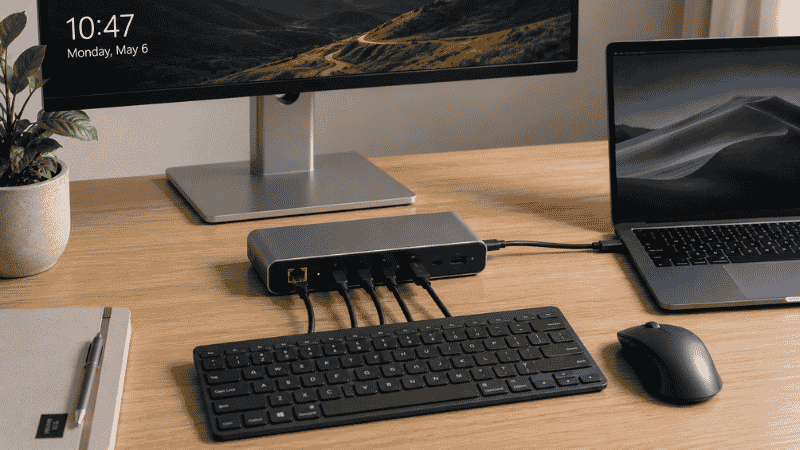
Most people setting up a home office computer get it backwards.
They start with the laptop — spend hours comparing specs, read fourteen reviews, finally buy something — and then realize the monitor is too small, the desk is too cluttered for everything to fit, and they’re still hunching over a keyboard that came in the box. The computer is fine. The setup around it is what’s making them uncomfortable and less productive than they could be.
A home office computer setup isn’t just about the laptop or desktop you choose. It’s about how that device connects to everything else: the display, the peripherals, the dock, the cables, and the physical environment you work in every day. Get the ecosystem right and even a mid-range machine performs like a workstation. Get it wrong and a premium laptop still makes your workday feel like friction.
This guide covers the complete home office computer setup — from choosing the right laptop for your work type to configuring monitors, connecting everything cleanly, and troubleshooting the slowdowns that sneak up on even well-configured machines.
Key Takeaways
- The best laptop for working from home is almost always in the $800–1,300 range — below $600 and you’re compromising on RAM or storage that will slow you down within a year; above $1,500 and you’re paying for performance you likely won’t use
- 16GB RAM is the practical minimum for comfortable remote work in 2026; 8GB works but feels constrained with multiple browser tabs, video calls, and office apps open simultaneously
- An external monitor is the single highest-ROI addition to a laptop-based home office — it adds screen real estate, improves posture, and reduces eye strain; a 27-inch 1440p monitor now costs $200–280
- A docking station or USB-C hub eliminates daily cable management friction — one cable connects everything when you sit down; one cable disconnects when you leave
- Most laptop performance problems are software, not hardware — startup programs, full storage, and browser tabs are responsible for 80% of the slow laptop complaints that lead people to buy new computers prematurely
Step 1: Choose the Right Laptop for How You Work
The laptop is the foundation, but “best laptop” means different things for different people. Before looking at any model, identify which category describes your daily work.
For General Knowledge Work: Writing, Email, Video Calls, and Office Apps
This describes the majority of remote workers — people in roles like consulting, project management, marketing, HR, customer success, and general business operations.
What you actually need: A 14-inch laptop with a modern processor (Intel Core Ultra 5/7, AMD Ryzen 5/7, or Apple M-series), 16GB RAM, and a 512GB SSD. A good display and keyboard matter more than raw processing power because you’re spending hours reading text and typing, not running computationally demanding tasks.
Best options in 2026:
MacBook Air M4 (13-inch or 15-inch, $1,099–$1,299): The M4 chip delivers excellent performance with genuinely class-leading battery life — 16–18 hours real-world use. For knowledge workers who use predominantly Apple-compatible software, this is the most comfortable all-day work machine available at its price point.
Lenovo ThinkPad T14s (AMD or Intel, ~$900–1,100 configured): The ThinkPad keyboard is consistently rated as the best typing experience on any Windows laptop. For people who type heavily all day, this matters more than any spec comparison. Excellent build quality, business-class durability, and solid battery life.
Dell XPS 14 (~$1,200–1,400): Premium build quality, outstanding display, and strong performance in a slim form factor. Better for users who value aesthetics alongside function.
What to avoid: Laptops under $500 with 8GB RAM and HDDs. The storage speed alone will make you feel like your laptop is perpetually slow, regardless of the processor.
For Developers and Technical Workers
What you need: More RAM (16GB minimum, 32GB preferred for running virtual machines or multiple dev environments), a comfortable keyboard, and a processor that handles compilation workloads without throttling.
MacBook Pro 14-inch M4 Pro (~$1,999): The M4 Pro handles demanding development workflows — compilation, running Docker containers, local machine learning — without the thermal throttling that affects Windows laptops under sustained load. The macOS Unix environment aligns naturally with most web development workflows.
Lenovo ThinkPad X1 Carbon (~$1,200–1,500 configured): For Windows-required development workflows, this is the premium choice — excellent keyboard, durable build, good battery for a Windows ultrabook, available with up to 32GB RAM.
For Creative Professionals: Video Editing, Design, and Photography
What you need: A high-quality display (color accuracy matters), dedicated GPU or a chip with strong graphics performance, and enough storage for large files.
MacBook Pro 14-inch or 16-inch M4 Pro/Max (~$1,999–3,199): Apple Silicon has made these the standard recommendation for creative professionals. Final Cut Pro, Logic Pro, and the optimized creative software ecosystem make the premium justifiable for people doing this work full-time.
ASUS ProArt P16 (~$1,600–2,000): For Windows users needing calibrated display and Nvidia GPU performance for creative work, this is a strong alternative.
For Budget-Conscious Remote Workers
What you need: 16GB RAM, SSD storage (not HDD), and a Full HD display minimum. You can make meaningful compromises on processor generation and build quality without compromising daily work performance.
Acer Swift Go 14 (~$700–850): Good display, solid performance for standard office tasks, reasonable build quality. A practical choice for workers whose primary tools are browser-based and don’t require demanding local processing.
Refurbished ThinkPad or Dell Latitude from 2–3 years ago (~$400–600): Business-class laptops from major manufacturers hold up extremely well. A refurbished Lenovo ThinkPad T14 or Dell Latitude 5000 series with 16GB RAM and SSD is genuinely excellent for remote work and costs significantly less than new consumer laptops.
Step 2: Add an External Monitor (The Most Impactful Upgrade)
If you’re working from a laptop screen exclusively, you’re leaving significant productivity and comfort on the table.
An external monitor at the right height eliminates the neck strain that comes from looking down at a laptop display for eight hours. It gives you screen real estate to have multiple windows open without constantly switching between them. And it transforms a laptop into something that feels like a proper workstation.
What size and resolution to get:
27-inch 1440p (2560×1440): The current sweet spot for home office use. Large enough to have two documents or applications side by side at comfortable text size. Sharp enough that text doesn’t look pixelated. Prices have dropped to $200–280 for quality options.
24-inch 1080p: Adequate for single-window work, but 1440p has become inexpensive enough that the upgrade is worth it.
Ultrawide (34-inch, 3440×1440): A compelling alternative to dual monitors for people who want one screen without a gap in the middle. Higher cost ($350–500) but eliminates the center-bezel issue of dual setups.
Positioning matters as much as size: The top of your monitor should be at or slightly below eye level. If your monitor is on your desk surface, a monitor arm ($40–60) or monitor riser ($20–40) raises it to the correct height and frees up desk space simultaneously.
For detailed guidance on dual monitor configurations, see our Dual Monitor Setup Guide →.
Step 3: Connect Everything with a Hub or Dock
Modern thin laptops often have two or three USB-C ports and little else. Once you add a monitor, keyboard, mouse, ethernet, and charging — you’ve run out of ports.
A USB-C hub or Thunderbolt dock solves this with one cable. You sit down, connect one cable, and everything comes to life. You disconnect one cable when you leave.
USB-C hub ($60–150): Works with any laptop that has a USB-C port. Supports one external monitor, USB-A devices, ethernet, and charging. Covers 90% of home office users.
Thunderbolt dock ($200–350): Requires a Thunderbolt port on your laptop. Supports dual 4K monitors, faster data transfer, and higher-wattage laptop charging. The right choice for dual monitor setups, MacBook users, and anyone with demanding connectivity needs.
For a complete breakdown of which type you need, see our Thunderbolt Dock for Home Office Guide →.
Step 4: Set Up Your Input Devices
The keyboard and mouse you use eight hours a day deserve more consideration than they usually get.
Keyboard: The built-in laptop keyboard is fine for occasional typing, but a dedicated external keyboard positioned at the correct height reduces wrist strain significantly when paired with a laptop on a stand or connected to a monitor setup. A wireless keyboard also removes the cable from the desk equation.
For ergonomic keyboard options and how to choose between split, wave, and standard layouts, see our Best Ergonomic Keyboard for Home Office Guide →.
Mouse: A standard wireless mouse works for most users. If you experience wrist or forearm fatigue, a vertical mouse changes the grip angle to a more neutral “handshake” position — the research supports this reducing cumulative strain.
For a full breakdown of vertical mouse benefits and recommendations, see our Vertical Mouse Guide →.
Keyboard and mouse combos: If you’re starting from scratch, a wireless keyboard and mouse combo from Logitech ($35–100 depending on tier) simplifies the purchase and guarantees wireless compatibility with a single receiver.
See our Wireless Keyboard and Mouse Combo Guide → for specific recommendations by use case.
Step 5: Sort the Software and Configuration
A well-configured laptop is noticeably faster and more reliable than the same hardware running default settings. A few changes make a meaningful difference.
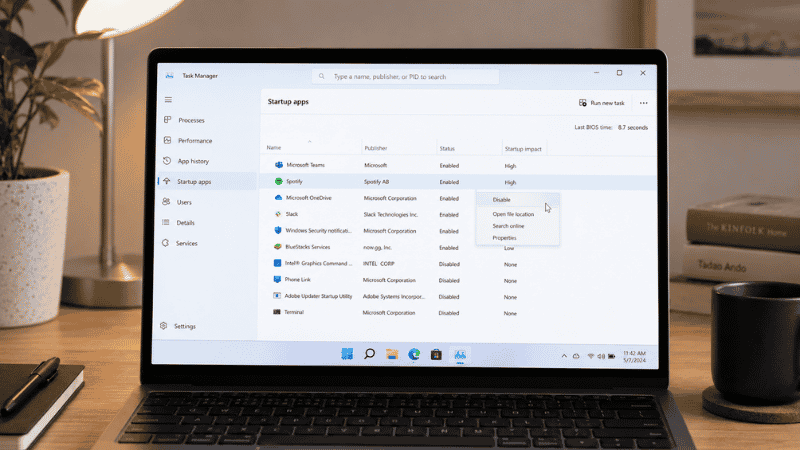
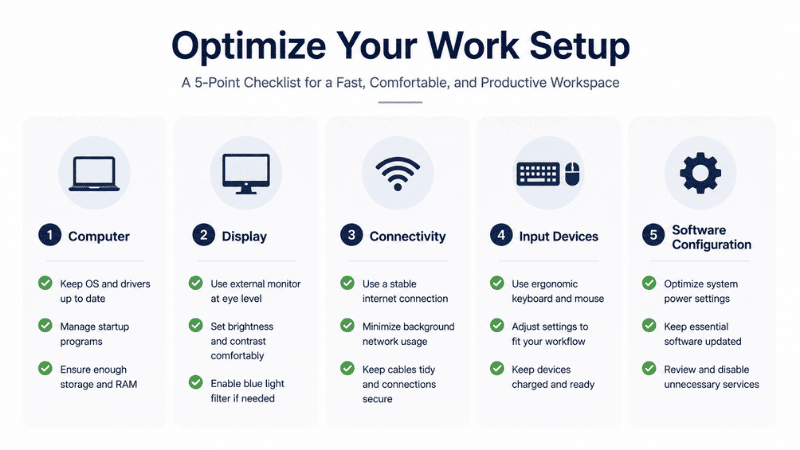
Disable unnecessary startup programs. Open Task Manager (Windows: Ctrl+Shift+Esc → Startup tab) or System Settings → Login Items (Mac). Disable anything you don’t need launching automatically — messaging apps, cloud storage sync, update managers, manufacturer utilities. This is the single fastest free performance improvement on most computers.
Keep storage above 15% free. Windows and macOS both use free disk space for temporary files and virtual memory. When storage drops below 10–15%, performance degrades noticeably. Run Disk Cleanup (Windows) or use About This Mac → Storage → Manage (Mac) to identify what’s consuming space.
Set your monitor arrangement correctly. If you’re using an external monitor, right-click your desktop → Display Settings (Windows) or System Settings → Displays (Mac). Set the external monitor as primary, arrange the virtual display positions to match your physical layout, and set each monitor to its recommended resolution.
Match your screen brightness to the room. A screen significantly brighter than the surrounding environment causes eye strain from constant pupil adjustment. Enable auto-brightness, or manually set it so the screen doesn’t appear to glow compared to the room.
For a complete troubleshooting guide when your laptop feels slow, see our Why Is My Laptop So Slow? Guide →.
Step 6: Mac or Windows — Making the Decision
If you’re choosing between platforms as part of your home office computer setup, the decision depends primarily on your software dependencies and existing ecosystem.
Choose Mac if: Your tools run well on macOS, you use other Apple devices (iPhone/iPad), or you want a machine that requires minimal ongoing maintenance. Apple Silicon’s performance-per-watt advantage and battery life make MacBooks the most practical all-day portable computers available in 2026.
Choose Windows if: You rely on Windows-specific software (Power BI Desktop, certain enterprise tools, Windows-only utilities), want more hardware variety at lower price points, or need specific configurations not available in Apple’s lineup.
For a thorough comparison with direct recommendations by work type, see our Mac vs PC for Home Office Guide →.
Step 7: iPad as a Supplement (Not a Replacement)
The iPad question comes up frequently in home office discussions. iPadOS 26 improved the iPad’s multitasking and file management significantly, making it a more credible work device than it was two years ago.
The practical reality: for most remote workers, an iPad works best as a companion device to a laptop rather than a replacement. It handles video calls, document reading, and note-taking well. It struggles with complex file management, full desktop software, and the kind of heavy multitasking that characterizes demanding knowledge work.
If you’re genuinely weighing iPad vs MacBook as your primary device, see our iPad vs MacBook for Work Guide →.
Common Home Office Computer Setup Mistakes
Buying too much computer. A $2,000 laptop for someone who primarily uses browser-based tools and Microsoft Office is wasted money. Match the computer to the actual work.
Buying too little computer. A $400 laptop with 8GB RAM and an HDD will feel slow within months and may need replacement before you’ve recouped the savings. The $200–300 difference to get 16GB RAM and an SSD is almost always worth it.
Skipping the external monitor. A laptop screen for eight hours is a posture and eye strain problem waiting to happen. An external monitor at the right height changes both.
Using the laptop on a flat surface without a stand. Without a stand, your laptop screen sits too low, forcing you to look down and compress your neck. A laptop stand ($20–40) and external keyboard is one of the cheapest ergonomic improvements available.
Ignoring cable management. Visible cable tangles create a subtle but real sense of disorder that affects focus. Cable clips, velcro ties, and a power strip mounted under the desk takes twenty minutes and costs $15. Worth doing.
Not optimizing startup programs. Accumulated startup programs slow boot time and consume RAM and disk activity in the background. Reviewing and disabling unnecessary startup items takes five minutes and is often the biggest free performance improvement available.
The Home Office Computer Setup Checklist
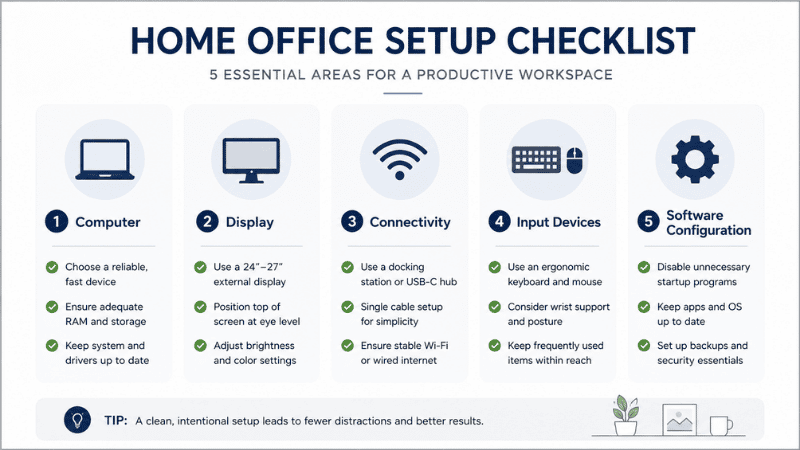
Use this to verify your setup is complete:
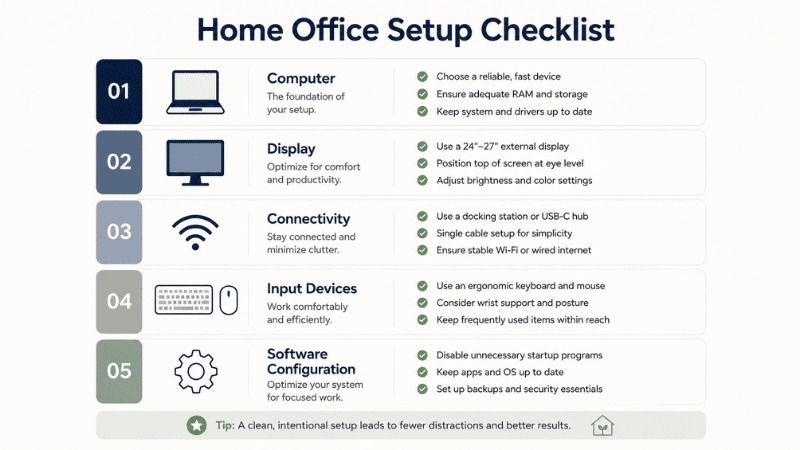
Computer
- 16GB RAM minimum
- SSD storage (not HDD)
- Modern processor (Intel Core Ultra / AMD Ryzen 7000+ / Apple M-series)
- Battery life adequate for your work style
Display
- External monitor, 27-inch 1440p recommended
- Monitor at eye level (use arm or riser if needed)
- Brightness matched to room lighting
- Positioned perpendicular to windows to minimize glare
Connectivity
- USB-C hub or Thunderbolt dock for single-cable connection
- Ethernet connection if your work requires stable video calls
- Sufficient USB ports for all peripherals
Input Devices
- External keyboard (wired or wireless)
- Mouse positioned beside keyboard without extended reach
- Wrist rest if typing extensively
Software Configuration
- Startup programs reviewed and unnecessary items disabled
- Storage above 15% free
- Display arrangement configured correctly in OS settings
- Screen brightness set to match ambient room light
Ergonomics
- Screen top at or slightly below eye level
- Keyboard at elbow height with shoulders relaxed
- Feet flat on floor or supported by footrest
- Adequate ambient lighting in the room
FAQs
What is the best laptop for working from home in 2026? For most remote workers, the MacBook Air M4 (Mac users) or Lenovo ThinkPad T14s (Windows users) represent the best balance of performance, battery life, keyboard quality, and value. Budget-conscious buyers should look at refurbished business laptops — a 2–3 year old ThinkPad or Dell Latitude with 16GB RAM and SSD handles standard office work reliably at $400–600.
How much RAM do I need for working from home? 16GB is the practical minimum for comfortable remote work in 2026. With multiple browser tabs, a video call, a document editor, and background sync processes running simultaneously, 8GB begins to feel constrained. 32GB is beneficial for developers, video editors, and people running virtual machines.
Do I need a desktop or laptop for home office work? For most remote workers, a laptop is the better choice — it works both at the desk and away from it, doesn’t require separate monitor/keyboard/mouse purchases to function, and is easier to replace. If you exclusively work at a fixed desk and need maximum performance, a desktop (Mac Mini, Mac Studio, or Windows mini PC) paired with a monitor offers better value per dollar than a laptop.
What’s the minimum setup for working from home effectively? A laptop with 16GB RAM and SSD, a 27-inch external monitor at eye level, a wireless keyboard and mouse, and a USB-C hub for single-cable connectivity. This setup costs $800–1,400 total depending on the laptop and handles virtually all remote work scenarios comfortably.
How do I know if I need a new computer or just need to fix my existing one? Check Task Manager (Windows) or Activity Monitor (Mac). If CPU and RAM are near 100% consistently, your hardware may be genuinely insufficient. If disk is at 100% or startup programs are consuming resources, software optimization will likely restore performance without a hardware purchase. Most “slow laptop” problems are software, not hardware.
Build It Once, Use It for Years
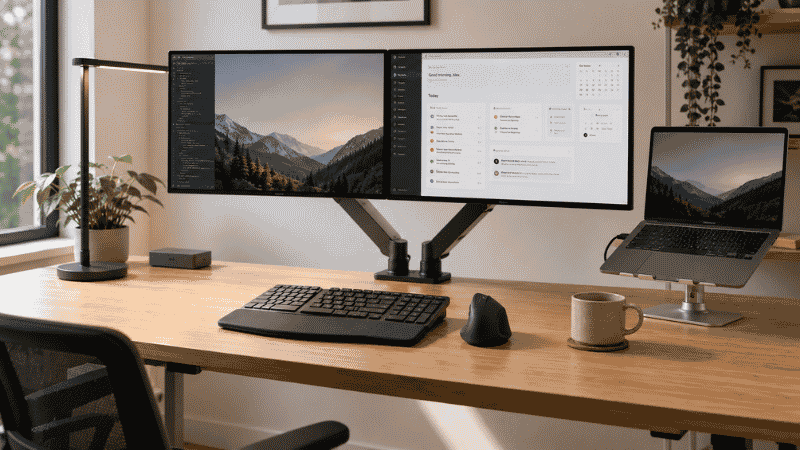
The best home office computer setup isn’t the most expensive one — it’s the one configured well enough to stay out of your way. A mid-range laptop connected to a good monitor through a clean hub, with a comfortable keyboard and mouse at the right height, will outperform a premium laptop used directly in a poorly organized space.
Start with the laptop that matches your actual work. Add the monitor that lets you see everything without strain. Connect it all through a hub so daily setup takes five seconds. Then spend the remaining time and budget on the ergonomics and organization that determine how you feel at the end of an eight-hour day.
Everything Covered in This Guide
- Dual Monitor Setup: How to Connect, Configure, and Use Two Screens →
- Why Is My Laptop So Slow? Real Causes and Fixes →
- Mac vs PC for Home Office: Which One Fits How You Work →
- Thunderbolt Dock for Home Office: Do You Need One →
- iPad vs MacBook for Work: Can the iPad Replace Your Laptop →
- Best Ergonomic Keyboard for Home Office →
- Vertical Mouse: Does It Actually Work →
- Wireless Keyboard and Mouse Combo Guide →
References
- Apple Inc. MacBook Air M4 — Technical Specifications. https://www.apple.com/macbook-air/specs/
- Lenovo. ThinkPad T14s Gen 5 — Product Specifications. https://www.lenovo.com/us/en/p/laptops/thinkpad/thinkpadt/thinkpad-t14s-gen-5/
- RTINGS.com. The Best Laptops for Working from Home, Tested. https://www.rtings.com/laptop/reviews/best/work-from-home
- TechRadar. Best laptop for working from home 2025–2026. https://www.techradar.com/best/best-laptop-for-working-from-home
- National Institute for Occupational Safety and Health (NIOSH/CDC). Computer Workstations eTool. https://www.cdc.gov/niosh/topics/ergonomics/