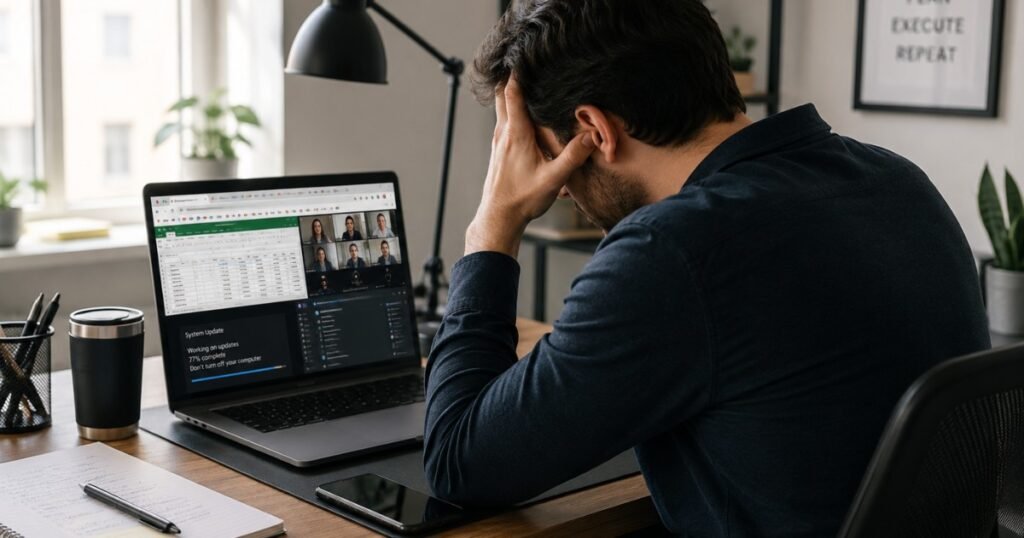
Laptop that suddenly feels slow can make even simple tasks frustrating. Apps take longer to open, browsers freeze with too many tabs, and video calls start lagging at the worst possible time. If you’ve found yourself wondering, “Why is my laptop so slow?”, you’re dealing with one of the most common computer problems—and in many cases, it’s fixable.
The tricky part is that a slow laptop doesn’t always have a single cause. It could be too many background programs, low memory, an aging hard drive, overheating, or even a Windows update running behind the scenes. Guessing usually wastes time and sometimes money.
This guide helps you narrow down the real problem first, then walks through the fixes that make the biggest difference. Start with the simplest checks first, then move on to the fixes that make the biggest difference. Along the way, you’ll get a much clearer idea of whether your laptop needs a quick tune-up or a hardware upgrade.
Overview: The Quick Answer
Most slow laptops come down to one (or several) of these:
- Too many background programs running at once
- High RAM usage
- Storage that’s nearly full
- An older hard drive (HDD) instead of an SSD
- Overheating, which triggers thermal throttling
- Windows updates running in the background
- Too many startup apps
- Hardware that’s simply aged out
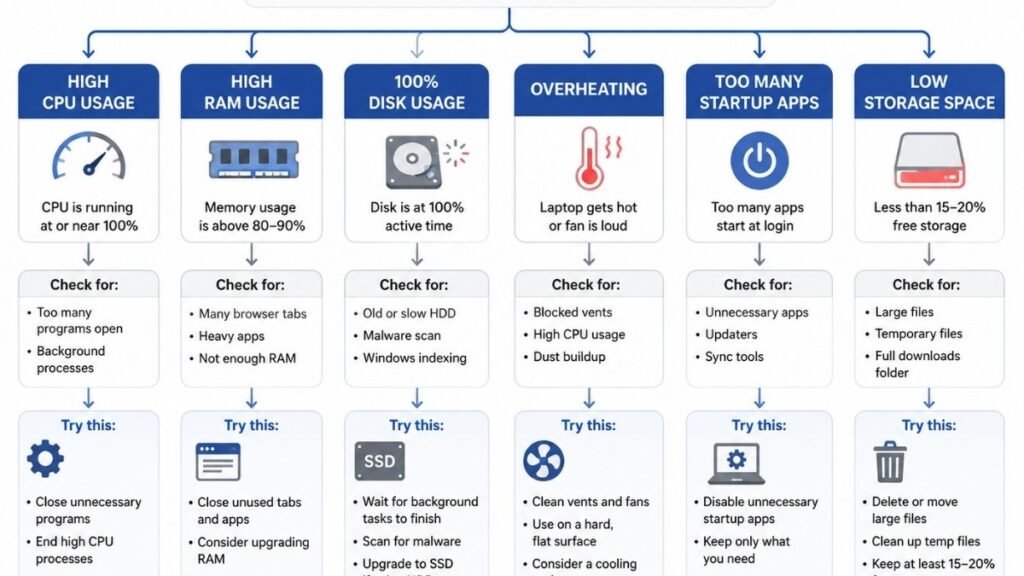
The good news: most of these can be diagnosed and fixed for free, before you spend a cent on new parts. A quick way to point yourself in the right direction:
| Symptom | Likely Cause | Where to Look |
|---|---|---|
| Slow only after 20–30 minutes of use | Overheating | Overheating section |
| Slow right after startup | Updates or startup apps | Software section |
| Slow with many browser tabs open | RAM usage | 3-Minute Check |
| Slow opening files or booting up | Storage type (HDD vs SSD) | Hardware section |
| Slow only when unplugged | Power settings | Overheating section |
Keep this table handy — it’ll save you from guessing your way through the rest of this guide.
Start With a 3-Minute Laptop Performance Check
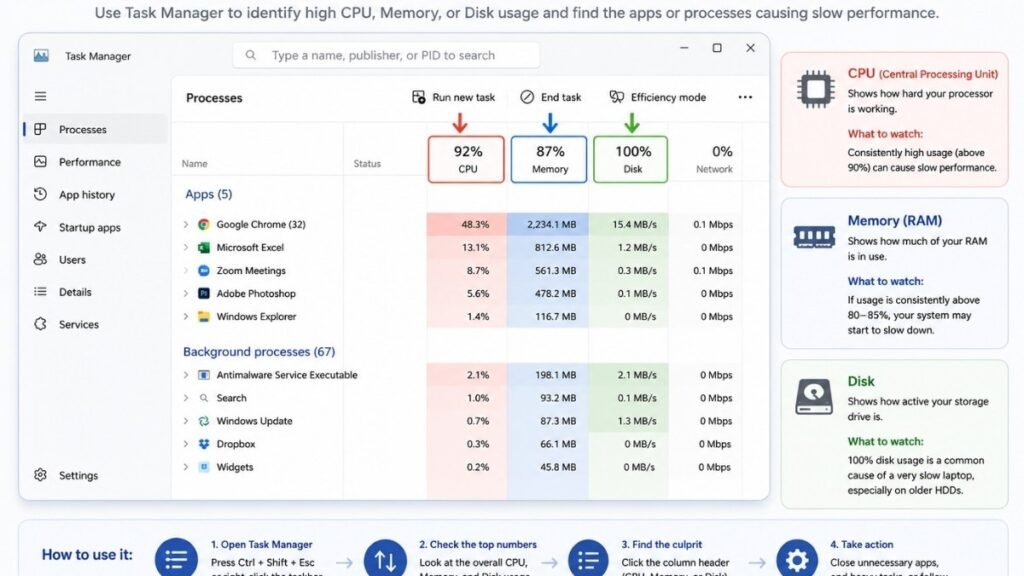
Before installing anything or changing settings, spend three minutes with Task Manager. It tells you, in plain numbers, whether your laptop’s problem is software-related or a genuine hardware limit.
How to Open Task Manager
Right-click the taskbar and select Task Manager, or press Ctrl + Shift + Esc. Click More details if you only see a simplified view.
What CPU, Memory, and Disk Usage Mean
- CPU shows how hard your processor is working. Occasional spikes are normal; sustained usage above 90% while you’re doing basic tasks is not.
- Memory (RAM) shows how much of your available memory is in use. Once it consistently sits above 85%, your laptop starts relying on slower virtual memory, and everything drags.
- Disk shows how busy your storage drive is. If this stays near 100% even during simple tasks, it’s often the single biggest cause of a sluggish laptop — especially on older hard drives.
How to Spot the Problem Process
Click the Processes tab and sort by CPU, Memory, or Disk. The app sitting at the top of that list is usually your culprit. It’s surprisingly common for people to assume their laptop is “just old,” when in reality one browser window with 30 open tabs is quietly eating most of the available memory.
| Metric | Normal Range | Likely Problem If Consistently High |
|---|---|---|
| CPU | Under 70% during normal use | A runaway process or too many apps open at once |
| Memory | Under 80% | Too many tabs, apps, or insufficient RAM |
| Disk | Well below 100% | Aging HDD, indexing, or nearly full storage |
Many people run Zoom, 30 Chrome tabs, an Excel workbook, Slack, and Outlook simultaneously without realizing how much memory that combination demands. Individually, none of these apps looks heavy — together, they can push a modest laptop past its limits.
Common Software Reasons Your Laptop Is Running Slowly (and How to Fix Them)
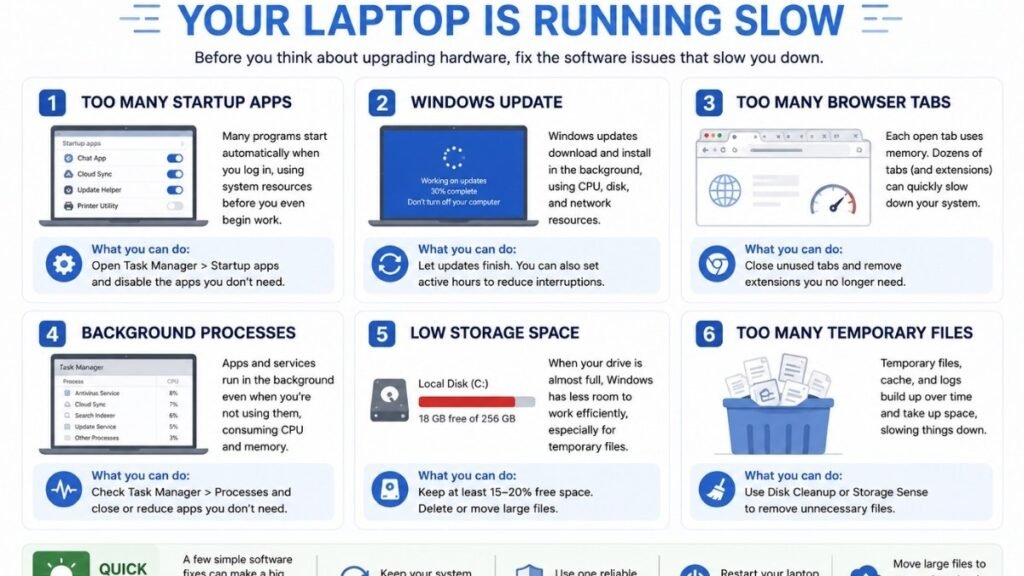
Before reinstalling Windows or replacing your laptop, try a few software fixes first. They won’t solve every problem, but they can often eliminate the most common causes of sluggish performance.
Disable Startup Apps Safely
Many programs quietly add themselves to your startup list. Open Task Manager’s Startup apps tab and disable anything you don’t need running the moment you log in — chat apps, cloud sync tools, and printer utilities are common offenders.
Free Up Storage Space
Once storage passes roughly 85–90% full, performance often drops noticeably, even on an SSD. Clear temporary files, empty the recycle bin, and move large files (videos, old project archives) to external or cloud storage.
Reduce Browser Memory Usage
Each open tab consumes memory, and extensions add up quickly. Close tabs you’re not actively using, and periodically review installed extensions — many people forget they installed one two years ago that’s still running in the background.
When Windows Updates Are the Real Cause
Windows updates and file indexing often run quietly in the background, using more system resources than many people realize. During that time, your laptop may feel unusually slow and the fan may run almost constantly. In most cases, the slowdown is temporary and disappears once the process finishes, though a restart can sometimes speed things up.
Should You Use PC Cleaning Software?
No. Most “PC cleaner” tools offer marginal benefits and some add their own background processes, making things worse. Windows’ built-in Disk Cleanup and Storage Sense cover the same ground safely.
Common misconception: running multiple antivirus programs makes a laptop safer and faster. In practice, it usually does the opposite — overlapping antivirus tools compete for the same system resources and can slow scanning and file access considerably. One reputable antivirus program (including Windows’ built-in Defender) is enough for most home office setups.
✅ Free Software Optimization Checklist
- Disable unnecessary startup apps
- Clear temporary files and empty the recycle bin
- Close unused browser tabs and remove unused extensions
- Check for and complete pending Windows updates
- Confirm only one antivirus program is running
- Restart the laptop (not just sleep) at least once a week
Brand-new laptops often feel sluggish for the first few days. That’s typically the manufacturer’s pre-installed software and initial Windows updates running in the background — not a sign the machine is faulty. Give it a day or two of normal use before judging its speed.
Hardware Problems That Can Make a Laptop Feel Slow
When software fixes don’t move the needle, the bottleneck is often physical — and no amount of cleanup will fix it.
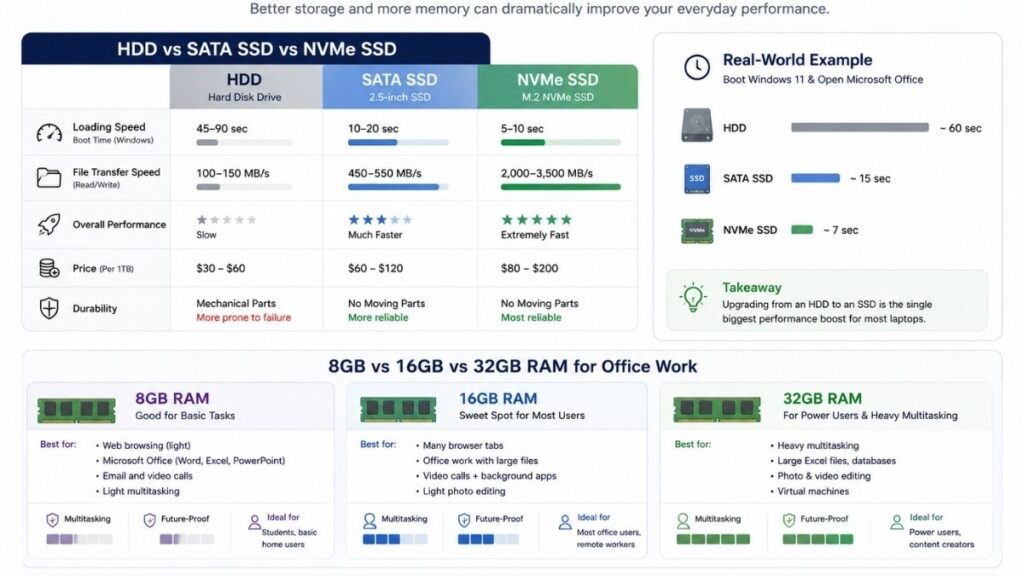
Is 8GB RAM Still Enough?
For light office work — email, browsing, word processing — 8GB is often adequate. But add video calls, multiple monitors, and a dozen browser tabs, and 8GB fills up quickly. 16GB has become a more comfortable baseline for typical home office multitasking.
| RAM | Best Suited For |
|---|---|
| 8GB | Basic browsing, email, document editing (one task at a time) |
| 16GB | Typical office multitasking: video calls, spreadsheets, browser tabs together |
| 32GB | Heavy multitasking, large datasets, design or development work |
Why SSDs Feel So Much Faster Than HDDs
This is often the single biggest upgrade for everyday responsiveness. An HDD relies on spinning disks and a physical read/write arm; an SSD has no moving parts and retrieves data almost instantly.
| Storage Type | Typical Speed | Everyday Impact |
|---|---|---|
| HDD | Slowest | Long boot times, slow file opening, visible lag |
| SATA SSD | Much faster than HDD | Noticeably quicker boots and app launches |
| NVMe SSD | Fastest | Near-instant boot and file access |
Comparison: opening a large Excel workbook or launching Outlook on an HDD can take noticeably longer than on an SSD — sometimes the difference between a near-instant open and a 15–20 second wait. People who switch from HDD to SSD often describe it as feeling like a different laptop entirely, even with the same processor.
Signs Your Hardware Is the Bottleneck
- Disk usage stays near 100% even for simple tasks
- Performance hasn’t improved despite software fixes
- The laptop is 4+ years old with original HDD and 8GB RAM or less
- Basic tasks (opening a browser, saving a file) consistently lag
Why Your Laptop Gets Slower After 20–30 Minutes of Use
One of the clearest signs of overheating is a laptop that performs normally at first but becomes noticeably slower after it’s been running for a while. Instead of a hardware failure, the processor is often reducing its own speed to keep temperatures under control.
Direct answer: Laptops automatically slow down their processor to prevent heat damage — this is called thermal throttling, and it’s a built-in safety feature, not a malfunction.
Signs of Thermal Throttling
- Fan running loudly and constantly
- The bottom of the laptop feels hot to the touch
- Performance drops noticeably after prolonged use, then improves once it cools down
Better Laptop Placement
Working from a bed, couch, or lap blocks the air vents on the bottom of most laptops, trapping heat with nowhere to go. A hard, flat surface — a desk, table, or laptop stand — allows air to flow underneath properly.
When Cleaning the Fan Helps
Dust accumulates inside the fan and vents over time, especially in laptops used for a few years. If your laptop has always run hot and loud, and it’s due for a clean, a professional dust-out (or a compressed air clean-out for the technically confident) can meaningfully improve airflow.
Battery vs. Plugged-in Performance
Many laptops intentionally reduce performance on battery power to conserve charge, then return to full speed once plugged in. If your laptop feels dramatically slower on battery, check your power plan settings before assuming something is broken.
⚙️ Cooling Improvement Checklist
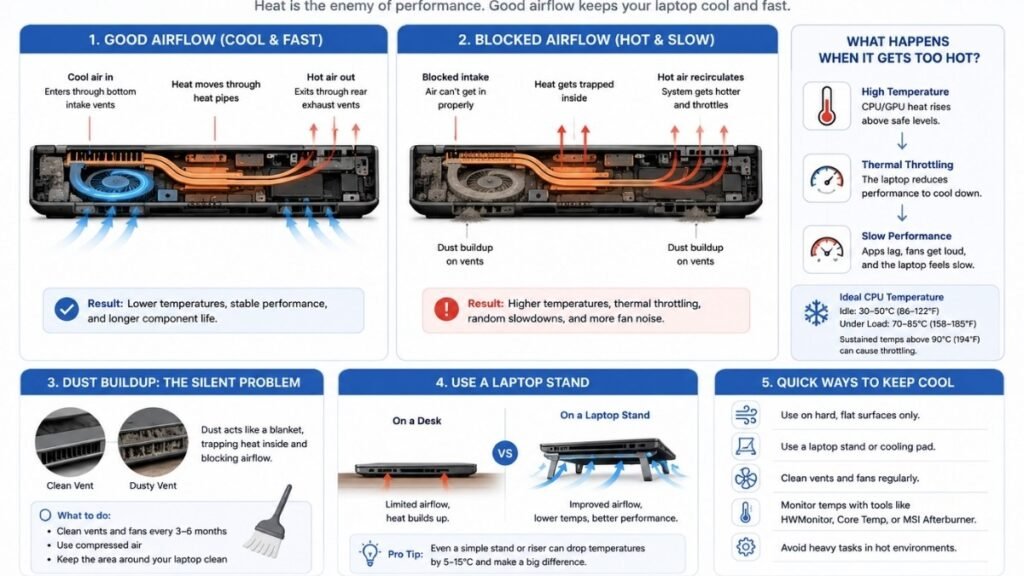
- Work on a hard, flat surface — not a bed, couch, or lap
- Check that vents aren’t blocked by cushions, blankets, or clutter
- Listen for unusually loud or constant fan noise
- Consider a laptop stand to improve airflow
- Have the fan professionally cleaned if it’s been years since the last clean
- Check your power plan if performance drops noticeably on battery
Something many people experience: working on a couch feels comfortable, but it’s one of the most common reasons a perfectly good laptop starts throttling within half an hour. Switching to a hard surface or a stand often resolves the issue without touching a single setting.
Common Everyday Habits That Slow Down Your Laptop
Some of the biggest causes of a slow laptop have nothing to do with failing hardware. Simple habits, such as leaving too many programs running, rarely restarting your computer, or syncing large files all day, can make even a newer laptop feel sluggish.
Browser Habits
Dozens of open tabs, several extensions, and multiple browser windows all draw on memory simultaneously. Bookmarking pages instead of leaving them open, and closing tabs once you’re done with them, adds up over a full workday.
Multi-Monitor Performance
External monitors and docking stations add extra load, particularly on laptops with integrated graphics. Running two high-resolution displays alongside a laptop screen can noticeably affect performance on lower-spec machines.
Restart vs. Sleep Mode
Sleep mode is convenient, but leaving a laptop in sleep for days at a time lets background processes, memory leaks, and pending updates quietly accumulate. A full restart clears all of that.
A pattern many people notice: running Teams, Slack, Zoom, OneDrive syncing, Chrome, and Excel together is an extremely common home office combination — and each one uses memory even when minimized. Individually manageable, together they can be the biggest drain on a laptop’s resources.
🗓️ Weekly Laptop Maintenance Routine
- Restart the laptop fully at least once a week (not just sleep)
- Close unused apps and browser tabs at the end of each day
- Pause or check cloud sync apps (OneDrive, Dropbox) if they run constantly
- Review which apps launch automatically and disable unnecessary ones
- Confirm updates are current rather than pending in the background
Is It Better to Upgrade or Replace a Slow Laptop?
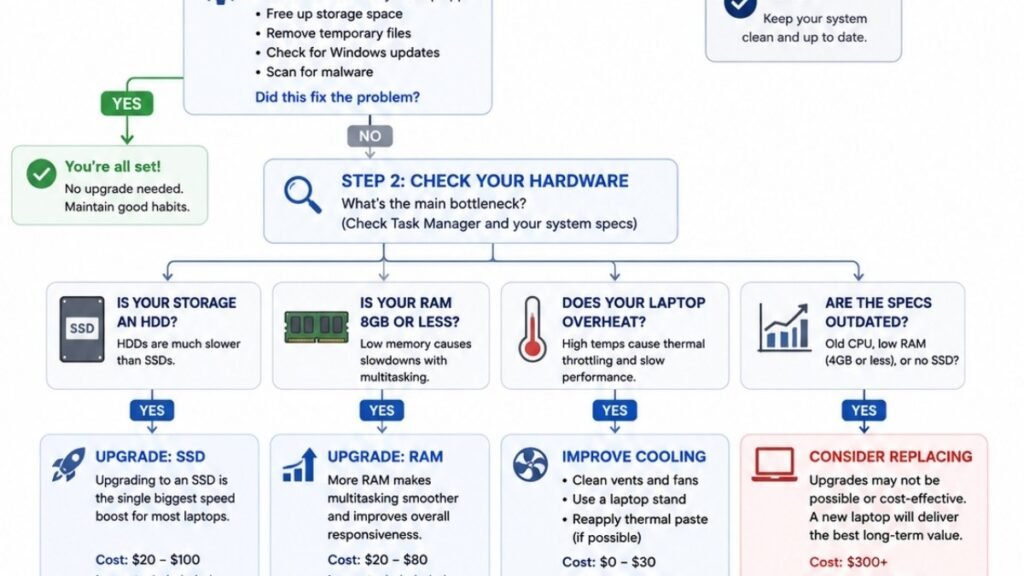
A slow laptop doesn’t always mean it’s time for a replacement. Older machines with upgradeable RAM or an HDD can often gain years of useful life with the right hardware upgrade. Others simply aren’t worth investing in anymore.
Upgrade RAM?
Worth it if your laptop supports upgradeable memory and you’re consistently seeing high memory usage during normal multitasking. This is one of the more affordable upgrades on laptops that allow it.
Upgrade SSD?
Often the highest-impact upgrade available, especially if you’re still running an HDD. Replacing it with an SSD can noticeably improve boot time, app launches, and file access — sometimes rivaling the feel of a brand-new machine.
Buy a Cooling Stand?
A reasonable, low-cost step if overheating is your main issue and the laptop is otherwise in decent shape. It won’t fix an aging processor, but it can meaningfully extend comfortable use time.
Buy a New Laptop?
Makes sense when the CPU itself can’t keep up, when the laptop can’t be upgraded further, or when repairs would cost close to (or more than) a new comparable machine.
| Scenario | Recommended Action |
|---|---|
| HDD, 8GB RAM, otherwise good condition, 3–5 years old | Upgrade to SSD, add RAM if possible |
| Frequent overheating, laptop is 2–4 years old | Clean fan, improve placement, consider a cooling stand |
| Dual-core processor, 7–8+ years old, already maxed on RAM | Replace |
| Performance issues only under heavy multitasking | Upgrade RAM, review daily habits first |
A 5-year-old laptop still running an HDD is usually a strong upgrade candidate — swapping in an SSD often makes it feel dramatically newer. An 8-year-old laptop with an aging dual-core processor, on the other hand, is typically a better candidate for replacement, since the processor itself can’t be upgraded.
If you’re weighing a new laptop against your current setup, it’s also worth considering platform, not just specs — see our comparison on [Mac vs PC for Home Office] before deciding.
Common Myths About Slow Laptops
A slow laptop doesn’t always have the cause people expect. Plenty of common tips and “quick fixes” are still shared online, even though they do little to improve performance. Understanding what actually causes a laptop to slow down can save both time and unnecessary expense.
| Myth | Reality |
|---|---|
| A slow laptop always means a virus | Viruses are a relatively rare cause compared to background apps, storage, or overheating |
| More antivirus software = better protection and speed | Running multiple antivirus tools competes for resources and often slows things down |
| A powerful CPU guarantees good performance | Storage type and RAM often matter more for everyday responsiveness |
| Adding RAM alone fixes everything | RAM helps multitasking, but won’t resolve an overheating or storage bottleneck |
| Keeping it plugged in always makes it faster | Some laptops perform the same either way; the difference depends on the power plan, not the outlet |
| A brand-new laptop can’t be slow | New laptops can feel sluggish during initial setup, updates, and manufacturer software installation |
FAQ
Why is my laptop running so slow all of a sudden?
A sudden slowdown is usually caused by a background process — a Windows update installing, a runaway app, or a nearly full hard drive. Check Task Manager first to see what’s using CPU, memory, or disk at that moment. If nothing obvious stands out, a restart often clears temporary issues.
Why is my brand new laptop or newly started PC lagging so badly?
New laptops often run manufacturer setup software and Windows updates in the background during the first few days. This settles down on its own; give it a day or two of normal use before deciding whether performance is genuinely a problem.
How do I know if my slow laptop is caused by hardware or software issues?
Open Task Manager and watch CPU, memory, and disk usage during normal tasks. Consistently high numbers even for simple tasks suggest a hardware limitation; occasional spikes tied to specific apps usually point to software.
Why does my laptop get extremely slow after 20 to 30 minutes of use?
This pattern almost always points to overheating and thermal throttling, where the processor deliberately slows itself to avoid heat damage. Improving airflow — a hard surface, cleaner vents, or a cooling stand — typically resolves it.
Can low RAM or a traditional hard drive (HDD) make my laptop slow down?
Yes, and these are two of the most common causes. Low RAM causes lag during multitasking, while an HDD slows down boot times, file opening, and general responsiveness compared to an SSD.
How can I remove bloatware and disable startup apps to speed up my laptop?
Open Task Manager’s Startup apps tab and disable anything unnecessary, and use Windows’ built-in “Apps & Features” to uninstall manufacturer bloatware you don’t use. This alone can noticeably shorten boot time.
Why is my laptop processor stuck at a low speed like 800MHz?
This is a classic sign of thermal throttling or an aggressive power-saving setting. Check your laptop’s temperature and power plan; switching to “Balanced” or “High performance” mode while plugged in often resolves it.
Is it worth upgrading my slow old laptop with an SSD and more RAM, or should I buy a new one?
If the processor is still reasonably capable and the laptop is under about 5 years old, an SSD and RAM upgrade is usually the more cost-effective choice. If the CPU itself is outdated and can’t be upgraded, replacement tends to make more sense long-term.
💻 Laptop Notes: The Thinking Behind This Guide
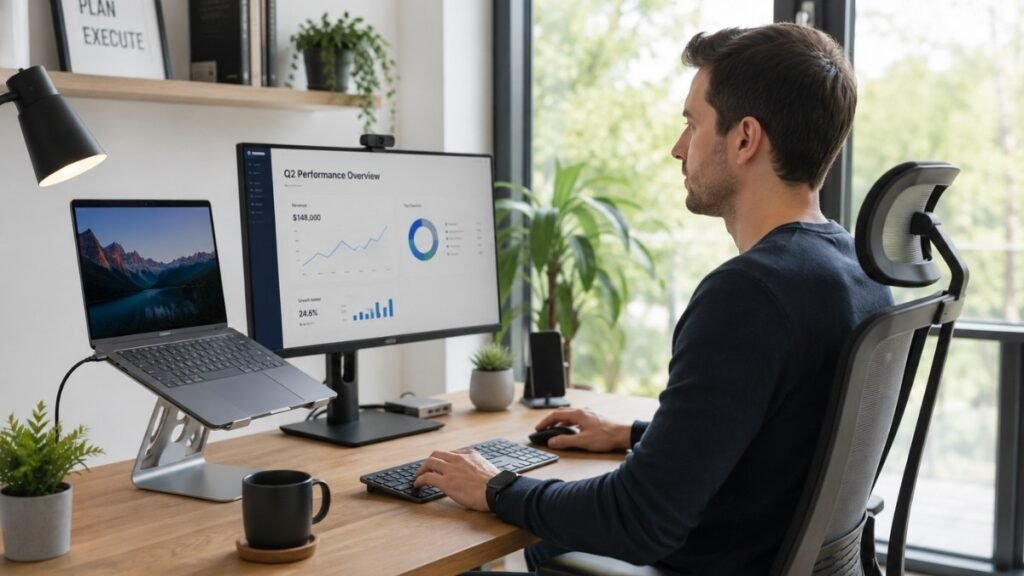
A slow laptop doesn’t always need an expensive fix. More often, it’s a handful of small issues that build up over time—too many background apps, limited storage, overheating, or everyday habits that quietly reduce performance.
That’s why this guide focuses on practical steps you can actually use, starting with the easiest checks before moving on to upgrades or replacement.
This guide is built around three priorities:
- 💻 Finding the real cause — Diagnose the problem before trying random fixes.
- ⚡ Improving performance — Focus on changes that make the biggest difference first.
- 🛠️ Spending wisely — Upgrade only when it makes sense, and replace your laptop only when it’s truly necessary.
Because the goal isn’t just to make your laptop faster.
It’s to help you solve the right problem without wasting time or money.
📚 Continue Building a Better Home Office
A faster laptop is just one piece of a more productive workspace. Explore these guides to improve your setup, choose the right computer, and get more from the technology you use every day.
- 💻 Build a reliable workspace from the ground up — Home Office Computer Setup Guide: Choose and Configure the Right Tech →
- 🍎 Compare the two best platforms for remote work — Mac vs PC for Home Office: Which One Actually Fits How You Work →
- 🖥️ Boost productivity with a dual-screen workspace — Dual Monitor Setup Guide: How to Connect, Configure, and Use Two Screens →
- ⚡ Learn how to optimize your entire desk setup — Home Office Computer Setup Guide →
- 🔍 See whether a Mac or PC is the better long-term choice — Mac vs PC for Home Office →
❤️ A Final Note
Technology doesn’t have to be complicated.
At CircuitSeek, we believe good advice should be practical, honest, and easy to follow. Whether you’re troubleshooting a problem, upgrading your setup, or choosing your next device, we’re here to help you make informed decisions without unnecessary cost or confusion.
Better decisions lead to better technology experiences.