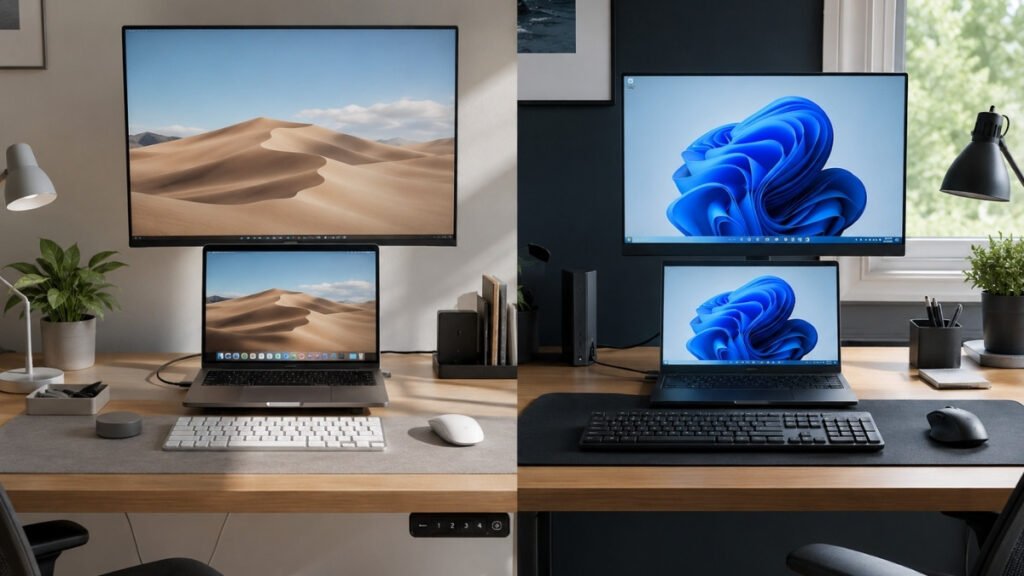
Choosing between Mac or PC for work isn’t as straightforward as it seems. Some people value Mac’s battery life and seamless ecosystem, while others prefer Windows for its software compatibility, flexibility, and price. The best choice isn’t about the logo—it’s about which computer helps you work more efficiently every day.
This guide compares Mac or PC from a practical home office perspective, covering software compatibility, real-world performance, desk setup, and long-term value. By the end, you’ll know which platform is the better fit for your workflow, budget, and daily productivity.
Overview: The Quick Answer
There’s no universal winner between Mac and PC. The right choice depends on your workflow, the software you rely on daily, your budget, and how your workspace is set up.
Choose a Mac if you:
- Already use an iPhone or iPad and want everything to sync smoothly
- Want exceptional battery life for working away from a desk
- Travel frequently and value a light, quiet machine
- Prefer a laptop that stays cool and quiet under normal use
- Work with creative apps or certain development tools
Choose a Windows PC if you:
- Depend on Windows-only business software
- Use advanced Excel features like VBA macros or Power Query
- Need flexible hardware options across a wide range of budgets
- Want the best value for the price
- Plan to use the same machine for work and gaming
| If you… | Best Choice |
|---|---|
| Already use an iPhone | Mac |
| Do heavy Excel & Power BI work | Windows |
| Edit video regularly | Mac |
| Do programming | Depends on your stack |
| Game after work | Windows |
| Have a limited budget | Windows |
| Need all-day battery life | Mac |
| Run a heavy multi-monitor setup | Windows |
Keep this table in mind as a starting point — the sections below explain exactly why these recommendations hold up in everyday use.
What’s the Difference Between a Mac and a PC?
Before looking at software, battery life, or price, it’s worth understanding what actually separates a Mac from a Windows PC. The biggest differences aren’t just the hardware—they also affect compatibility, flexibility, and the way you work every day.
macOS and Windows take different approaches to the same goal. macOS runs exclusively on Apple’s own hardware, built around Apple Silicon chips that prioritize efficiency and battery life. Windows runs across an enormous range of hardware from dozens of manufacturers, which means far more choice in price, specs, and design — but also more variation in build quality and performance.
| Factor | Mac | Windows PC |
|---|---|---|
| Hardware | Apple only | Dozens of manufacturers |
| Chip philosophy | Apple Silicon, efficiency-focused | Intel/AMD, performance-focused with more variety |
| Price range | Higher starting price, less variation | Wide range, from budget to premium |
| Ecosystem | Deep integration with iPhone/iPad | Broad compatibility, less ecosystem lock-in |
| Typical user | Creative work, Apple ecosystem users | Business software, gaming, budget-conscious buyers |
Neither platform is objectively better — it genuinely comes down to how you work day to day. Someone doing heavy spreadsheet work with legacy business software will have a very different experience than someone editing video and syncing files across an iPhone and iPad.
Will Your Everyday Software Run Better on a Mac or PC?
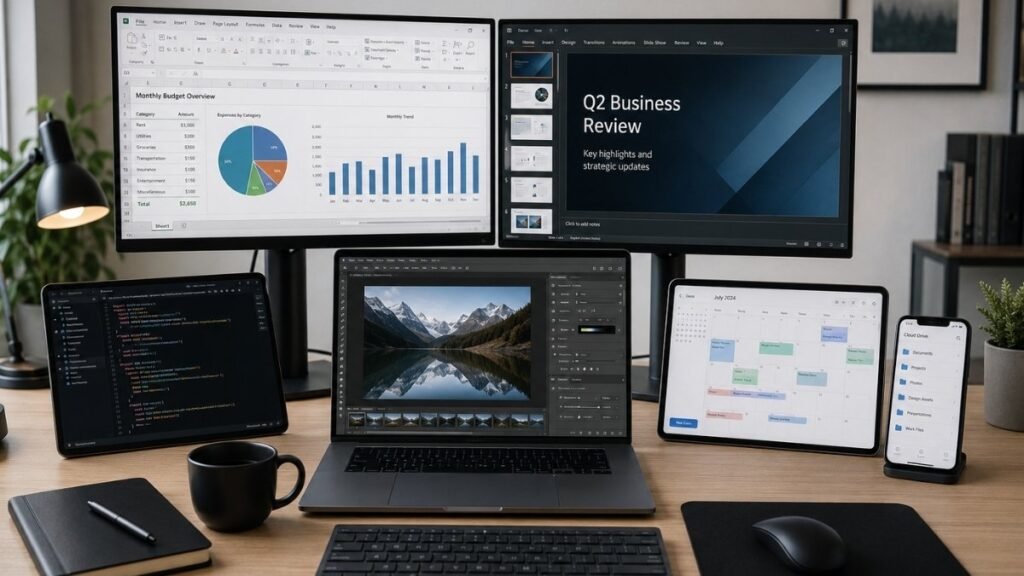
Before comparing hardware, check whether your everyday apps, business tools, and creative software work equally well on both platforms. For many buyers, software compatibility is the deciding factor.
Microsoft Office & Excel
Microsoft 365 works well on both platforms for everyday tasks — documents, basic spreadsheets, email, and presentations. Where things diverge is in advanced Excel work. Certain features, like specific VBA macros and some Power Query functions, are more fully supported or run more reliably on the Windows version of Excel. If your work depends on complex spreadsheet automation, this is worth testing before you commit to a platform.
Creative Applications
Adobe Creative Cloud runs well on both systems, and most creative professionals can work comfortably on either. Historically, Mac has held an edge in color-accurate displays and optimized performance for video editing, though modern Windows laptops with strong GPUs have closed much of that gap.
Business & Industry Software
This is where the decision often gets made for you rather than by you. Many companies still rely on Windows-only tools — certain accounting software, CAD programs, industry-specific databases, and legacy in-house systems. It’s a common surprise for people switching to Mac: tools like Microsoft Access, Visio, and various niche business applications simply don’t have a native macOS version, and running them requires workarounds like virtualization.
Sharing Files Between macOS and Windows
Cross-platform file sharing is mostly seamless today through cloud storage and common file formats. The one place people occasionally run into friction is external drive formatting — a drive formatted in APFS (Mac) won’t be readable on Windows without extra software, and NTFS drives (common on Windows) are read-only on Mac by default. Formatting external drives in exFAT avoids this problem entirely, since both platforms read and write it natively.
| Software Type | Mac Compatibility | Windows Compatibility |
|---|---|---|
| Microsoft 365 (basic use) | Excellent | Excellent |
| Advanced Excel (VBA, Power Query) | Limited | Full support |
| Adobe Creative Cloud | Excellent | Excellent |
| CAD software | Limited | Full support |
| Microsoft Access / Visio | Not available | Full support |
| Cloud storage & sync | Excellent | Excellent |
Mac or PC: Which Is Best for Your Job?
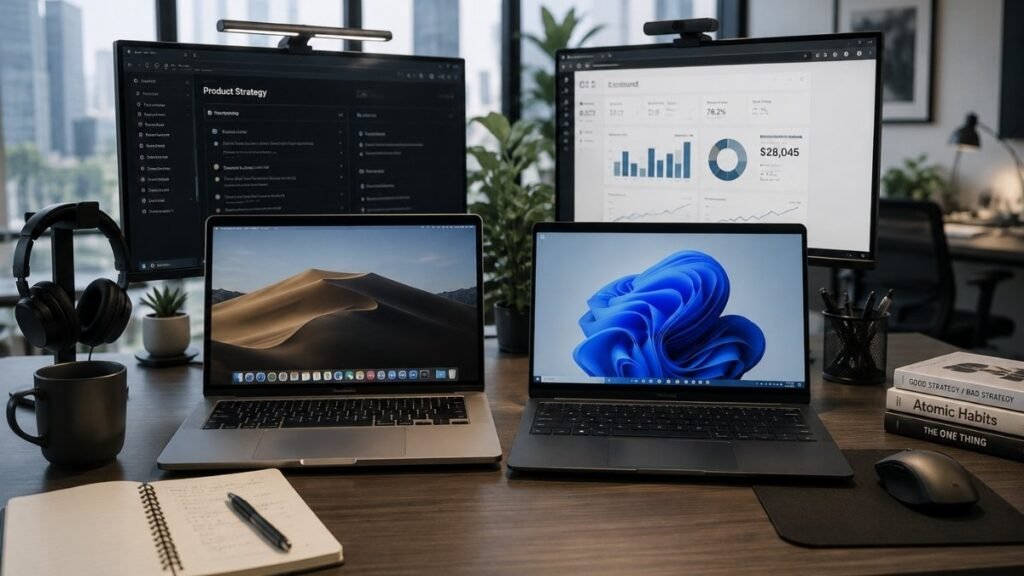
The right computer depends on how you work every day, the software you use, and the tasks you spend the most time on. Whether you’re working in an office, creating content, writing code, or analyzing data, here’s how Macs and Windows PCs compare for each type of work.
Best for Office Productivity
For general office work — email, video calls, documents, and standard spreadsheets — both platforms perform comfortably. The deciding factor tends to be whether your company or industry leans on Windows-specific tools.
Best for Creative Professionals
Designers, photographers, and video editors often gravitate toward Mac for its color-accurate displays and smooth performance in creative software, though a well-specced Windows machine with a capable GPU handles the same work effectively, often at a lower price.
Best for Developers
This genuinely depends on your development stack. Developers working with iOS apps generally need a Mac, since Apple’s development tools require macOS. Developers working primarily in web development, Python, or Windows-specific environments often find Windows (or Linux, dual-booted) more practical.
Best for Finance & Data Work
Heavy Excel users, particularly those relying on complex macros, large datasets, or Power BI, tend to have a smoother experience on Windows, where these tools are most fully supported.
Best for Hybrid Work and Gaming
If you want one machine that handles both office work and gaming after hours, Windows is the clearer choice — Mac’s game library remains far more limited.
Who Should Choose a Mac
People already invested in the Apple ecosystem, those prioritizing battery life and a quiet, cool laptop, and creative professionals who value color accuracy and a streamlined software experience.
Who Should Choose a Windows PC
People who need specific business software, want more hardware and budget flexibility, do heavy spreadsheet or data work, or want a machine that can also game.
A realistic way to think about this: someone spending their day in Outlook, Teams, a browser with a dozen tabs, an IDE, and large Excel files will have a very different ideal setup than someone in Adobe Premiere and Photoshop most of the day. Matching the platform to that actual daily pattern matters more than matching it to general reputation.
| Profession | Recommended Platform |
|---|---|
| General office worker | Either — depends on company software |
| Designer / video editor | Mac (often preferred) |
| iOS developer | Mac (required) |
| Web / backend developer | Either, often Windows |
| Finance / data analyst | Windows |
| Hybrid work + gaming | Windows |
Mac or PC: Which Performs Better in Everyday Use?
Specs on paper rarely capture what a computer actually feels like to use for eight hours a day. This is where the two platforms diverge most noticeably in daily life.

Direct answer: Mac laptops with Apple Silicon generally offer longer battery life and quieter, cooler operation for everyday tasks, while Windows laptops offer more performance and configuration options at a given price point, with battery life and noise varying more by model.
Apple Silicon chips are built around efficiency, which is why many MacBooks comfortably run a full workday unplugged with the fan rarely turning on. Windows laptops vary considerably — some ultrabooks now approach similar efficiency, but many mid-range Windows laptops run warmer and audibly louder under sustained load, particularly with several apps open at once.
A realistic workload comparison: picture a typical day with Outlook, Teams or Zoom, 20 Chrome tabs, Excel, Slack, and Spotify all running simultaneously. On a MacBook with Apple Silicon, this combination typically runs smoothly with minimal fan noise and strong battery life throughout the day. On a Windows laptop, the experience depends heavily on the specific model — a well-specced ultrabook handles it just as comfortably, while a budget model may show more fan noise and shorter battery life under the same load.
It’s worth noting that newer Windows “Copilot+ PCs,” built around more efficient ARM-based chips, are narrowing this gap and bringing battery life closer to what Mac users are used to — though software compatibility with these newer chips is still catching up in places.
| Factor | Mac (Apple Silicon) | Windows PC |
|---|---|---|
| Typical battery life | Very strong, often all-day | Varies widely by model |
| Fan noise under normal use | Minimal to none | Varies, often noticeable under load |
| Multitasking with 15–20 tabs + apps | Smooth | Smooth on capable hardware, strained on budget models |
| Heat under sustained use | Generally cool | Varies by model and cooling design |
Real-world productivity depends on sustained performance, battery life, and cooling — not benchmark scores alone, and both platforms can perform well when matched to the right hardware tier.
Mac or PC: Which Works Better with Your Desk Setup?
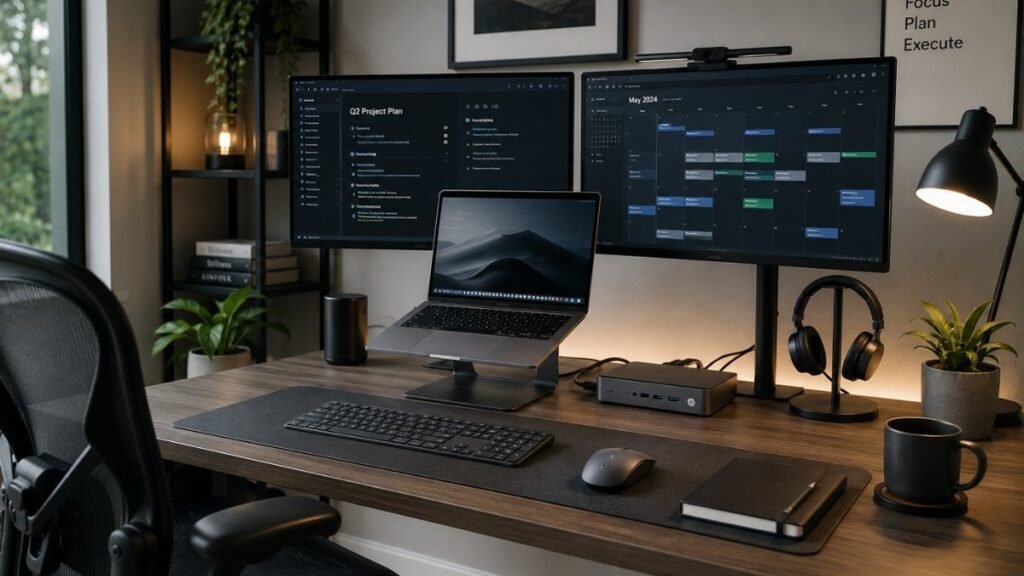
Monitors, docking stations, keyboards, and other accessories all play a role in your daily workflow. Before you buy, it’s worth checking how well each platform supports your desk setup, external displays, and connectivity needs.
Choosing the Right Monitor
Many Mac users gravitate toward 27-inch 4K displays, since macOS renders text especially sharply at that resolution and scaling factor. Windows offers more flexible scaling across a wider range of monitor resolutions and sizes, which can be an advantage if you’re mixing displays of different specs.
Multi-Monitor Support
Both platforms support multiple external displays, though the practical limit depends on your specific machine. Some Mac laptops support fewer external displays natively without a dock, while many Windows laptops offer more flexibility here depending on the ports available.
Docking Stations
Thunderbolt docks work well with Mac and offer fast data transfer and clean single-cable setups. USB-C hubs and docks are widely compatible with Windows laptops, and the sheer variety of available hardware makes it easy to find one that fits your specific port needs and budget.
Display Scaling Tips
If text looks blurry or oddly sized after connecting an external monitor, checking your display scaling settings first — before assuming a hardware issue — resolves the vast majority of these situations on either platform.
Ergonomic Laptop Stands
Regardless of platform, a laptop stand paired with an external keyboard and mouse improves both posture and airflow, especially for anyone working multiple hours a day at a single desk.
| Setup Factor | Mac | Windows PC |
<br>
| Best display match | 27″ 4K for sharp text | Flexible across resolutions |
| Docking | Thunderbolt docks | Wide range of USB-C hubs/docks |
| Multi-monitor flexibility | Model-dependent | Generally more flexible |
Mac or PC: How to Make the Right Buying Decision
Once you’ve narrowed down the platform that fits your needs, the next step is finding the right model for your budget. A smart purchase isn’t just about spending less—it’s about paying for the features you’ll actually use while avoiding costly mistakes.

Best Computer by Budget
Under $800: Windows offers far more choice here, from capable everyday laptops to a few older Mac models on sale. Mac has very limited options at this price point.
$800–$1,200: A solid range for a base MacBook Air or a well-specced Windows ultrabook — both comfortably handle everyday office work.
$1,200–$1,800: This is where you can get a Mac with more memory and storage, or a Windows laptop with a stronger processor, better display, and dedicated graphics if needed.
Premium budgets: Both platforms offer excellent high-end options; the choice comes down to ecosystem and software needs rather than capability.
Understanding Apple’s Upgrade Pricing
One thing that surprises a lot of first-time Mac buyers is how much memory and storage upgrades cost compared to the base model — often significantly more than the same upgrade would cost on a comparable Windows machine or an aftermarket component. Since most Macs can’t be upgraded after purchase, it’s worth paying for the memory you’ll actually need upfront rather than trying to save money on the base configuration.
Unified Memory Explained
Apple Silicon Macs use unified memory, where the CPU and GPU share the same fast memory pool rather than using separate RAM and video memory. This is generally efficient, but it also means Mac memory specs aren’t directly comparable to traditional Windows RAM numbers on a like-for-like basis — 16GB of unified memory on a Mac often performs comparably to more RAM on a traditional Windows setup for everyday tasks.
Five-Year Ownership Costs
| Cost Factor | Mac | Windows PC |
|---|---|---|
| Purchase price | Higher upfront, less variation | Wide range depending on specs |
| Upgradability | Very limited after purchase | Often upgradable (RAM, storage) |
| Repair costs | Generally higher | Varies, often lower |
| Typical resale value | Strong | Varies by brand and model |
| Expected lifespan | Long, especially Apple Silicon models | Varies by build quality |
Common Buying Mistakes
- Buying based only on brand reputation rather than actual software needs
- Ignoring whether your essential work software runs well on the platform
- Buying too little memory to save money upfront, especially on a Mac
- Choosing a gaming laptop primarily for office work, ending up with poor battery life and excess weight
- Assuming any Mac can fully replace a gaming PC
- Overspending on specifications that don’t match your actual workload
✅ Before Buying Your Next Computer Checklist
- Confirm your essential software runs well on the platform you’re considering
- Choose memory and storage based on your actual workload, not just the base price
- Check display, port, and docking compatibility with your existing desk setup
- Compare total cost, including likely upgrades and accessories, not just sticker price
- Consider expected lifespan and resale value if you tend to upgrade every few years
The best purchase balances today’s budget with your expected workload over the next four to five years, not just the lowest starting price.
FAQ
Should I buy a Mac or a Windows PC for home office and daily productivity?
It depends on your software needs and budget. Choose Windows if you rely on Windows-only business software or want more budget flexibility; choose Mac if you value battery life, a quiet laptop, and already use Apple devices. For most general office work, both perform comfortably.
Is a MacBook worth the extra cost over a similarly priced Windows laptop?
It depends on what you value most. MacBooks often justify their price through battery life, build quality, and a quiet, efficient experience. A similarly priced Windows laptop may offer more raw performance or better specs, but with more variation in battery life and noise.
How do battery life and unplugged performance compare between MacBooks and Windows laptops?
MacBooks with Apple Silicon generally offer longer, more consistent battery life for everyday tasks. Windows laptops vary considerably by model — some efficient ultrabooks come close, while others see a more noticeable drop in performance and battery life when unplugged.
Can I play modern PC games on a Mac, or should I stick to a Windows laptop?
Mac’s game library has improved but remains far more limited than Windows. If gaming is a regular priority alongside work, a Windows PC is the more practical choice.
Is 16GB of unified memory on a Mac enough for daily multitasking, or should I pay for more?
For typical office multitasking — email, browsing, video calls, and spreadsheets — 16GB is usually sufficient. If you regularly run heavier creative or development workloads, paying for more upfront is worthwhile since Mac memory isn’t upgradable later.
Are there specific office software or Excel features that don’t work well on macOS?
Yes. Certain advanced Excel features, including some VBA macros and Power Query functions, work more reliably on Windows. Tools like Microsoft Access and Visio also aren’t available natively on macOS.
Why do most companies issue Windows PCs instead of MacBooks to their employees?
Largely due to existing software infrastructure — many businesses rely on Windows-specific tools, legacy systems, and IT management software that’s built around the Windows ecosystem, making it the more practical default at scale.
How difficult is it to switch from Windows to macOS for everyday work tasks?
For general tasks like email, browsing, and basic documents, the transition is usually smooth within a few days. The main friction points are typically keyboard shortcuts, file management differences, and any Windows-specific software you rely on regularly.
🖥️ Editor’s Note: Why We Created This Mac or PC Guide
Choosing between a Mac or PC isn’t just about buying a computer—it’s about choosing the tool you’ll rely on every workday. If you’ve ever opened a dozen comparison articles only to end up more confused than when you started, you’re not alone.
That’s exactly why we put this guide together.
Instead of focusing on benchmark scores or brand loyalty, we built this comparison around the questions real home office users actually ask:
- 💻 Software Compatibility — Will the apps you depend on work the way you expect?
- ⚡ Everyday Productivity — Which platform feels smoother during a normal workday?
- 💰 Long-Term Value — Which choice makes more sense for your budget over the next several years?
Every recommendation in this guide is based on practical home office workflows, current hardware capabilities, and the everyday decisions people face when choosing between a Mac or PC—not marketing claims or spec-sheet comparisons.
Because at the end of the day, most people don’t need the fastest computer.
They need the one that helps them work comfortably, confidently, and without regrets.
💼 Continue Building Your Home Office
A comfortable and productive workspace doesn’t stop with choosing the right computer. These practical guides will help you build a better home office, choose the right equipment, and work more efficiently every day.
- Home Office Computer Setup Guide — Learn how to create an ergonomic, organized workspace that improves comfort, productivity, and focus.
- iPad vs MacBook for Work — Compare portability, productivity, and software compatibility to find the best device for your daily workflow.
- Thunderbolt Dock for Home Office — Discover how the right dock can simplify cable management, expand connectivity, and support a cleaner desk setup.
❤️ A Final Note
Your workspace should help you focus—not slow you down.
At CircuitSeek, we believe a better home office isn’t about filling your desk with more gadgets. It’s about choosing the right equipment, organizing your workspace thoughtfully, and building everyday habits that make work more comfortable and productive.
That’s why every guide we publish is built around practical advice, honest recommendations, and real-world office setups—not unnecessary complexity or marketing hype.
Our mission is simple: helping you create a workspace where you can work smarter, feel more comfortable, and get more done every day.