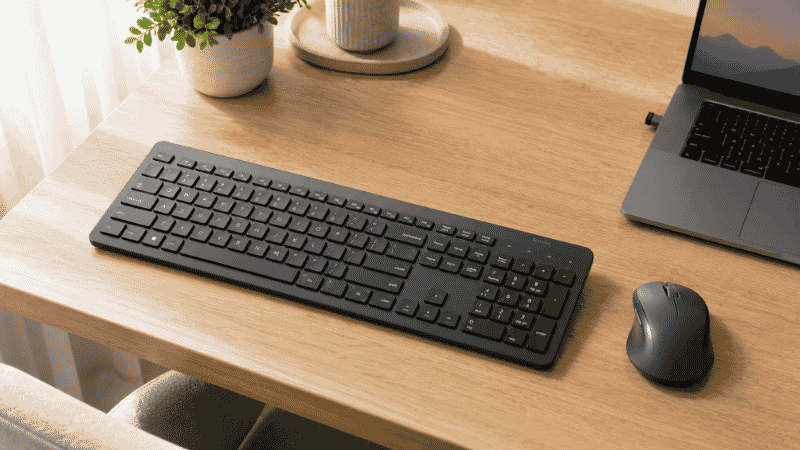
Buying a wireless keyboard and mouse combo sounds simple. It isn’t.
The category looks deceptively straightforward — a keyboard and a mouse, sold together, usually with a shared wireless receiver. But the range runs from a $22 budget set that you’ll replace in eighteen months to a $150 multi-device setup that genuinely changes how you work across multiple computers. And because the keyboard and mouse ship as a unit, you’re locked into both decisions at once.
Most people buy a combo the wrong way: they pick a price point, scroll through options, choose something that looks reasonable, and hope for the best. Then they discover that the mouse is too small for their hand, or that the keyboard is louder than expected in a shared space, or that it doesn’t connect to their Mac the way they assumed.
This guide is built to prevent that. We’ll walk through the decisions that actually matter — which ones are worth spending more on, which ones aren’t — and match different setups to specific combos that make sense for them. By the end, you’ll know exactly which wireless keyboard and mouse combo fits your situation, not just which one has the best average review score.
Key Takeaways
- A wireless keyboard and mouse combo is a strong choice for most home office setups — one receiver, one purchase decision, guaranteed compatibility between the two devices
- The single most important spec most buyers overlook is connectivity type: 2.4GHz USB receiver vs Bluetooth vs dual-mode — this affects how many devices you can connect and whether you need an available USB port
- Quiet/silent keyboards reduce key noise by up to 90% (Logitech’s SilentTouch technology) — essential for shared living spaces, video calls, or light sleepers in the household
- Budget combos under $40 are genuinely functional for basic office work; the jump to $70–100 buys ergonomic design, multi-device switching, and significantly better build quality
- Knowing when NOT to buy a combo — and buy separate devices instead — saves money and frustration for people with specific keyboard or mouse requirements
The Case for Buying a Combo (And When to Buy Separately Instead)
Before anything else, let’s address a question most combo guides skip: should you actually buy a combo?
A wireless keyboard and mouse combo makes sense when:
You’re setting up a home office from scratch and have no strong preference for specific keyboard or mouse models. A combo gives you guaranteed wireless compatibility, a single USB receiver (or Bluetooth pairing), and usually a lower combined price than buying the equivalent quality separately.
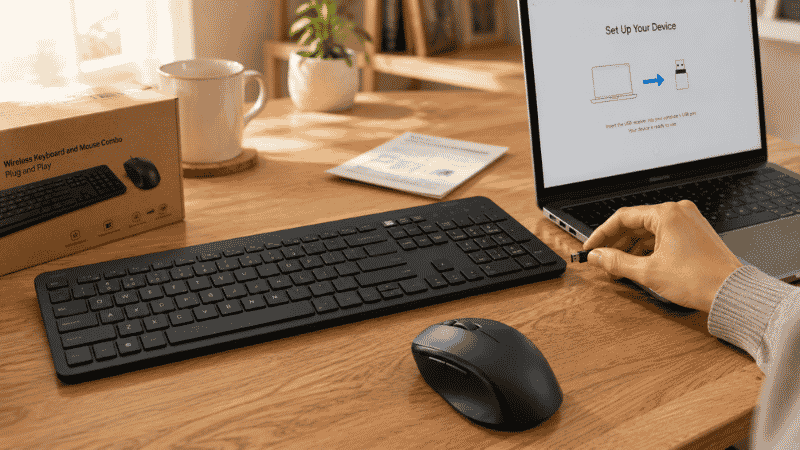
You want a simple setup with minimal cable clutter and zero configuration. Most combos are plug-and-play: insert the receiver, it works. No separate Bluetooth pairing processes for each device.
Your keyboard and mouse usage patterns are roughly equal — you type a significant amount and also do significant mouse work, so neither device is the weak link in your workflow.
Buy keyboard and mouse separately when:
You have strong preferences about one device that a combo can’t satisfy. If you want a specific mechanical keyboard for typing feel, or a high-precision gaming-grade mouse for detailed work, combos won’t serve you — the bundled device is almost always a compromise. Buy the device you care about most, then find a separate complement.
You work in a highly specialized way — lots of precision creative work (buy a better mouse), heavy coding (buy a better keyboard with the right switches), or extreme ergonomic needs (buy an ergonomic keyboard paired with a vertical mouse).
You already own one excellent device and only need to replace the other. Don’t buy a combo just to get a new keyboard if your mouse is already perfect.
What Actually Matters When Choosing a Wireless Keyboard and Mouse Combo
Connectivity: The Decision Most People Make Wrong
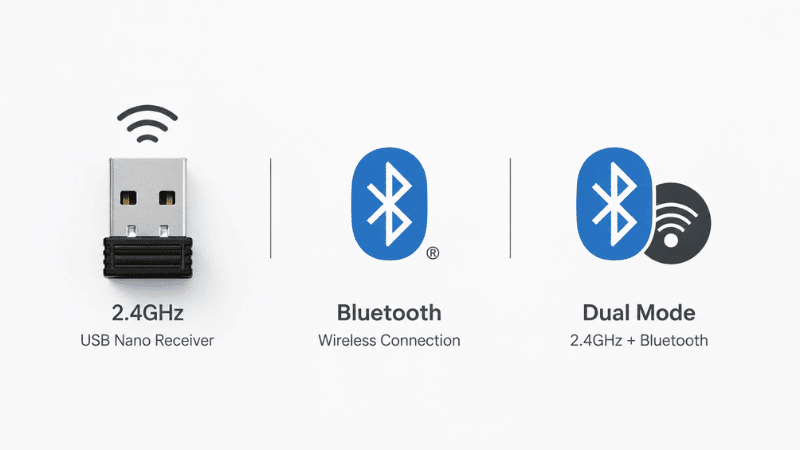
This is the most important spec and the one most buyers skim past.
2.4GHz USB receiver (USB dongle): The traditional wireless method. Plugs into a USB port, creates a dedicated wireless connection. Extremely reliable, low latency, works with any computer that has a USB port. The limitation: it occupies a USB port permanently, and if you lose the tiny dongle, the combo stops working.
Logitech’s Unifying Receiver is worth specifically looking for — it can connect up to six compatible Logitech devices through a single dongle, so if you later add another Logitech device, you don’t need a second port.
Bluetooth: No dongle required. Connects directly to your computer’s Bluetooth. The advantage: works with tablets and phones too, and doesn’t use a USB port. The limitation: slightly more setup involved, occasional reconnection glitches on some systems, and doesn’t work on computers without Bluetooth (some desktop PCs don’t have it built in).
Dual-mode (both 2.4GHz and Bluetooth): The most flexible option. Found on mid-range and premium combos. Lets you connect via dongle to your main computer and Bluetooth to a second device — useful for people who switch between a laptop and a desktop, or between a computer and a tablet.
Multi-device combos take this further — some keyboards and mice can store connections to two or three devices and switch between them with a button press. If you work across multiple computers, this feature alone is worth the price premium.
Keyboard Switch Type: Quiet vs Tactile

For home office use, this matters more than most buyers realize.
Scissor switches (membrane): Found in most combo keyboards. Laptop-like key travel (1.5–2mm), quiet operation, satisfying enough for most typing. The vast majority of people working from home will be happy with scissor switches. They’re significantly quieter than mechanical keyboards.
Quiet/silent variants: Some combos specifically engineer for noise reduction — Logitech’s SilentTouch technology claims 90% noise reduction compared to standard keys. If you’re on video calls frequently, work in a shared space, or have a light sleeper nearby, a quiet-certified combo is worth seeking specifically.
Mechanical switches: Not common in combos, but some higher-end sets include them. More tactile feedback, longer key travel, more noise. Better for people who type heavily and prioritize feel over quiet operation. Not ideal for shared spaces.
Mouse Size and Grip Compatibility
This is the most common complaint in combo reviews: “the mouse is too small for my hand.”
Combo mice are almost always designed for average-to-medium hands to maximize the number of people they work for. If you have larger hands, or if you use a palm grip (resting your entire palm on the mouse rather than fingertip or claw gripping), many combo mice will feel cramped.
A quick test: if your current mouse feels too small, the combo mouse will almost certainly feel too small too. In that case, consider buying the keyboard from the combo separately and pairing it with a better-fitting mouse.
Wireless Keyboard and Mouse Combo Recommendations by Scenario

Best for: First Home Office Setup, Budget-Conscious (~$25–45)
Logitech MK270 Wireless Combo (~$30–35)
The most widely used budget combo in the market for a reason — reliable 2.4GHz connection, straightforward setup, decent keyboard feel, functional mouse. Not fancy. Not ergonomic. But it works consistently, the battery life is genuinely good (keyboard up to 24 months, mouse up to 12 months), and at this price you’re getting a professional-grade wireless experience without any of the premium features.
The mouse is on the smaller side. If you have larger hands, be aware.
Best for: Someone setting up a first home office on a tight budget who needs something that just works without fuss.
Logitech MK295 Silent Wireless Combo (~$35–40)
The same tier as the MK270 but with SilentTouch technology — significant noise reduction on both keys and mouse clicks. If you’re on frequent video calls, work in a shared apartment, or anyone nearby comments on your typing, this is the version to buy at this price point. The difference in noise level is immediately noticeable.
Best for: Budget-conscious buyers in shared spaces or those who spend significant time on video calls.

Best for: Full-Time Remote Workers, Mid-Range (~$70–100)
Logitech Wave Keys MK670 Combo (~$70–80)
The MK670 represents a meaningful step up from budget combos. The keyboard uses a wave/curved layout that reduces typing fatigue over long sessions — fingers follow a more natural arc rather than reaching for flat rows. It includes a cushioned wrist rest. The mouse is compact but adequate for medium hands.
For someone typing 4–6 hours daily, the ergonomic improvement of the wave layout pays off over weeks and months in reduced fatigue. This is the combo I’d recommend to most full-time remote workers who are replacing a basic flat keyboard.
Best for: Full-time remote workers who type heavily and want ergonomic improvement without going to a full split keyboard.
Logitech MK850 Performance Combo (~$90–100)
The MK850 adds multi-device connectivity — it can connect to up to three devices via Bluetooth or the Unifying Receiver, with easy switching. The keyboard is full-size with a comfortable wrist rest and quiet keys. The mouse is the MX Anywhere 2S, one of Logitech’s better mid-range mice with a precision scroll wheel and solid ergonomics.
If you work across a laptop and a desktop, or switch between a personal and work computer during the day, the multi-device switching alone justifies the price premium over the MK670.
Best for: Multi-device users, people who work on two or more computers throughout the day.
Best for: Mac Users (~$100–150)
Apple Magic Keyboard + Magic Mouse (~$130–150 combined)
Not technically a “combo” in the traditional sense, but Apple’s keyboard and mouse are designed to work together as a unit and the pairing experience is seamless. The Magic Keyboard has the key layout and shortcuts Mac users expect. The Magic Mouse’s gesture surface is useful if you’re accustomed to trackpad-style scrolling and swiping.
The Magic Mouse’s charging port is on the bottom, which means it can’t be used while charging — a legitimate design flaw. Factor that in.
Best for: Mac ecosystem users who prioritize seamless integration and familiar key layout over price.
Logitech MX Keys S + MX Anywhere 3 (~$130–150 combined)
For Mac users who want better ergonomics and multi-device flexibility than Apple’s native offerings, this Logitech combination works beautifully with macOS, includes Mac-specific key labels, connects via Bluetooth, and offers significantly better ergonomics than the flat Magic Keyboard. The MX Keys S backlight is genuinely useful for low-light situations.
Best for: Mac power users who work across multiple devices and want better typing ergonomics than the Magic Keyboard provides.
Best for: Ergonomic Priority, Wrist Comfort (~$100–130)
Logitech Ergo MK850 or MK870 (~$100–130)
Logitech’s ergonomic combo pairs the ERGO K860 keyboard (curved split design with cushioned wrist rest) with an ergonomic mouse. This is the right choice for anyone who has been experiencing wrist or forearm fatigue and wants a combo solution rather than researching keyboards and mice separately.
The K860’s curved layout reduces ulnar deviation meaningfully — not as aggressively as a fully split keyboard, but with a much gentler learning curve. Combined with an ergonomic mouse at the same price tier, this is the most complete ergonomic combo package available.
Best for: Anyone with existing wrist discomfort or those who type 6+ hours daily and want to prevent future issues.
When You’ve Bought a Combo and Something Doesn’t Feel Right
This happens more often than combo guides acknowledge. You set everything up and one of the devices just isn’t working for you — the mouse feels cramped, or the keyboard keys are stiffer than expected.
If the mouse doesn’t fit your hand: You don’t have to live with it or return the whole combo. The keyboard half of most combos can be connected independently and paired with a different mouse using its own connection. With Logitech’s Unifying Receiver, you can connect a compatible Logitech mouse that fits your hand better without adding another dongle.
If the keyboard feel isn’t right: Switch type and key travel are hard to know from descriptions alone. If you find the keys too mushy, you may want a keyboard with slightly more tactile feedback. If they’re too loud, look for the “quiet” or “silent” variants. In either case, your combo mouse can work with a replacement keyboard without issue — just add a second Bluetooth or USB connection.
If the wireless range is spotty: Most 2.4GHz combos claim 10-meter range but interference from other devices can reduce this. Try keeping the USB receiver on an extension cable positioned closer to the keyboard and mouse rather than plugged into the back of a desktop. This simple fix eliminates most range issues.
If You Only Have 10 Minutes to Decide Right Now
Answer these three questions and you’ll have your answer:
Do you share a space with others during work hours, or are you frequently on video calls? If yes, prioritize a quiet combo — MK295 on budget, MK670 or higher for mid-range.
Do you work on more than one computer or switch between devices during the day? If yes, go multi-device — MK850 at minimum.
Is your primary concern wrist comfort? If yes, skip the standard combos entirely and go straight to the ergonomic tier — MK870 or the K860 paired separately.
FAQs
Are wireless keyboard and mouse combos reliable for home office use? Yes. Modern 2.4GHz wireless connections are extremely stable for office work. Latency is imperceptible for typing and standard mouse use. The only scenario where wired connections offer a meaningful advantage is high-precision gaming — for office work, wireless is the better choice for cable management and desk flexibility.
What is the best wireless keyboard and mouse combo under $50? The Logitech MK295 (~$35–40) for shared spaces and video call users, or the Logitech MK270 (~$30) for straightforward basic use. Both are reliable and genuinely work well for standard office tasks.
Do wireless combos work with Mac? Most do, with some caveats. Windows-layout keyboards work on Mac but have different key labels for Command, Option, and Control, which can be disorienting. Mac-specific combos (Apple Magic, or Logitech’s Mac variants) include proper Mac keycaps. Mid-range and premium Logitech combos increasingly include Mac-compatible layouts and software.
How long do batteries last in wireless keyboard and mouse combos? Keyboard batteries in quality combos typically last 12–36 months with auto-sleep features. Mouse batteries last 6–18 months. Rechargeable variants (found in premium combos) charge via USB-C and last weeks between charges depending on usage. Most combos use AA or AAA batteries — straightforward to replace.
Is it worth buying a more expensive combo for home office use? The jump from budget (~$30) to mid-range (~$70–100) buys you meaningful improvements: ergonomic keyboard layout, multi-device connectivity, better build quality, and mouse size options. The jump from mid-range to premium ($130+) buys refinement — better key feel, premium materials, more customization. For full-time remote workers, mid-range is generally the sweet spot. Budget works for occasional or secondary setups.
Can I mix and match — use the keyboard from one brand and the mouse from another? Yes, any USB or Bluetooth keyboard works with any USB or Bluetooth mouse regardless of brand. The only loss is the convenience of a single receiver — you’ll need two connections (two USB ports or two Bluetooth pairings) instead of one.
Choose the Setup That Fits Your Reality
The best wireless keyboard and mouse combo isn’t the one with the highest specs — it’s the one that matches how you actually work.
Basic home setup with occasional use: MK270 or MK295. Full-time remote work with ergonomic priorities: MK670 or MK870. Multi-device workflow: MK850. Mac ecosystem: Magic Keyboard + Mouse or MX Keys S + MX Anywhere 3.
Buy the combo that fits your situation, set it up in ten minutes, and get back to what you’re actually supposed to be doing. That’s what a good wireless keyboard and mouse combo is for.
Related Articles on CircuitSeek
- Best Ergonomic Keyboard for Home Office →
- Vertical Mouse: Does It Actually Work? →
- The Complete Home Office Setup Guide →
- Desk Organization Ideas That Actually Stick →
- Eye Strain Relief for Remote Workers →
References
- NIOSH/CDC. Musculoskeletal Health Program — Computer Workstations eTool. https://www.cdc.gov/niosh/topics/ergonomics/
- Cornell University Ergonomics Research Laboratory. Keyboard and Mouse Ergonomics Research. https://ergo.human.cornell.edu/
- Logitech. SilentTouch Technology: Noise Reduction Testing Methodology. Internal white paper referenced in product documentation, 2024.