You bought an iPad for productivity. Now you’re staring at a $299 Magic Keyboard price tag wondering if that’s really what it costs to type comfortably on a tablet.
It isn’t. But the iPad keyboard market is genuinely confusing — partly because Apple makes it that way, and partly because most keyboard guides don’t start with the question that actually matters: do you need a keyboard case or a standalone Bluetooth keyboard?
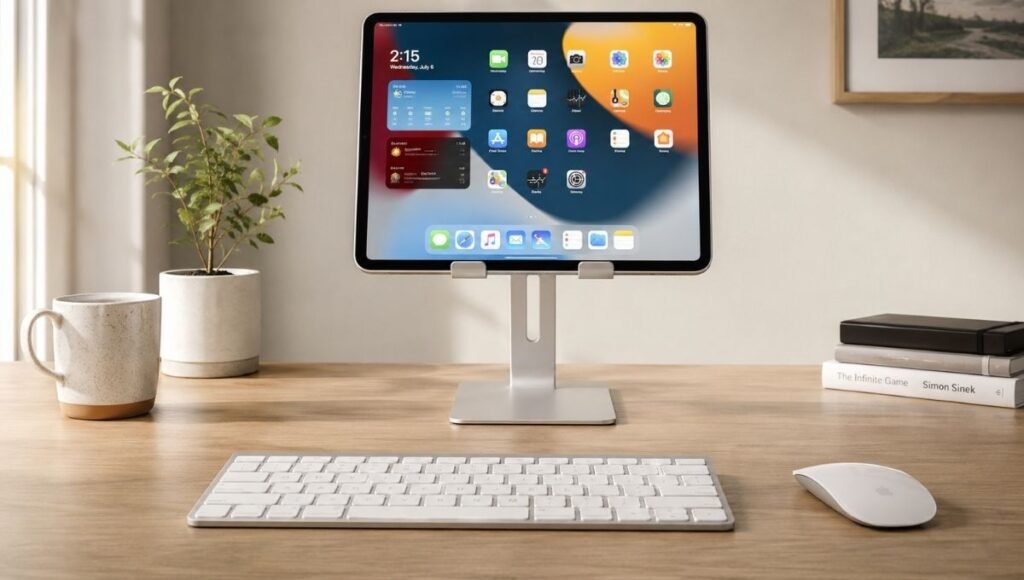
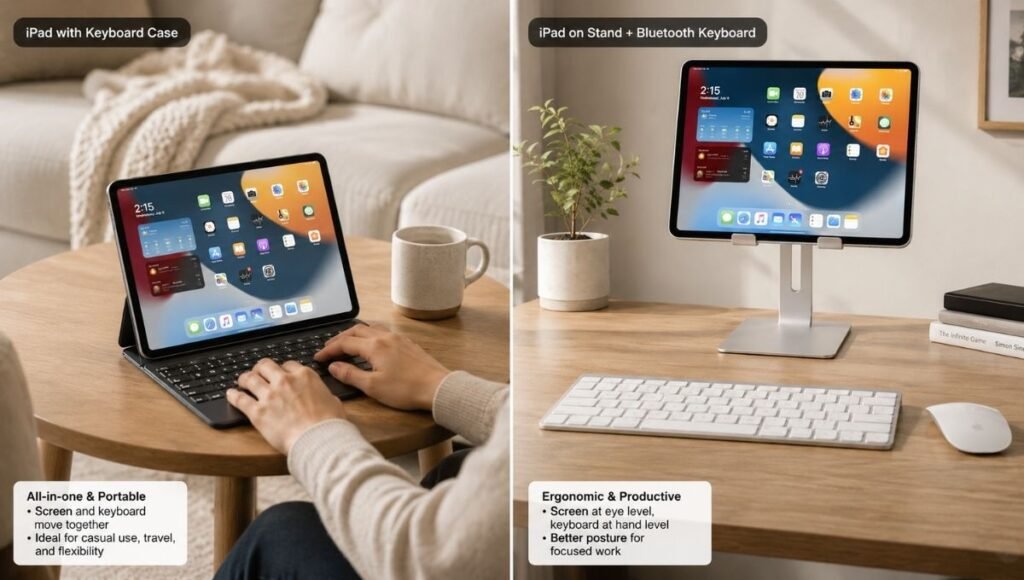
These are different products that serve different needs. A keyboard case integrates with your iPad as a cover, stand, and keyboard in one unit. A standalone Bluetooth keyboard sits on a desk and pairs wirelessly, leaving your iPad on a separate stand. If you’re primarily using your iPad at a desk — which most home office users are — a standalone keyboard is often the smarter choice. If you carry your iPad everywhere and want all-in-one protection and typing capability, a keyboard case makes more sense.
Most iPad keyboard guides skip this choice entirely and go straight to product lists. This one starts here, because it determines everything else.
Key Takeaways
- There are two distinct iPad keyboard categories: keyboard cases (keyboard + cover + stand in one unit) and standalone Bluetooth keyboards (pair wirelessly, use with any stand or surface). Most guides conflate them
- The Apple Magic Keyboard for iPad ($199–$299) is genuinely excellent but genuinely expensive — Logitech’s Combo Touch ($130–$200) offers comparable typing quality with better protection at lower cost
- For desk-based home office iPad use, a standalone Bluetooth keyboard like the Logitech K380 ($40) or MX Keys Mini ($80–100) paired with a tablet stand is often more ergonomic and more flexible than any keyboard case
- iPad keyboard compatibility is model-specific and generation-specific — always verify your exact iPad model before purchasing a keyboard case
- The trackpad question matters: iPad keyboard cases with trackpads enable cursor control that significantly improves productivity; cases without trackpads require constant touchscreen interaction that breaks workflow
Keyboard Case vs Standalone Bluetooth Keyboard: Decide This First
Before looking at any specific product, answer this: where do you primarily use your iPad?
If you use your iPad primarily at a desk in a fixed location:
A standalone Bluetooth keyboard paired with a tablet stand is almost always the better setup. Here’s why:
You can position your iPad screen at eye level on a stand (dramatically better for neck ergonomics) while your keyboard sits at desk level — the same correct positioning that makes laptop stands so valuable. A keyboard case locks the keyboard and screen at the same angle, which means one or the other will be at the wrong height.
You can use the keyboard with multiple devices. Most good standalone Bluetooth keyboards connect to 2–3 devices and switch with a button press. Your iPad, iPhone, and any other device can share one keyboard.
The keyboard quality is usually higher. Standalone keyboards designed for typing quality — like the Logitech MX Keys Mini — have more key travel and better feel than the integrated keyboards in most cases.
If you carry your iPad frequently and want one device for everything:
A keyboard case makes more sense. It protects your iPad, provides a built-in stand, and gives you keyboard capability without carrying an extra item. The best keyboard cases are genuinely good typing experiences.
The Magic Keyboard Question: Is It Worth It?
Let’s address this directly, because it’s what most iPad keyboard searches are actually asking.
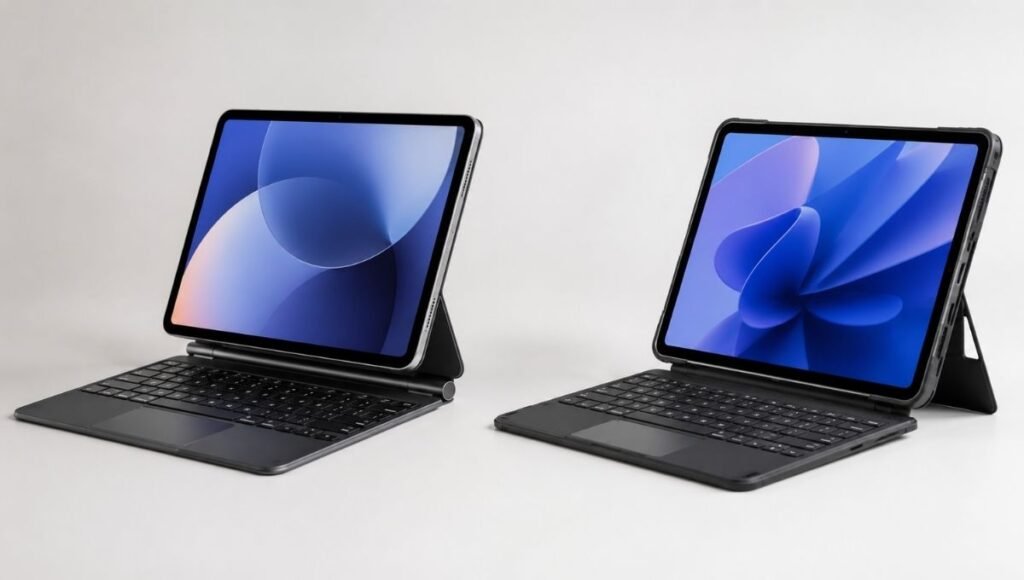
The Apple Magic Keyboard for iPad is the best-integrated keyboard case for iPad Pro and iPad Air. The cantilever design is elegant, the trackpad is excellent, the typing feel is good, and the integration with iPadOS is seamless. Apple’s own keyboard case is the best for iPads; it’s designed well, can hold the iPad at multiple angles, and has a great keyboard and multitouch trackpad.
At $199 (11-inch) to $299 (13-inch), it’s also very expensive. For context, that’s often 20–30% of the iPad’s own cost.
It’s worth it if: You use your iPad Pro or iPad Air as a primary work device, you value the seamless integration and premium feel, and you’ve already committed to the iPad-as-laptop approach.
It’s not worth it if: You’re primarily a desk user (get a standalone keyboard instead), you have an older or base iPad model (Magic Keyboard compatibility is limited), or your budget matters.
The most honest middle ground: Logitech’s Combo Touch boasts a versatile kickstand, excellent keys and trackpad, all without costing as much as Apple’s Magic Keyboard. At $130–$200 depending on iPad model, it’s the most consistently recommended Magic Keyboard alternative — comparable typing quality, better physical protection, lower price.
Best Bluetooth Keyboard for iPad: Recommendations by Use Case
For Home Office Desk Use: Standalone Bluetooth Keyboards
Logitech K380 Multi-Device Bluetooth Keyboard (~$40)
The most recommended budget Bluetooth keyboard for iPad across user communities — and with good reason. It connects to up to three devices via Bluetooth, switches between them with dedicated keys, and has a compact layout that fits most desks. The round keys are a design quirk that some people love and others find jarring, but the typing feel is consistently rated as good for the price.
For home office users who pair it with a tablet stand and use their iPad at a proper desk height, this $40 keyboard provides a genuinely functional productivity setup. Battery life is exceptional — AA batteries that last up to 24 months.
Logitech MX Keys Mini (~$80–100)
A significant step up in typing quality from the K380 while remaining compact. The MX Keys Mini has more key travel, better feedback, and a backlight that activates when your hands approach. It pairs with up to three devices and switches seamlessly. For someone using an iPad as a real work device, this is the keyboard quality level where the experience stops feeling like a compromise.
Apple Magic Keyboard (Standalone, not the case version) (~$99)
Apple’s standalone Magic Keyboard — distinct from the iPad keyboard case — is compact, lightweight, has excellent key feel, and pairs instantly with Apple devices. It doesn’t have multi-device switching or backlighting, but for pure Apple ecosystem users who want a great typing experience with minimal friction, it’s a strong desk keyboard choice.
For All-in-One Portable Use: Keyboard Cases
Logitech Slim Folio (~$70–90, varies by iPad model)
At less than $100, the Logitech Slim Folio is the best keyboard case for those who don’t want to spend too much. There’s no trackpad, but it’s lightweight and portable. The lack of trackpad means you’ll be reaching to touch the screen more often, which breaks workflow on longer typing sessions. Worth it for occasional light use; less ideal for sustained work sessions.
Logitech Combo Touch (~$130–200)
The most consistently recommended non-Apple keyboard case across independent reviews. It includes a trackpad, a versatile kickstand with adjustable viewing angles, and full iPad protection. Of all of the keyboard cases we tested, Logitech’s Combo Touch is the best for getting work done on the go for the iPad Air or 11-inch iPad Pro. It packs an impressive number of features into a relatively slim package.
The trackpad is genuinely useful — iPadOS cursor support has matured significantly, and having a trackpad eliminates the constant arm-reaching to touch the screen that makes touchscreen-only iPad use tiring during long sessions.
Apple Magic Keyboard for iPad (~$199–299)
For iPad Pro M4/M5 and iPad Air M2/M3 users who want the best-integrated experience and are comfortable with the price. The floating cantilever design and excellent trackpad justify the premium for people who use their iPad as a primary work device. Verify compatibility with your specific iPad model before purchasing — Magic Keyboard versions are model-specific.
iPad Air Keyboard: What’s Different
The iPad Air sits between the base iPad and iPad Pro in Apple’s lineup, and its keyboard options reflect that position. The Magic Keyboard for iPad Air ($199 for 11-inch, $229 for 13-inch) is compatible and excellent. The Logitech Combo Touch for iPad Air ($160–180) is the most recommended alternative.
For iPad Air users who primarily work at a desk: the standalone Bluetooth keyboard + stand approach is particularly compelling because iPad Air’s thinner, lighter design makes it easy to prop on a stand without a heavy case.
The Trackpad Question: Do You Need It?
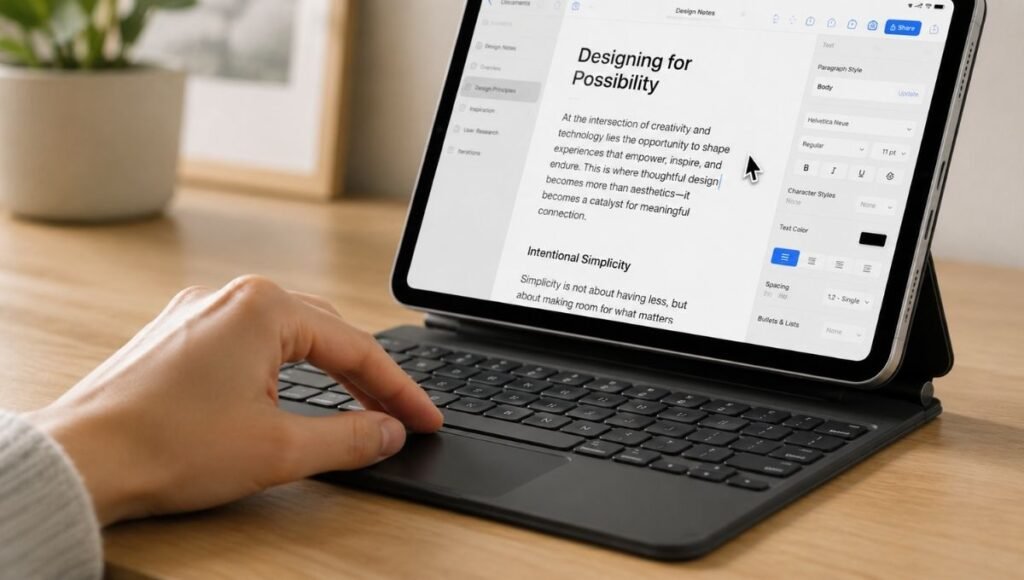
This is the spec that most dramatically affects daily iPad workflow — more than key travel, backlight, or price.
iPadOS cursor support has matured significantly through iPadOS 16–26. A trackpad connected to your iPad gives you a mouse-like cursor that makes text selection, app switching, and menu navigation dramatically faster than touchscreen interaction alone. If you’ve ever used an iPad with a trackpad and then switched back to touch-only, you immediately feel the difference.
For sustained work sessions of 2+ hours: trackpad is worth it. The arm fatigue from constantly reaching to the screen adds up.
For casual use, browsing, and occasional document editing: trackpad is a nice-to-have, not essential.
If you’re choosing between a keyboard case without a trackpad and one with (at a higher price), the trackpad version is almost always worth the premium for work use.
Compatibility: Check Before You Buy
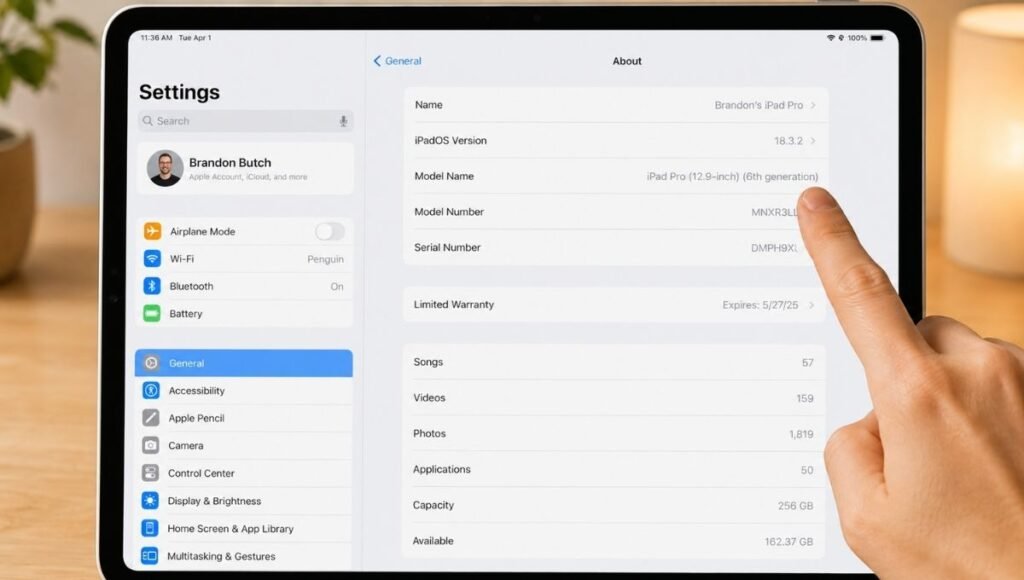
iPad keyboards are not universally compatible. This is the single most common buyer mistake — purchasing a keyboard that doesn’t fit the specific iPad model and generation.
Smart Connector keyboards (Apple Magic Keyboard, some Logitech models): connect via the magnetic connector on the iPad’s back. These are model-specific — a keyboard for iPad Pro M4 does not fit iPad Air M3 or base iPad. Check the exact model compatibility before purchasing.
Bluetooth keyboards (Logitech K380, MX Keys Mini, standalone keyboards): compatible with virtually any iPad regardless of model or generation. No compatibility issues.
iPad generation matters: Apple changed iPad designs with enough frequency that even “iPad Air keyboard” searches need to specify which generation (M1, M2, M3, M4, M5). Always search for your specific model: Settings → General → About → Model Name.
A quick compatibility check: the Apple website’s iPad keyboard comparison tool or Amazon’s compatibility filter for your specific iPad model eliminates this confusion before purchase.
If You Only Have 10 Minutes to Decide
Answer two questions:
Where do you mainly use your iPad? At a desk → get a standalone Bluetooth keyboard (Logitech K380 at $40 for budget, MX Keys Mini at $90 for quality) + a tablet stand. On the go → get a keyboard case.
What’s your budget? Under $100 → Logitech K380 (standalone) or Logitech Slim Folio (case). $100–200 → Logitech Combo Touch (case with trackpad) or MX Keys Mini (standalone). Over $200 → Apple Magic Keyboard if you have a compatible iPad Pro or Air.
That’s the decision. Everything else is detail.
FAQs
What is the best Bluetooth keyboard for iPad? For desk use, the Logitech MX Keys Mini (~$90) offers the best typing quality in a compact Bluetooth keyboard compatible with any iPad. For budget-conscious users, the Logitech K380 (~$40) is the most consistently recommended entry point. For all-in-one cases, the Logitech Combo Touch offers the best balance of features and price among non-Apple options.
Is the Apple Magic Keyboard for iPad worth it? For iPad Pro and iPad Air users who use their iPad as a primary work device and value seamless integration, yes. For desk-primary users or those with budget constraints, a Logitech Combo Touch at $130–200 or a standalone keyboard at $40–90 provides comparable or better ergonomic outcomes at lower cost.
Do I need a keyboard with a trackpad for iPad? For sustained work sessions of 2+ hours, yes. iPadOS cursor support has matured significantly, and a trackpad eliminates the arm fatigue from constant touchscreen interaction. For occasional light use, a trackpad is a nice-to-have rather than essential.
Will any Bluetooth keyboard work with iPad? Yes. Any standard Bluetooth keyboard pairs with iPad via Settings → Bluetooth. Compatibility issues arise only with Smart Connector keyboards (Magic Keyboard, some Logitech models), which are model-specific. Standalone Bluetooth keyboards are universally compatible regardless of iPad model or generation.
What iPad keyboard should I get for iPad Air? The Logitech Combo Touch for iPad Air ($160–180) is the most recommended non-Apple keyboard case — trackpad, versatile stand, full protection. For desk use, any standalone Bluetooth keyboard works. The Apple Magic Keyboard for iPad Air ($199–229) is excellent but expensive; verify your specific iPad Air generation’s compatibility before purchasing.
The Right Keyboard Makes iPad Work Actually Work
An iPad with a good keyboard and trackpad is a genuinely capable productivity device. An iPad with a mediocre keyboard or no trackpad feels like a compromise you keep working around.
Start with the form factor decision — desk use versus portable use — because that determines everything else. Then match the budget to the use case. The most expensive option isn’t always the best fit; the Logitech K380 at $40 paired with a $20 tablet stand outperforms a $100 keyboard case for someone sitting at a desk all day.
Related Articles on CircuitSeek
- iPad vs MacBook for Work: Can the iPad Replace Your Laptop →
- Best Ergonomic Keyboard for Home Office →
- Wireless Keyboard and Mouse Combo for Home Office →
- Adjustable Laptop Stand for Desk →
References
- Apple Inc. iPad Keyboard Compatibility Guide. https://www.apple.com/shop/buy-ipad/accessories/keyboards
- Logitech. Combo Touch for iPad — Product Specifications. https://www.logitech.com/en-us/products/ipad-keyboards/combo-touch.html
- Reviewed.com. 8 Best iPad Keyboards of 2026. https://www.reviewed.com/laptops/best-right-now/best-ipad-keyboard
- Tom’s Guide. Best iPad Keyboards in 2026. https://www.tomsguide.com/best-picks/best-ipad-keyboards