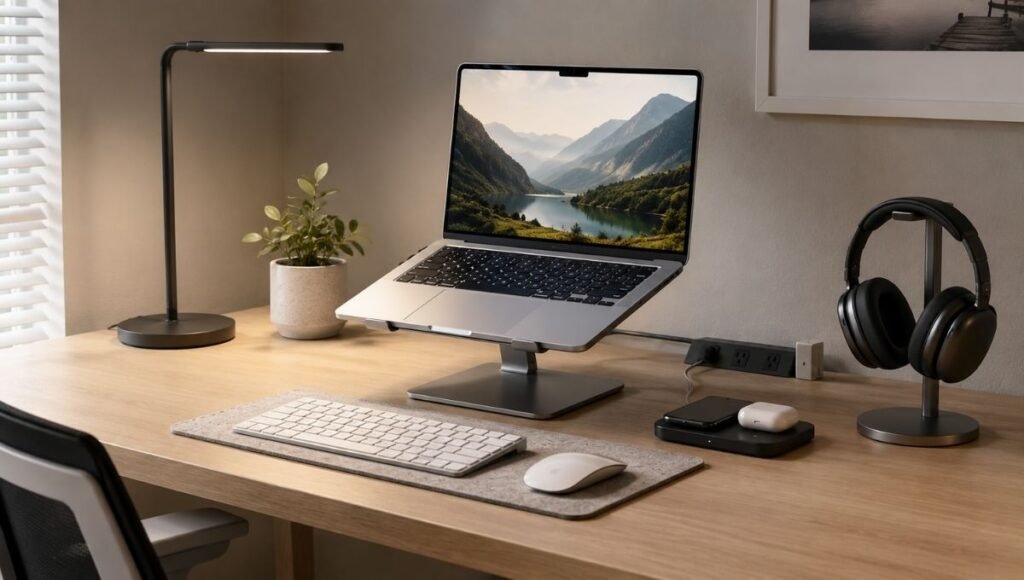
The internet will happily sell you forty home office accessories. Most of them will sit in a drawer.
The problem with most “home office essentials” guides is that they’re essentially curated shopping lists — long, optimistic, and completely disconnected from the reality of how home offices actually develop. Nobody sets up a perfect workspace in one afternoon. Real setups get built piece by piece, driven by specific problems that show up after working in a space for weeks or months.
Your neck starts hurting. You buy a laptop stand. Your eyes are tired by 2 p.m. You adjust your lighting. Your phone dies in the middle of a call. You add a wireless charger. The best home office accessories aren’t the ones on a list — they’re the ones that solve your specific, current problem.
This guide is organized around that reality. Rather than giving you forty things to buy, it gives you a framework: what to prioritize first, what to add as problems emerge, and what’s genuinely optional no matter how many listicles recommend it. Every accessory in this guide has a dedicated in-depth article if you want to go deeper on any specific item.
Key Takeaways
- The highest-impact home office accessories are almost always the cheapest: a laptop stand ($20–40), cable management supplies ($15), and a wrist rest ($20–30) solve daily frustrations for under $80 total
- Most people overbuy in three categories — chairs, monitors, and webcams — and underbuy in two — lighting and surge protection
- A surge protector is non-negotiable for a home office with electronics worth $1,500 or more; a plain power strip provides zero protection against voltage spikes
- Noise-cancelling headphones are the single most-mentioned “changed my work life” accessory among full-time remote workers in shared living situations
- The right order: fix physical comfort first, then audio/video quality for calls, then convenience accessories — in that sequence
How to Think About Home Office Accessories
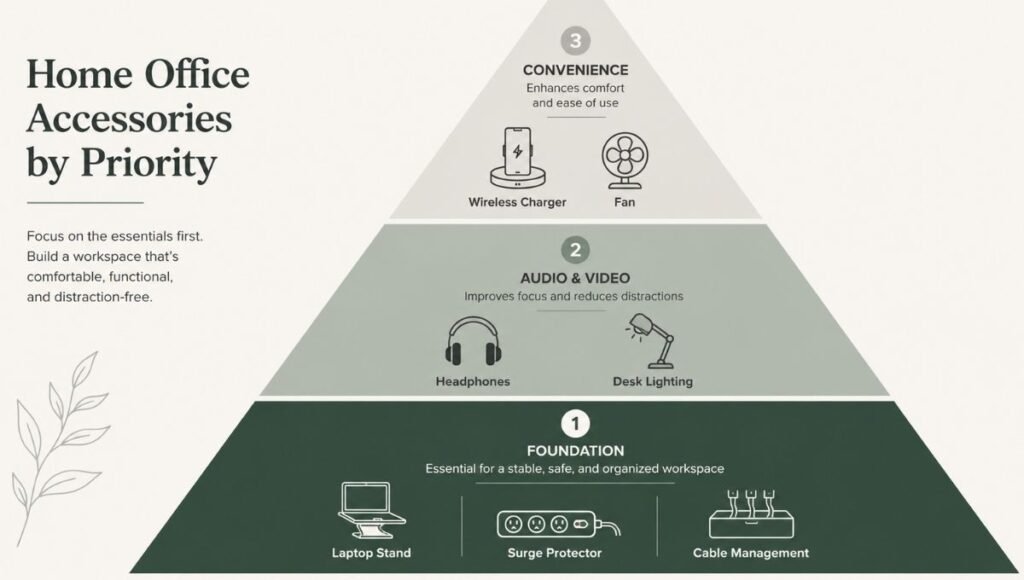
Before the list, a framework that saves money and prevents regret.
Start with what’s hurting you. The best accessory is the one that solves your current biggest friction. If your back aches by afternoon, the laptop stand or monitor position is the problem. If calls feel unprofessional, it’s audio or lighting. If your desk feels chaotic, it’s organization. Start with the friction that affects your daily work most, not with a comprehensive shopping list.
Separate “need now” from “nice to have.” Most accessories in “essential” lists are actually convenience items. A wireless charger is convenient. A laptop stand is ergonomically necessary for anyone using a laptop as their primary computer. These are different categories, and mixing them causes people to spend money on convenience before solving the things that genuinely affect their health and productivity.
Build in stages, not all at once. A $500 accessory haul that you haven’t tested against your actual work patterns is likely to produce waste. The accessories that matter most often cost the least — and the expensive ones (premium chairs, standing desks, multi-device charging stations) justify their cost only after you understand exactly how you work.
Stage 1: The Foundation (Fix These First)
These are the accessories that affect physical comfort and long-term health. They should come before anything else because no amount of convenience accessories compensates for working in a posture that causes pain.
Laptop Stand
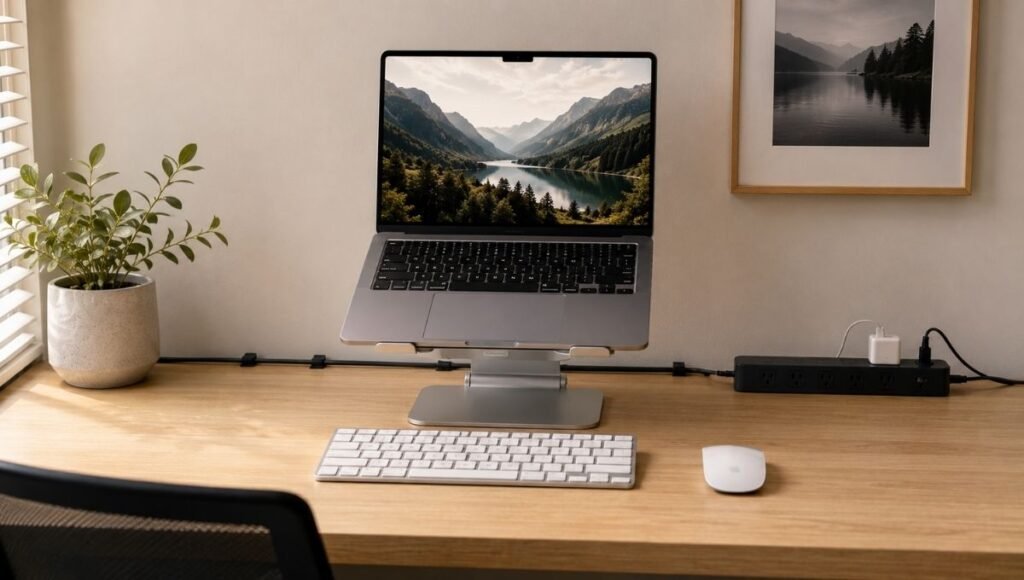
If you use a laptop as your primary work computer and it sits flat on your desk, your screen is 4–6 inches below optimal eye level. Every hour you spend looking down at it, you’re creating forward head posture that accumulates into neck and shoulder tension over weeks and months.
A laptop stand raises your screen to eye level. An adjustable stand lets you dial in the exact height for your body and chair height. Combined with an external keyboard and mouse (so your hands stay at the right level while your screen is elevated), this is the most impactful ergonomic change most laptop users can make for under $60 total.
What to look for: Height adjustability (fixed-height stands may not match your specific setup), non-slip surface grips, ventilation gaps for laptop cooling.
→ Full guide: Adjustable Laptop Stand for Desk: Why You Need One and Which to Get
Surge Protector
Your home office likely contains $1,500–3,000 worth of electronics. A standard power strip — which most people use — provides zero protection when the voltage from your wall spikes. A surge protector absorbs or redirects voltage spikes before they reach your devices.
The visual difference between a power strip and a surge protector is minimal. The functional difference is complete. The way to tell which you have: look for a joule rating on the label. No joule rating means no surge protection.
One additional fact worth knowing: surge protectors wear out. Their internal components degrade after absorbing surges, often while the indicator light continues to show green. A surge protector more than 3–5 years old may provide no protection at all.
What to look for: 1,000–2,000 joule rating, UL 1449 certification, clamping voltage of 400V or below, USB ports for device charging.
→ Full guide: Surge Protector vs Power Strip: What Your Home Office Actually Needs
Cable Management Supplies
Visible cable tangles don’t just look bad — they create a subtle sense of disorder that affects focus. In a small home office space, clutter feels more oppressive than in larger rooms. Cable management is one of the fastest visual improvements available and costs almost nothing.
The basic kit: velcro cable ties ($8 for a pack), adhesive cable clips that run cables along the desk edge ($10), and a power strip mounted under the desk rather than sitting on the floor. Twenty minutes and $20 eliminates most visible cable chaos.
What to look for: Velcro ties over zip ties (reusable and adjustable), cable raceways for longer runs along walls, under-desk cable trays for hiding power strips.
Stage 2: Audio and Video Quality (For Anyone on Regular Calls)
If you’re on video calls more than twice a week, how you sound and look to other people matters. These accessories address that directly.

Noise-Cancelling Headphones
Among full-time remote workers, noise-cancelling headphones are consistently the accessory most described as “changed how I work.” The reasons are both obvious and subtle.
The obvious: in shared living spaces, ANC headphones block distracting ambient noise during focus work and calls. The less obvious: wearing headphones is a universally understood signal to others in the household that you’re working. It creates a behavioral boundary without requiring a conversation.
For home office use, the choice between over-ear headphones and earbuds matters. Over-ear headphones are more comfortable for extended wear (4+ hours) and typically have better microphones. Earbuds are better if you move around frequently during the day.
The microphone matters as much as the noise cancellation: ANC affects what you hear; the microphone affects what your colleagues hear. These are separate features.
What to look for: ANC effective at lower speed settings (for call use), microphone quality for voice calls, comfort for extended wear, battery life for full workdays.
→ Full guide: Best Headphones for Working from Home: Noise Cancelling, Earbuds, or Over-Ear?
Desk Lighting
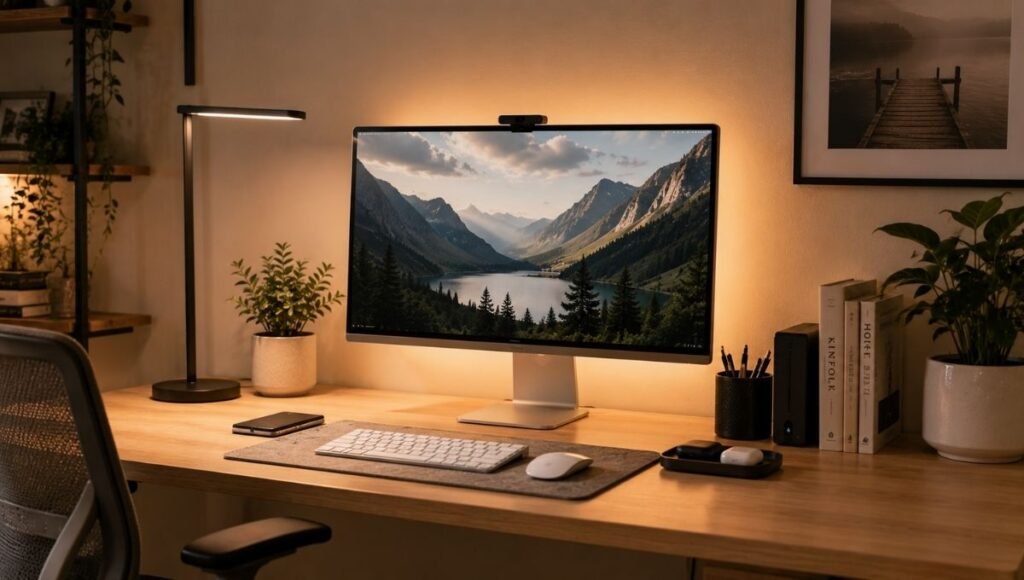
Bad lighting affects you in three ways that most people don’t connect to their setup: it causes eye strain from screen-to-room contrast, it makes you look poorly lit on video calls, and it subtly affects energy and mood throughout the day.
The fix is simpler than it sounds. A desk lamp with a daylight-temperature bulb (5000–6500K) positioned to the side of your monitor — not in front of or behind it — provides focused illumination without glare. For video calls, a small key light or ring light positioned in front of you provides flattering front light that makes a significant difference to how you appear on camera.
A bias light strip on the back of your monitor (a $15–25 LED strip that glows behind the screen) softens the contrast between the bright display and the surrounding wall, reducing the eye fatigue that comes from high-contrast screen viewing.
What to look for: Adjustable color temperature and brightness, stable base or clamp mount, positioning that avoids screen glare.
Stage 3: Comfort and Convenience Accessories
Once the foundation is solid and your calls are handled, these accessories improve the daily experience of working from home.
Wireless Charger
A wireless charger on your desk eliminates the daily friction of cable-charging your phone. You set it down, it charges. No ports, no cables, no checking if the connection is seated.
The wireless charging ecosystem in 2026 has three main standards: MagSafe (iPhone 12+, up to 15W), Qi2 (iPhone and newer Android, up to 15W), and standard Qi (universal, up to 10–15W, no magnetic alignment). The right choice depends primarily on which phone you use.
Placement matters: a wireless charger in your natural phone-down zone — typically 6–12 inches to the right of your keyboard — becomes a habit without thinking about it. In a corner you rarely reach, it gets ignored.
What to look for: Compatibility with your specific phone model, stand (for visibility) vs pad (for minimalism), USB-C charging ports for additional devices.
→ Full guide: Best Wireless Charger for Your Desk: MagSafe, Qi2, or Multi-Device?
Desk Fan
A desk fan is one of the most overlooked home office accessories, particularly in spaces without good airflow. Working in a warm room doesn’t just cause physical discomfort — temperature has a measurable effect on cognitive performance. OSHA guidelines recommend maintaining workspaces between 68–76°F for optimal focus and task performance.
For home office use, noise level is the critical spec. A fan that’s acceptable at 45 decibels in an open office becomes a problem when your microphone is three feet away during a call. For call-compatible desk fans, look for models that operate at 35–40dB or below on their lower settings.
What to look for: Low noise rating on lower speed settings (35–40dB), adjustable angles, compact footprint for desk use, USB-powered options for cable management.
→ Full guide: Best Desk Fan for Home Office: Quiet, Small, and Actually Useful
Blue Light Glasses
This one comes with an honest caveat: the evidence for blue light glasses reducing eye strain is weak. A 2023 Cochrane systematic review of 17 clinical trials found that blue light filtering lenses “probably make no difference” to eye strain or sleep quality during screen use.
The more effective interventions for screen-related eye strain are behavioral: the 20-20-20 rule (every 20 minutes, look 20 feet away for 20 seconds), matching screen brightness to room lighting, and ensuring your monitor is positioned at or slightly below eye level.
Blue light glasses do have one more plausible use case: worn in the 1–2 hours before bed, they may modestly support melatonin production and sleep onset. For daytime eye strain during work hours, the evidence doesn’t support them as a primary solution.
→ Full guide: Do Blue Light Glasses Work? What the Research Actually Says
Adjustable Desk Fan (For Warm Climates or Poor Ventilation)
Already covered above — see the dedicated guide for specific product recommendations.
Stage 4: Optional Upgrades (Worth It for Some, Not Most)
These accessories are genuinely useful for specific situations but aren’t broadly necessary.
Laptop Docking Station or USB-C Hub
If you use a laptop as your primary computer and connect it daily to a monitor, keyboard, mouse, ethernet, and charging — a docking station reduces all of those connections to a single cable. You sit down, plug in one cable, and everything comes to life.
The distinction between a USB-C hub and a Thunderbolt dock matters: a USB-C hub supports one external monitor and standard peripherals; a Thunderbolt dock supports dual 4K monitors, faster data transfer, and higher-wattage laptop charging. The right choice depends on your specific laptop’s ports and your display needs.
Who needs it: Anyone who connects and disconnects multiple cables daily, or who runs dual external monitors from a laptop.
→ Full guide: Thunderbolt Dock for Home Office: Do You Need One and Which to Get
Ergonomic Keyboard
Standard keyboards force your hands into an inward-angled position (ulnar deviation) that accumulates strain over extended daily use. Ergonomic keyboards address this through curved layouts, split designs, or angled configurations that allow a more neutral hand position.
The adaptation period is real — expect 2–4 weeks to rebuild typing fluency on a significantly different layout. But for people who type heavily all day and experience wrist or forearm fatigue, the investment typically pays off within months.
Who needs it: People who type 4+ hours daily and experience wrist, forearm, or hand discomfort.
→ Full guide: Best Ergonomic Keyboard for Home Office: How to Choose the Right Type
Vertical Mouse
A vertical mouse rotates the grip approximately 90 degrees into a handshake position, reducing forearm pronation during mouse use. Research shows this reduces muscle activation in the forearm and wrist during sustained mouse use — addressing one of the primary biomechanical contributors to repetitive strain.
The evidence is real but nuanced: vertical mice reduce forearm pronation but can cause compensatory wrist extension that partially offsets the benefit. They work best as part of a broader ergonomic approach, not as a standalone fix.
Who needs it: People with existing forearm or wrist discomfort from mouse use, or those who use a mouse extensively (4+ hours daily).
→ Full guide: Vertical Mouse: Does It Actually Work? What Research and Users Say
The Accessories That Are Genuinely Optional
A few categories that appear on most “home office essentials” lists but are truly optional for most people:
Desk organizer/tray: Useful only after you’ve done the harder work of deciding where everything lives. Buying an organizer before organizing is just rearranging the clutter into a more expensive container.
Monitor arm: Useful if your monitor doesn’t adjust to the right height, or if you want to reclaim desk surface space. Not necessary if your monitor already sits at the right eye level.
Footrest: Necessary only if your chair height, when adjusted so your arms are at the right level, leaves your feet dangling. For most people, chair adjustment solves this without a separate accessory.
Ring light: Useful for frequent video calls in poor natural lighting environments. Not necessary if your workspace has good natural light or a desk lamp positioned correctly.
Building Your Setup: A Practical Sequence
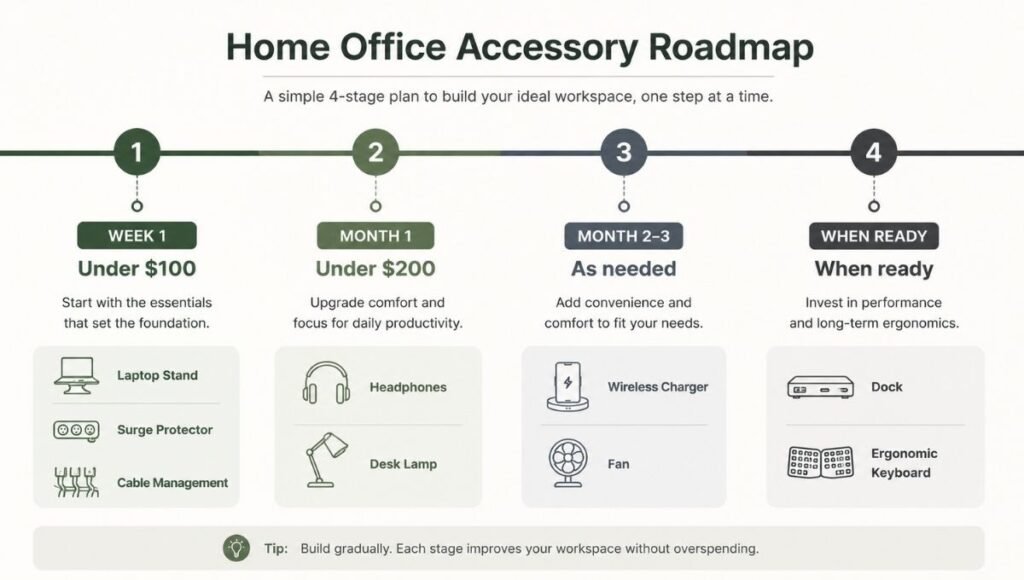
Week 1 (under $100):
- Laptop stand if you use a laptop (~$25–40)
- Replace any plain power strip with a surge protector (~$25–35)
- Cable management: velcro ties and clips (~$15–20)
Month 1 (under $200 additional):
- Noise-cancelling headphones if you’re on calls or in a shared space (~$50–150 depending on tier)
- Desk lamp with adjustable temperature if your workspace is poorly lit (~$30–60)
Month 2–3 (as needed):
- Wireless charger if phone charging is a daily friction (~$25–50)
- Desk fan if warmth is affecting your comfort or focus (~$20–40)
- Ergonomic keyboard or vertical mouse if wrist/arm discomfort is present
When you’re ready to invest:
- Thunderbolt dock if you’re managing multiple cable connections daily (~$150–350)
- Premium headphones if audio quality for calls matters significantly (~$150–350)
The Complete Home Office Accessories Checklist
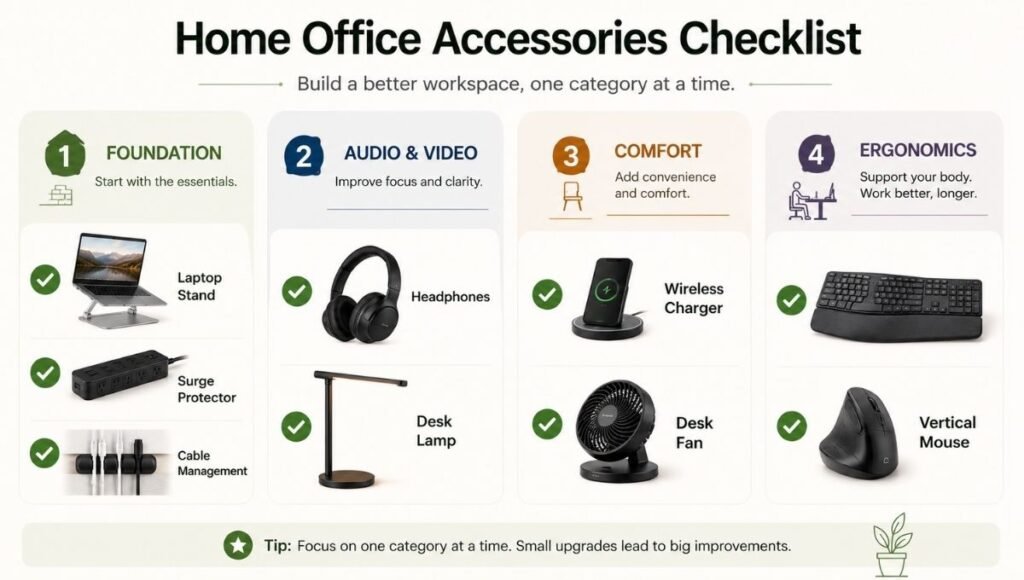
Use this to track what you have, what you need, and what can wait.
Foundation (prioritize first)
- Laptop stand (if using laptop as primary display)
- Surge protector with 1,000+ joules and UL 1449 certification
- Cable management: velcro ties, desk clips, under-desk routing
Audio and Video
- Noise-cancelling headphones (over-ear for desk use, earbuds for mobility)
- Desk lighting: side lamp + optional bias light behind monitor
- Key light or ring light (for frequent video calls in poor lighting)
Comfort and Convenience
- Wireless charger positioned in natural phone-down zone
- Desk fan (quiet model for call environments)
Ergonomic Upgrades
- Ergonomic keyboard (for heavy typists with wrist discomfort)
- Vertical mouse (for heavy mouse users with forearm fatigue)
- Wrist rest for keyboard and mouse
Connectivity
- USB-C hub or Thunderbolt dock (for laptop users with multiple connections)
FAQs
What are the most important home office accessories? For most remote workers: a laptop stand (if using a laptop as primary display), a surge protector, and cable management supplies address the biggest daily frictions for under $80 total. After that, noise-cancelling headphones for anyone in a shared space or on frequent calls.
What home office accessories are actually worth buying? Worth buying for most people: laptop stand, surge protector, noise-cancelling headphones, desk lighting, wireless charger. Worth buying for specific situations: Thunderbolt dock (heavy cable users), ergonomic keyboard (wrist discomfort), vertical mouse (forearm fatigue). Genuinely optional for most: ring lights, desk organizers, blue light glasses.
How much should I spend on home office accessories? A functional foundation — laptop stand, surge protector, cable management — costs $60–90. Adding noise-cancelling headphones brings that to $120–240 depending on tier. A complete setup including ergonomic input devices and a dock runs $400–700. You don’t need to spend that at once; build in the sequence described above.
What work from home essentials do I actually need? The genuine essentials: a surge protector for equipment protection, a laptop stand if your screen is too low, and headphones for calls. Everything else improves the experience but isn’t essential for functioning effectively.
Are home office accessories tax deductible? In many countries, home office equipment used exclusively for work may be tax deductible. Consult a tax professional for advice specific to your situation and jurisdiction — rules vary significantly by country and employment type.
Build It Over Time, Not All at Once
The best home office setups aren’t bought in a single weekend. They evolve in response to real problems — the neck pain that shows up after a month of laptop use, the call quality issue that becomes apparent when you’re on your third meeting of the day, the afternoon heat that starts affecting how well you think.
Start with what’s causing you friction right now. Solve that. Then move to the next thing. The accessories that make the biggest difference are often the ones you least expected — and they’re frequently not the most expensive ones on the list.
Everything Covered in This Guide
- Adjustable Laptop Stand for Desk: Why You Need One and Which to Get →
- Surge Protector vs Power Strip: What Your Home Office Actually Needs →
- Best Headphones for Working from Home: Noise Cancelling, Earbuds, or Over-Ear? →
- Do Blue Light Glasses Work? What the Research Actually Says →
- Best Wireless Charger for Your Desk: MagSafe, Qi2, or Multi-Device? →
- Best Desk Fan for Home Office: Quiet, Small, and Actually Useful →
- Thunderbolt Dock for Home Office: Do You Need One and Which to Get →
- Best Ergonomic Keyboard for Home Office →
- Vertical Mouse: Does It Actually Work? →
References
- Occupational Safety and Health Administration (OSHA). OSHA Technical Manual — Temperature and Thermal Comfort. https://www.osha.gov/otm/section-3-health-hazards/chapter-2
- Lawrenson, J.G., et al. (2023). Blue light filtering spectacle lenses for visual performance, sleep, and macular health in adults. Cochrane Database of Systematic Reviews. https://www.cochrane.org/about-us/news/blue-light-filtering-spectacles-probably-make-no-difference-eye-strain-eye-health-or-sleep
- University of Tennessee Environmental Health and Safety. Surge Suppressors & Power Strips Safety Guide. https://ehs.utk.edu/wp-content/uploads/2025/08/SurgeSuppressors_2024.pdf
- Cornell University Ergonomics Research Laboratory. Laptop Computer Ergonomics. https://ergo.human.cornell.edu/